
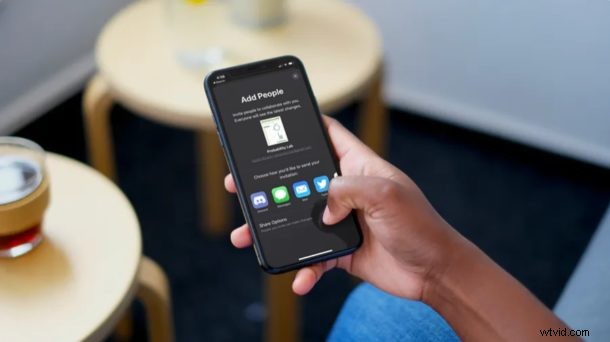
Ever wanted to share a file from iCloud from your iPhone or iPad? Maybe you want to collaborate with other people on your iCloud files, folders, and other documents? With iCloud Drive, it’s fairly simple to share files and to invite others to view or edit your files right on your iPhone or iPad.
With iCloud file sharing, you’re not sending the file itself, but rather sending them a link to access the file. This allows users to make any changes to the file or folder, as long as they have the permissions. The ability to share files using iCloud for collaboration has been available for a while, but with after the iOS 13.4 update, you can now share folders too in a similar way, finally catching up to competing services like Dropbox, Google Drive, etc.
Interested in trying this feature out on your iOS device? Read on to learn how you can use iCloud file sharing on both the iPhone and iPad.
How to Use iCloud File Sharing on iPhone & iPad
Sharing iCloud files, folders and other documents can be easily done using the Files app that comes pre-installed on all iOS devices. However, you’ll need an iPhone or iPad that’s running at least iOS 12. For sharing folders, your device needs to be running iOS 13.4 / iPadOS 13.4 or later. Simply follow the steps below to invite people for real-time collaboration.
- Open the Files app from the home screen of your iPhone or iPad.

- Head over to the “iCloud Drive” location within the Files app.
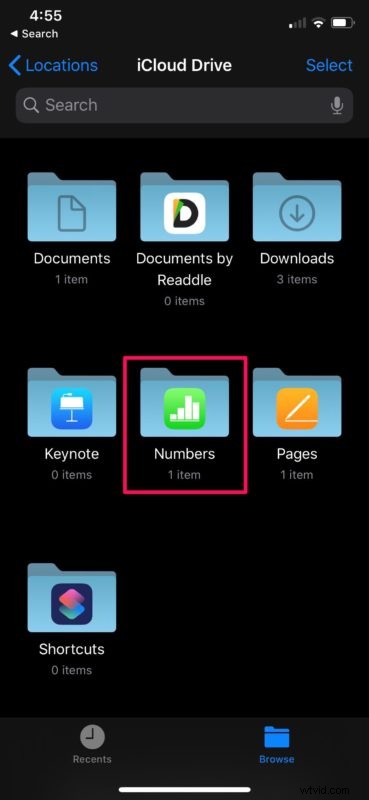
- Here, tap on any of the folders to view the files and other sub-folders stored on your iCloud Drive.
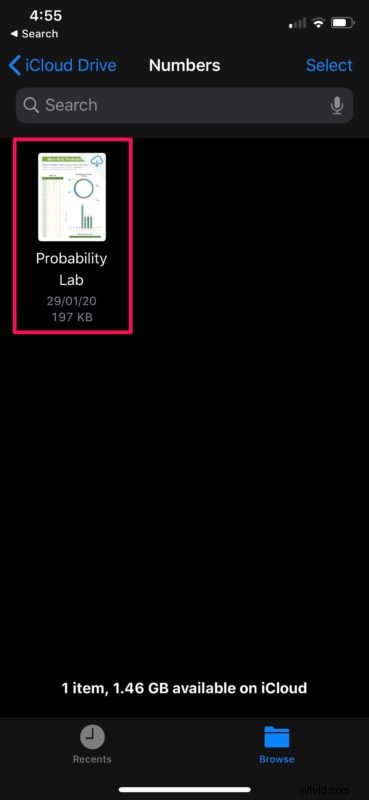
- Now, long-press on the file that you want to share with other users. This works on sub-folders as well.
- Simply tap on “Share” as shown in the screenshot below.
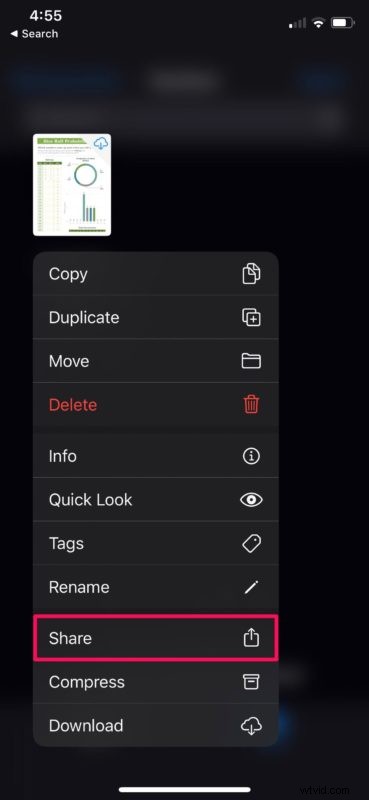
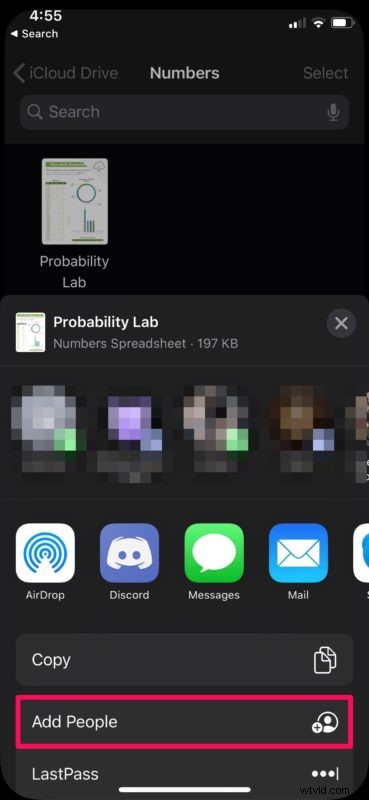
- This will open the iOS share sheet on your device. You’ll have a bunch of different options to share files. Tap on “Add People” located right below Copy in the share sheet.
- Now, you’ll see a list of apps that you frequently use, which can be used for sharing the invitation link. Furthermore, you can control the file/folder permissions for the people you’re sharing it with. In order to do this, simply select “Share Options”.
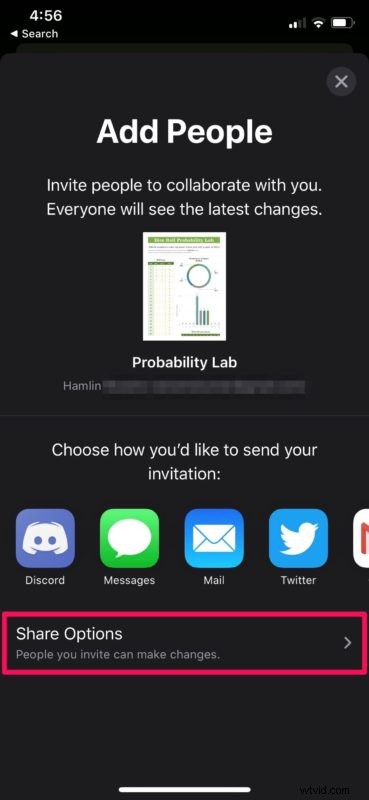
- Here, you can choose between edit or view only permissions for the person you’re trying to share the file with.

That’s it, you’ve now learned how to share iCloud files on both the iPhone and iPad.
Until recently, iOS and iPadOS users who wanted to share their folders with others for real-time collaboration had to resort to competing services like Dropbox or Google Drive. This has been one of the most requested features for a while, but thanks to recent iOS and ipadOS updates, you can use your iCloud Drive storage for collaborating on presentations, group projects and more.
A shared file, folder or document can be viewed and edited by up to 100 people at the same time on iCloud. The permissions to view or edit a document can be changed at any time by the file owner by following the same procedure and the changes will be reflected immediately on the recipient’s side. And just in case you weren’t totally certain, you can learn how to access and edit iCloud files on iPhone and iPad here.
Apple’s implementation of real-time collaboration isn’t perfect though, as it’s inconvenient to go through the version history of edited documents unlike Google Drive or Dropbox.
It’s also worth noting that if you move the location of a particular file or folder within iCloud, the shared links will no longer work and the recipients will lose access to the files.
Of course this is for the iPhone and iPad, but Mac users can also use iCloud Drive file sharing as discussed here.
Did you learn how to use iCloud file sharing on your iPhone or iPad? What other services did you use for real-time collaboration before Apple implemented this feature within iCloud? And of course if you want to browse more iCloud Drive tips here then check them out. As always, let us know your experiences and thoughts in the comments too.