
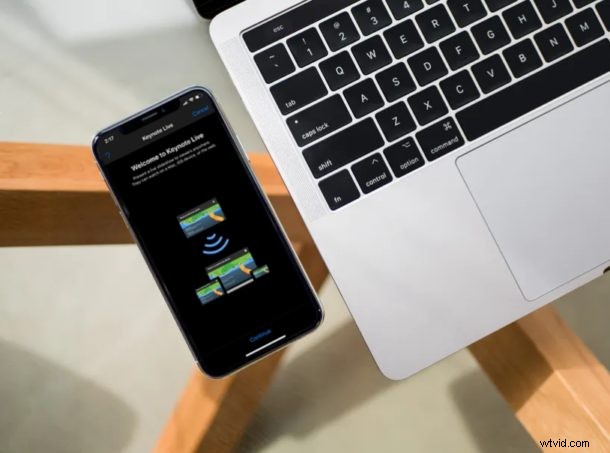
Want to share your Keynote presentations with others easily? Thanks to Apple’s Keynote app and Keynote Live feature, sharing presentations with colleagues, friends, coworkers, or family is simple.
Keynote Live is a useful feature hidden within the Keynote presentation app, which allows you to invite up to 100 people for streaming your presentation no matter where they are. Anyone with an invite link can join your presentation online by either using the Keynote app that’s available on iPhone, iPad and Mac, or using the iCloud web client on any browser. With everyone working remotely to stay safe during this global pandemic, getting people together in the same room for a presentation is an extremely difficult task. This is exactly where Keynote Live comes in handy.
So, if you’re keen on live streaming your presentations to multiple participants for work-related purposes, read on and you’ll be learning how to use Keynote Live on both the iPhone and iPad.
How to Use Keynote Live from iPhone & iPad to Share Presentations
To take advantage of Keynote Live, you need to install the latest version of Apple’s Keynote app on your iPhone and iPad. You can either create a presentation within Keynote of if you use Microsoft PowerPoint, you can easily import your .ppt files into Keynote. Now, simply follow the steps below to stream the slideshow.
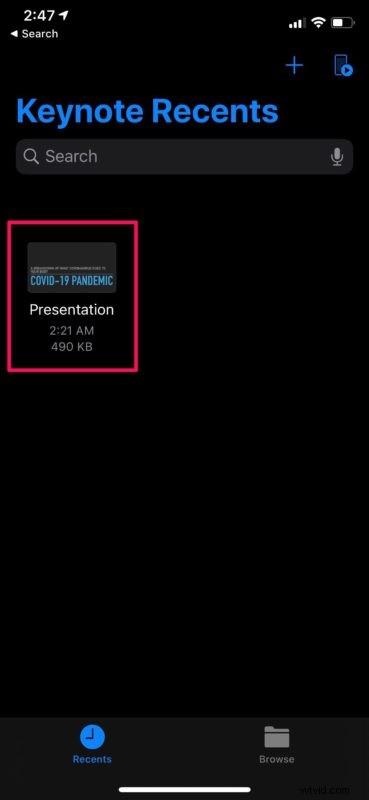
- Open the Keynote app on your iPhone or iPad.

- Here, select the presentation you want to play over the internet. This will open your presentation file.
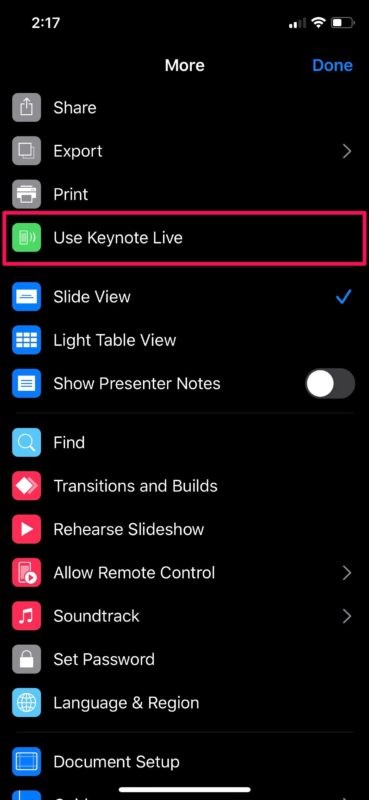
- Now, tap on the “more” option located at the top-right corner of the menu, as shown in the screenshot below.

- Here, tap on “Use Keynote Live” located right below the Print option.
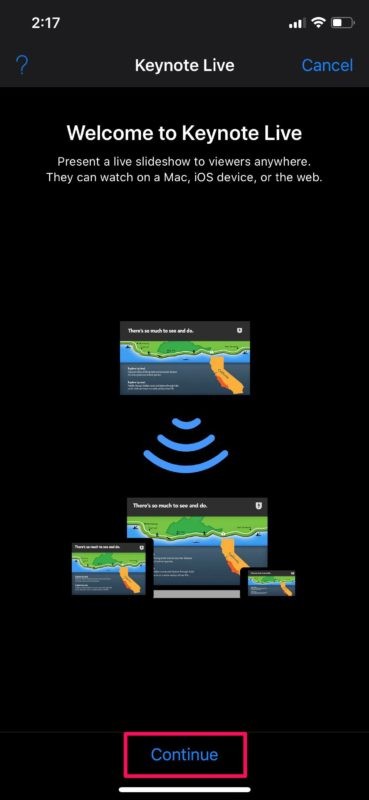
- You’ll now be shown a brief introduction to Keynote Live. Tap on “Continue” to proceed to the next step.
- In the Keynote Live menu, simply tap on “Invite Viewers” to open the iOS share sheet and invite your contacts from there. Alternatively, you can also tap on “More Options” to have further control over who views your presentation.

- Here, you’ll notice a link to your presentation which can be copied and pasted anywhere. Additionally, if you want to further secure your presentation, you have the option to add a password which will be required for participating.

- Now, go back to the Keynote Live menu and tap on “Play Now” when you’re ready to stream the slideshow.

There you go. Now you know how to play your presentations over the web using Keynote Live.
It’s worth noting that anyone with the link to your presentation cannot view the slides until you start the slideshow from your iPhone or iPad. They will be welcomed with a “The presenter hasn’t started the slideshow” message on their screen.
Users can invite up to 100 viewers located anywhere in the world or up to 35 people who’re on the same local network to watch the presentation. Viewers don’t necessarily need to own an iPhone, iPad or Mac to view the slideshow, as they will be redirected to the web version on their devices. Therefore, device support isn’t an issue at all. Users don’t even need to sign up for iCloud accounts in order to watch the presentations either.
Keynote Live, as we mentioned before is a great way to do presentations with your colleagues, right from the comfort of your bedroom as you’re working from home during this lengthy lockdown period. If you’re accustomed to using Microsoft PowerPoint for creating presentations, you can finish working on PowerPoint and then import the file into Keynote, right before live streaming the slides.
We hope you were successful in streaming your first presentation with others using Keynote Live on your iPhone and iPad. How was the overall experience? Do let us know your thoughts and opinions in the comments section down below, and don’t miss out on more Keynote tips and tricks here.