
Do you want to keep a copy of all the reminders in a list as a PDF file? Perhaps, you want to share a soft copy of your shopping list with your roommate who doesn’t use an Apple device? Thanks to a recent addition, you can finally save reminders lists as PDF files easily from iPhone or iPad.
Modern versions of iOS and iPadOS allow users to print and save their reminders as PDF files from their iPhones and iPads. This can be useful in a couple of different scenarios. For instance, by saving your reminders as PDF files, you can now share your reminders lists with other users, even if they don’t have an Apple account, unlike the sharing feature that’s already available in the Reminders app. This allows you to have a backup of your reminders on other non-Apple devices as well.
How to Save Reminders Lists as PDF from iPhone & iPad
Before you go ahead with the following procedure, make sure your device is running iOS 14.5/iPadOS 14.5 or later, since this feature isn’t available on older versions. Here’s what you need to do once you’ve met the requirements:
- Launch the built-in Reminders app from the home screen of your iPhone or iPad.
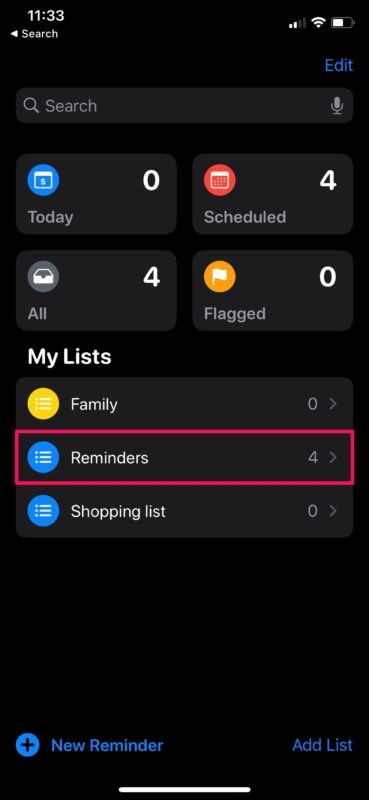
- Upon opening the app, you’ll be able to view all the different reminders lists that are stored on your device under the My Lists section. Select the list that you want to save as a PDF file.
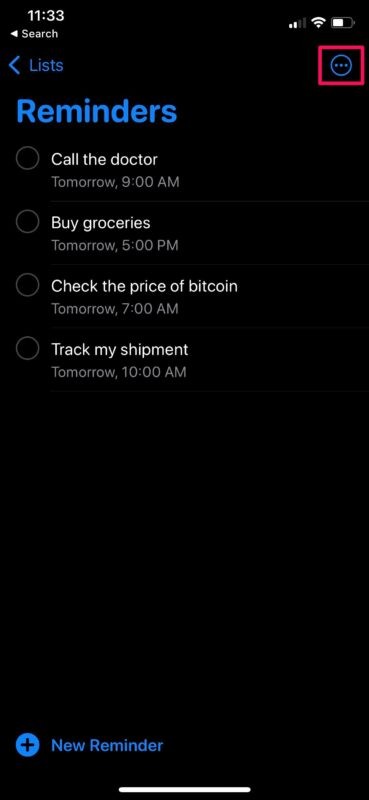
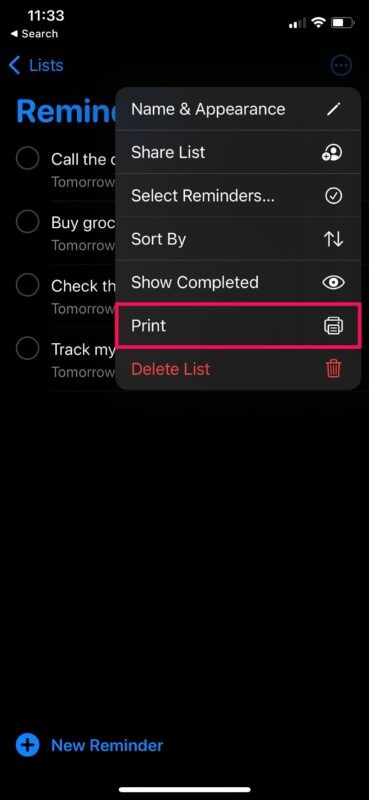
- Now, tap on the triple-dot icon which is located at the top-right corner of the menu.
- Next, select the “Print” option from the context menu that pops up to proceed. No, we’re not going to print it out. Don’t worry.
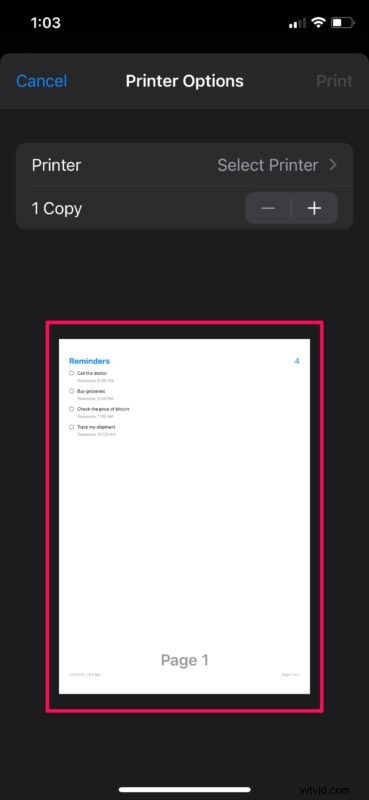
- In the Print Options screen, you’ll see the preview of the page. Long-press on this preview to enlarge it.
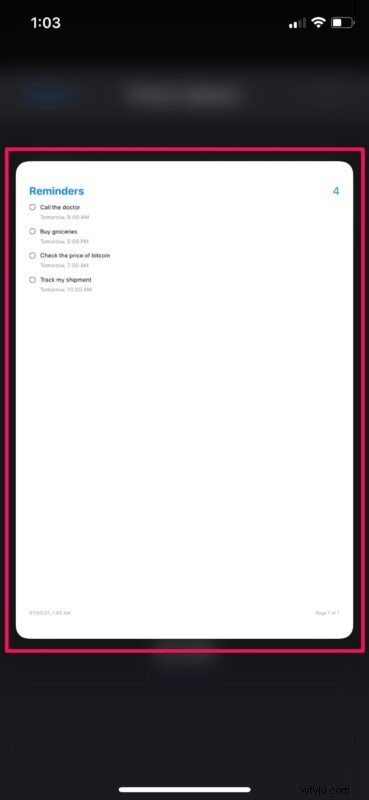
- Now, simply tap on the enlarged preview to continue.
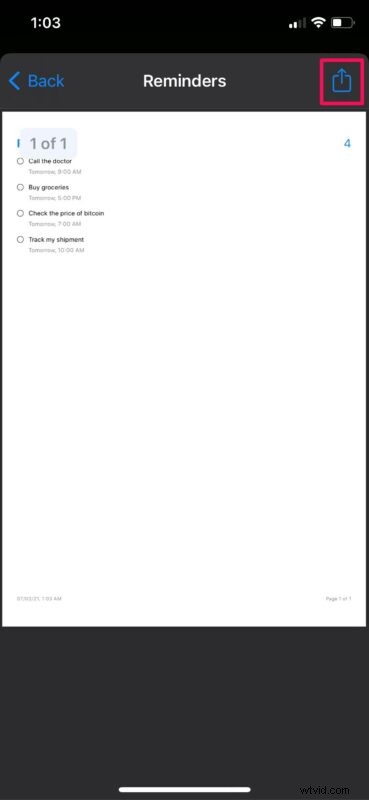
- This will give you access to the hidden share option. Tap on the share icon at the top-right to bring up the iOS share sheet.
- Now, scroll down to the very bottom of the share sheet and tap on “Save to Files”.
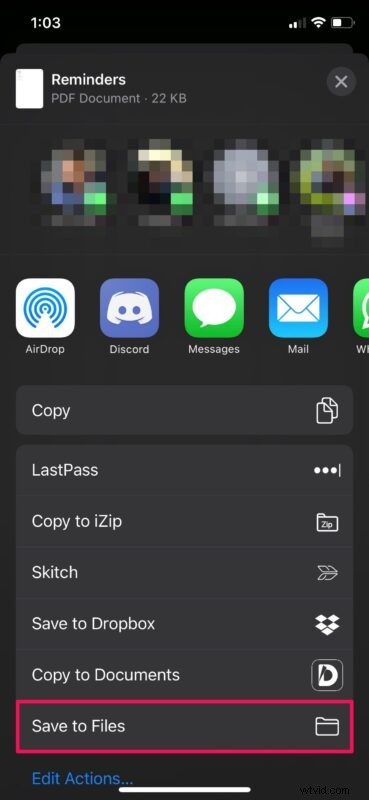
- This will bring up the file manager on your device. Simply select the folder/directory where you want to store the PDF file and tap on “Save”.
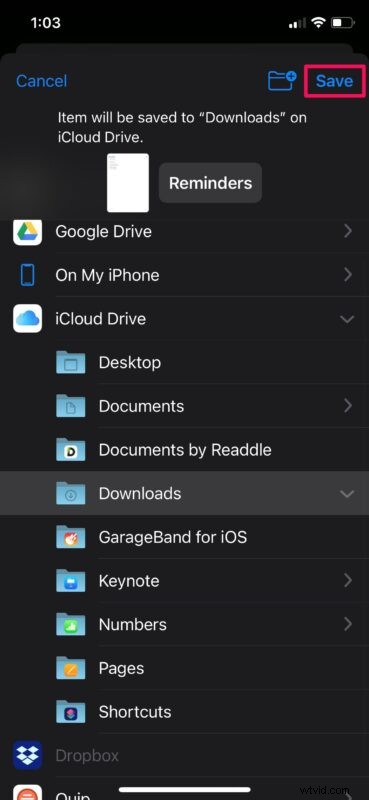
That’s it. You’ve successfully saved your reminders list as a PDF file.
As you can see, it’s really not that hard, but we’re not quite sure why the share option is hidden and buried in the Print Options menu, since a lot of users wouldn’t even find it.
Keeping your reminders as a PDF file has its advantages. First of all, you can send it to literally anyone and they’d be able to open the file on their devices whether they use an Apple device or have an iCloud account. Secondly, if you don’t have a printer that supports AirPlay, you won’t be able to use the new Print feature. But, you can send this PDF file to your computer and then print it out as a hard copy, or use your manufacturer’s app to print the PDF.
Having said that, if you do in fact have an AirPlay-enabled printer, you can check out how to print reminders lists from your iPhone and iPad with ease. Apart from these two new features, the Reminder app also has a sorting feature with, where you can sort reminders lists manually, or by date, priority, and title.
We hope you were able to create a PDF file of all the important reminders that are stored on your iPhone and iPad. Do you find this better for sharing your reminders lists with other people? Feel free to share your experiences and make sure to leave your valuable feedback in the comments section down below.