
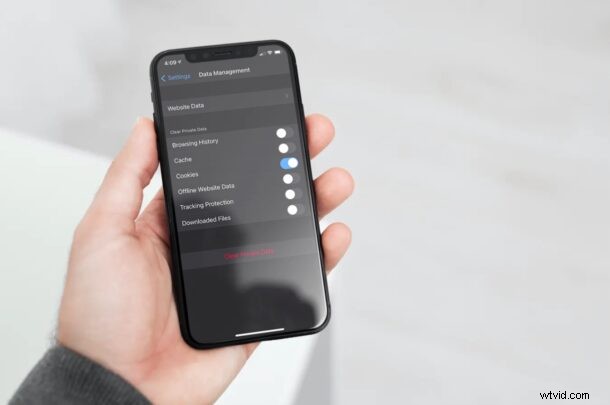
If you use Firefox or Opera web browsers on iPhone or iPad, perhaps even as your default browser, you may eventually want to clear the cookies. Fortunately, the procedure is pretty simple for both Firefox and Opera browsers in iOS and iPadOS.
If you’re not sure what browser cookies are, they’re basically just bits of information that includes your saved login information, website preferences, and other data to improve your browsing experience. Cookies are website-specific and you’ll have to accept cookies for sites individually. Typically, when you clear your browser history, cookies are removed as well, but sometimes you may want to remove cookies without affecting your history. Here, we’ll be focusing on just that, but for the Firefox and Opera mobile browsers specifically, for iPhone and iPad. If you’re wanting to do the same with Safari, go here instead.
How to Clear Cookies in Firefox on iPhone & iPad
The good news is that both Firefox and Opera gives you the option to clear cookies within the app itself, so you don’t need to fiddle around much. If you use Firefox on other devices, make sure you’re signed in before you go ahead. Now, without further ado, let’s get started.
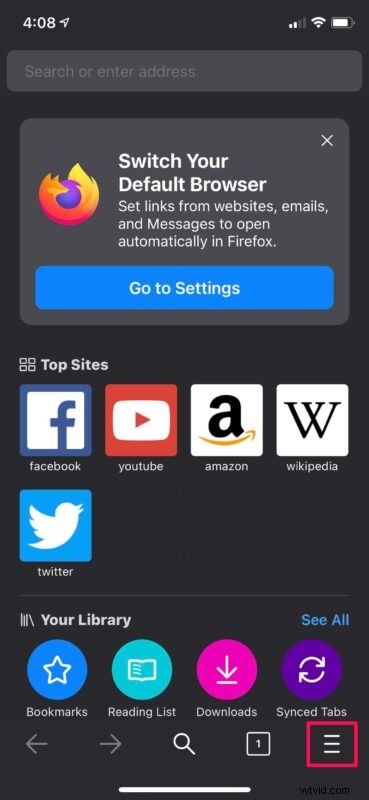
- Launch the Firefox app on your device and tap on the triple-line icon at the bottom to access more options.
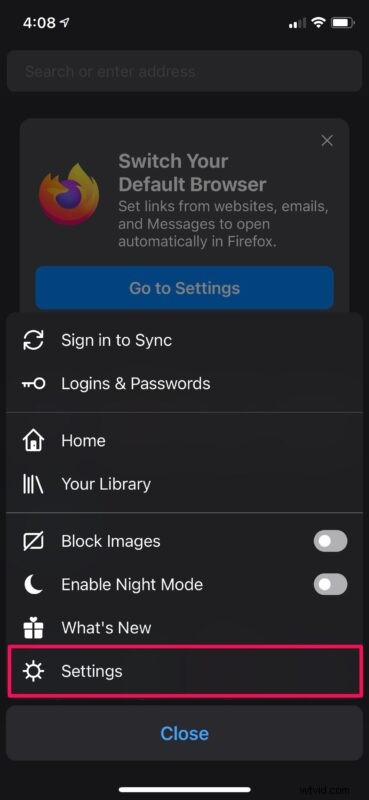
- Next, head over to “Settings” from the pop-up menu to proceed.
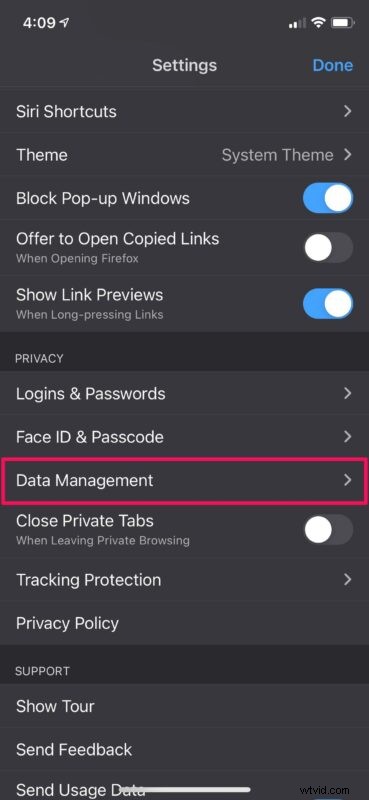
- In the settings menu, scroll down and tap on “Data Management” to access all the data that’s stored by Firefox.
- Now, make sure “Cookies” is selected and uncheck everything else and tap on “Clear Private Data”.
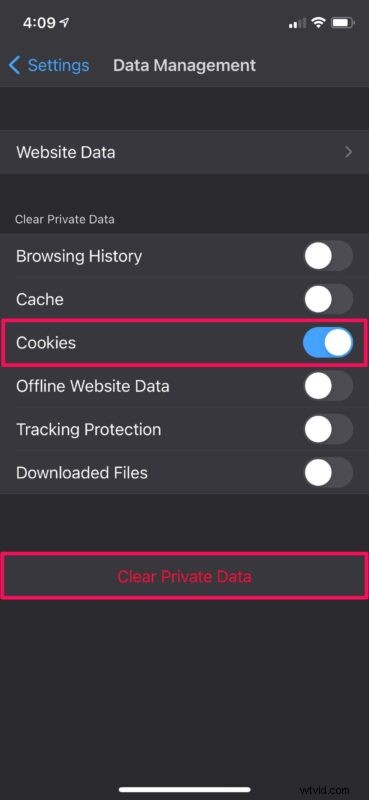
That’s it. You’ve successfully removed cookies on Firefox. If you want to remove cookies on a per-website basis, you can head over to the Website Data section instead.
If you happen to use Firefox Focus, well, there are no cookies to clear, because Firefox Focus does not keep any cookies, or browsing history, it’s kind of like running in Incognito Mode all the time.
How to Clear Cookies in Opera on iPhone & iPad
Let’s take a look at what you need to do to clear cookies on Opera now that we’re done with Firefox. The steps are actually pretty similar.
- Launch Opera Touch on your device, tap on the Opera logo at the bottom menu and select “Settings”.
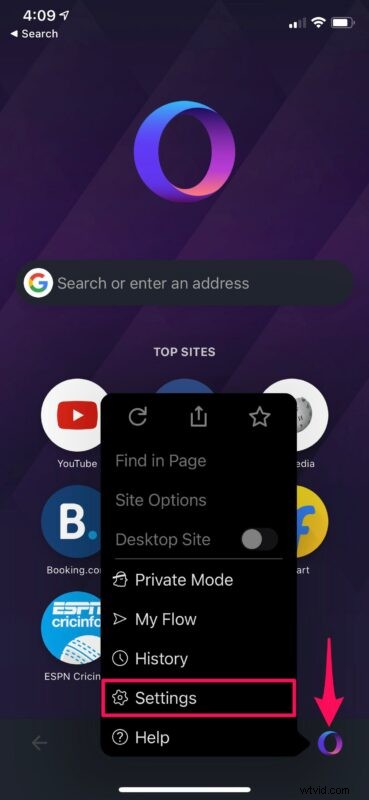
- This will take you to the browser settings menu. Here, tap on “Clear Browser Data”.

- Now, simply make sure “Cookies and Site Data” is selected and tap on “Clear” to remove the cookies.

There you go. All the cookies stored by Opera have been cleared and reset.
Clearing cookies may help if some websites aren’t functioning as intended on your iPhone and iPad, but it may impact your browsing experience temporarily until new cookies are created. You’ll notice that you’ve been signed out of most websites. This is because all the saved login information and website preferences have been removed by clearing cookies.
Likewise, if you use Google Chrome which is the most popular third-party browser for iOS, you may want to check out the detailed procedure for clearing cookies in Chrome for iPhone and iPad that we covered. Firefox gives you the option to remove cookies for a specific website that you don’t regularly use. However, that option is missing on both Chrome and Opera as of this writing.
If you’re like the vast majority of people who use Safari rather than relying on a third-party web browser, you’ll be interested in learning how to clear only cookies from Safari on your iPhone or iPad. Although Safari’s in-app option only allows you to clear both cookies and history together, there’s a hidden option in iOS settings that lets you remove cookies without affecting the browsing history.
We hope you were able to finally learn how to specifically clear website cookies on the browser you use to surf the internet. How much storage space did you free up by removing cookies? Do share your valuable thoughts on this procedure and share your personal experiences in the comments section down below.