
Have you ever wondered how you can save pictures from webpages in Safari to your iPhone or iPad so they show up in the Photos app? It’s very easy, but that’s no consolation if you’re unfamiliar with how it works. Fortunately within a moment or two, you’ll have this method down, and you’ll be able to save any picture from the web to your device in no time.
Saving images from Safari to the iPhone or iPad is super easy, but like many features in the world of iPhone and iPad, it’s hidden behind gestures and actions that may be unfamiliar to you if you’re new to the platform, or just unfamiliar with the broad range of features iPhone offers through gestures like long-presses and holding taps. And as you may have guessed, that’s how saving images from Safari works in iOS and iPadOS.
How to Save Photos from Safari to iPhone or iPad
- Open Safari on the iPhone or iPad if you have not done so already
- Go to the webpage or website where the pictures you want to save are found (you can practice on this webpage by using the photos in this article)
- Find the picture or image you want to save, then tap and hold on that image
- Keep holding until a contextual menu appears, where you can tap on “Save to Photos” to save the image from Safari to your iPhone or iPad

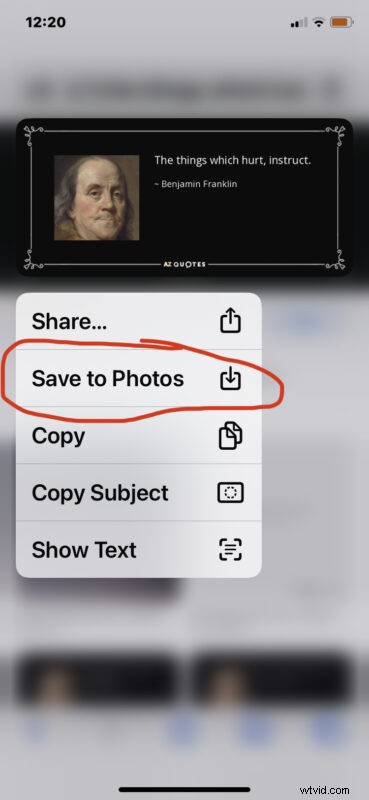
Now you can open your Photos app to the Camera Roll, and you’ll find your recently saved image from Safari stored there.
You can save just about any photo from the web to the iPhone by using the tap-and-hold trick, and then choosing to “Save to Photos”.
And by the way, we’re focusing on Safari here, but the same tap-and-hold trick works to save images from Chrome and most other web browsers you’ll find on the iPhone or ipad too.
Another method that works more broadly beyond Safari and with other apps is to simply take a screenshot and then crop it down to the image you want to save, but that’s really not saving the picture, it’s taking a picture of the picture, so not quite the same.
Enjoy those photos you find on the web! Whether you’re using them for wallpapers, sharing inspirational quotes, spreading memes, or whatever else.