
 You can easily save any webpage to iBooks as a PDF file for later reading on the iPhone, iPad, and iPod touch by using a new feature built into the action sheet of iOS. This ability will create a PDF of the active web page and store it in iBooks in iOS, available for quick later access or offline viewing.
To have access to the “Save PDF to iBooks” feature in iOS, you’ll need to be sure you’re running a modern version of system software on the iPhone or iPad, anything over iOS 9 will have the Save to PDF feature, earlier versions of iOS do not without using this bookmarklet trick.
How to Save a Web Page to iBooks as a PDF in iOS
- Open Safari and visit a web page you wish to save as a PDF
- Tap the Sharing action button, it’s the square with an arrow flying out of it
- Scroll over on the Sharing actions until you see “Save PDF to iBooks” and tap on that
- A PDF will be generated of the webpage in question, available for access at anytime by it’s name found in the iOS iBooks application
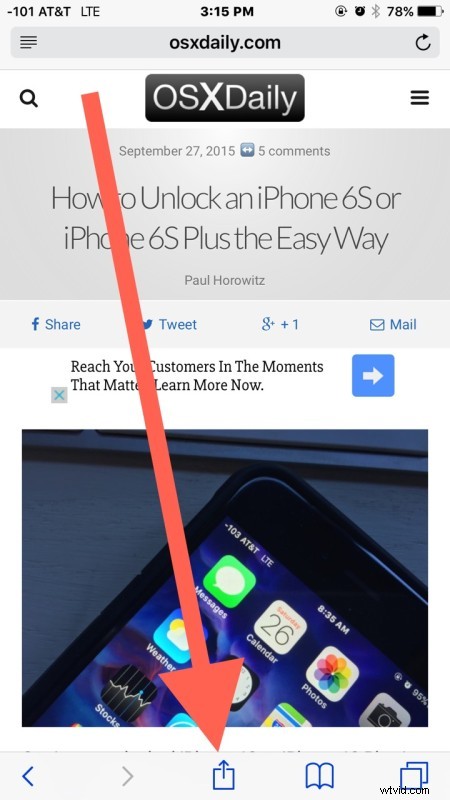
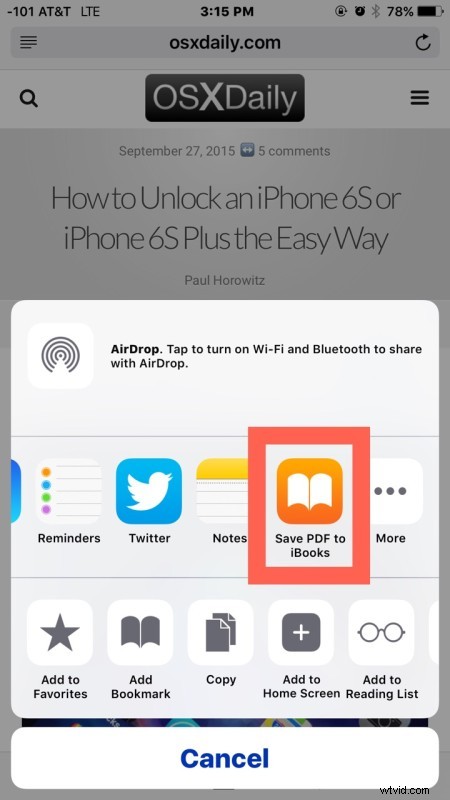
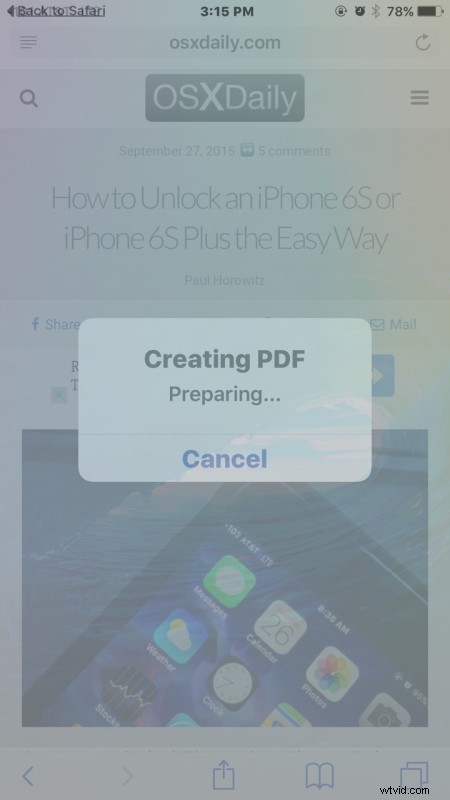
The webpage is saved into iBooks and opened through the iBooks app in iOS:
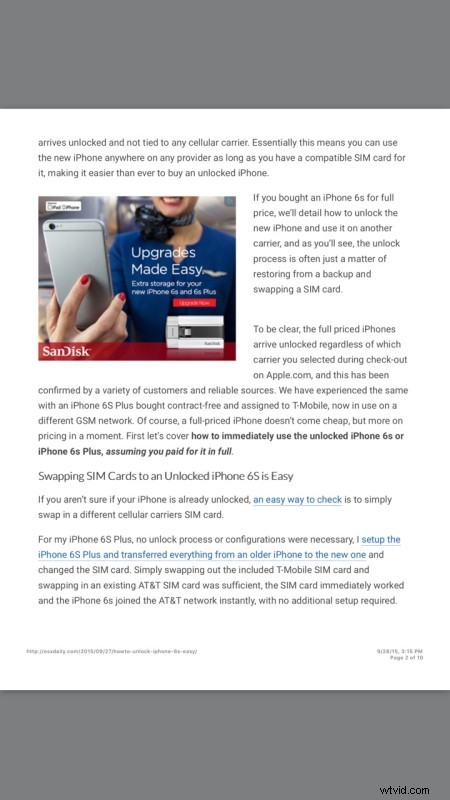
In these screenshot examples we saved this guide for unlocking an iPhone 6s but you can obviously use any webpage you want.
Quite easy and very convenient for situations where you want to have access to an article or webpage at a later time on your iPhone or iPad, without having to relocate the URL, the webpage, or even being online.
If you’re wanting to save a long article, be sure you select the “Single Page” view on websites that break up articles across many pages. This can be helpful for reading just about anything on the web through a PDF editor, as the files will be stored in the iBooks app of iOS until you delete them yourself. You can even share the saved PDF webpages if you’d like too.
Similarly useful features have long existed on the Mac and desktop computers with the “Print to PDF” ability available in just about every app of OS X.