

The Notes app for iPhone and iPad is widely used by many users for many purposes, whether for keeping a shopping list, password locked personal notes and data, a diary, sketches and drawings, checklists, or whatever else you may want to keep handy on an iPhone or iPad. Because much of the Notes data is personal, if you accidentally delete a note or two it can be a stressful experience and you’d understandably like to recover from inadvertently removing an important note.
Not to worry though, the latest versions of the Notes app allow for an undelete process, allowing users to restore deleted notes to their iOS and ipadOS device, assuming they act within a reasonable time frame.
How to Restore Deleted Notes in iOS & iPadOS
You have up to 30 days to act to undelete and restore a deleted note in iOS Notes app. If you wait any longer than that, the note will be removed permanently.
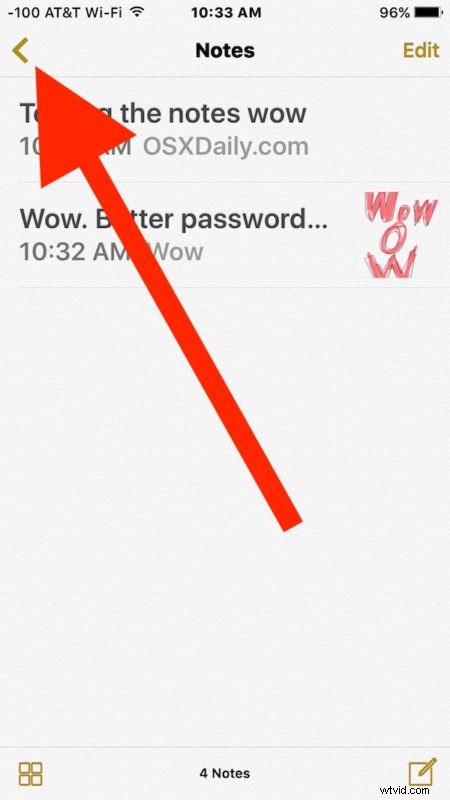
- Open the Notes app if you haven’t done so already, then tap on the back arrow button in the upper left corner (it looks like “<") to view the notes folders
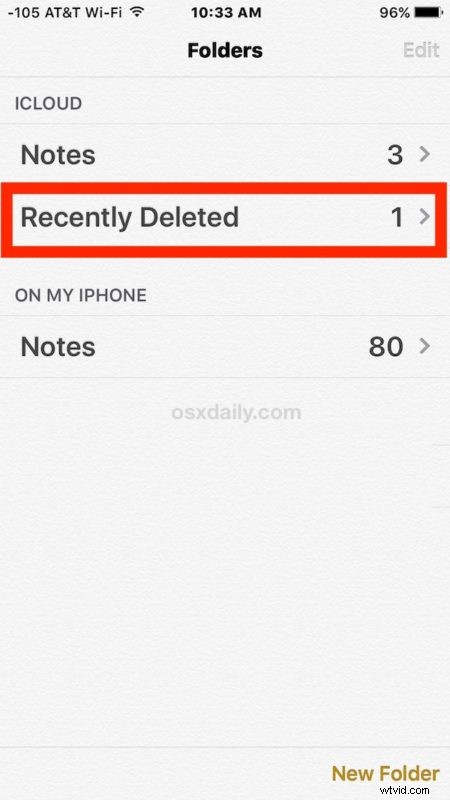
- Choose the “Recently Deleted” folder
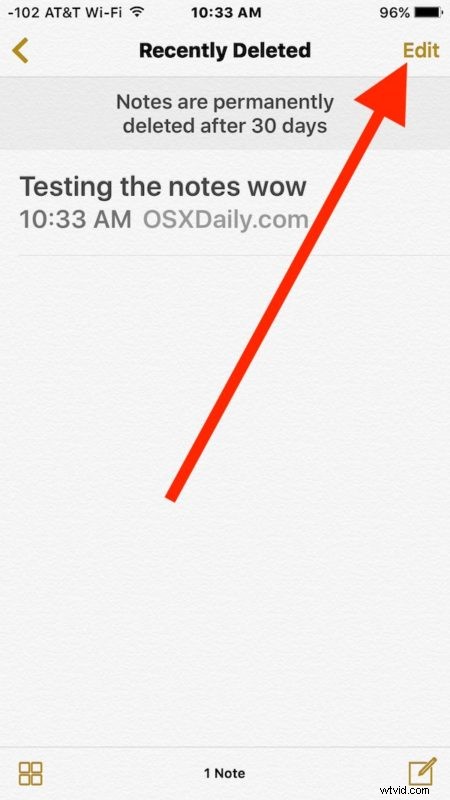
- Tap on the “Edit” button in the Recently Deleted section
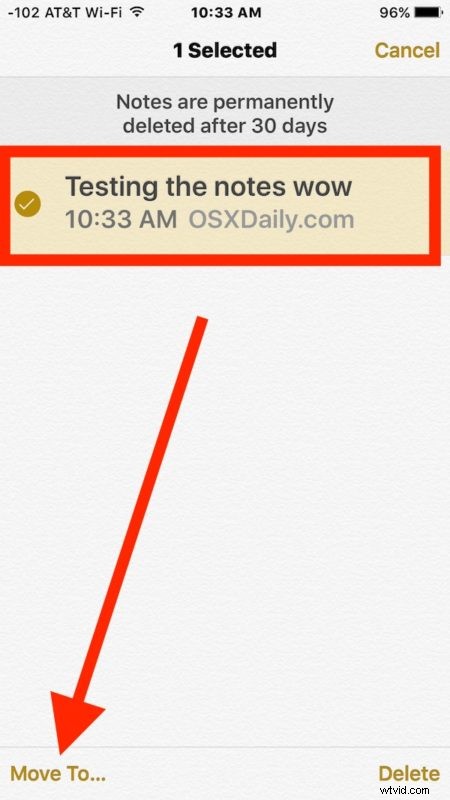
- Now tap to select the note(s) you want to restore and undelete so they are marked with a checkbox, then tap the “Move To…” button in the lower left corner
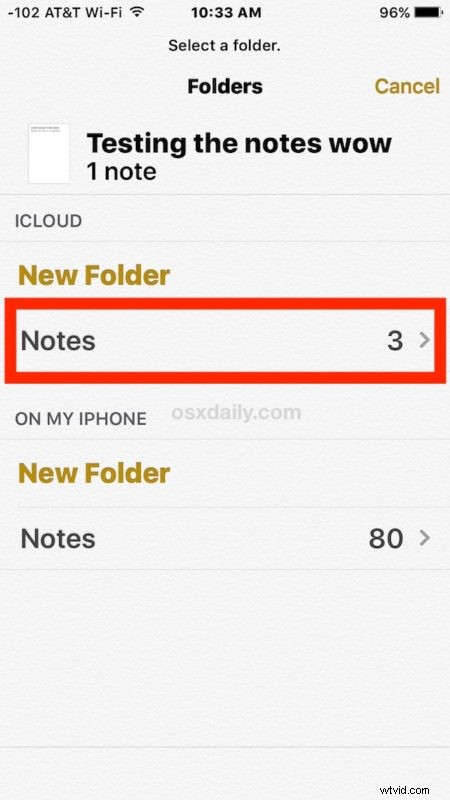
- Choose the folder you want to move the deleted note back to, typically this is “Notes” on iCloud or on the device itself, or whatever custom folder you may have created
- Return to the notes folder you moved the deleted note to and find the undeleted note
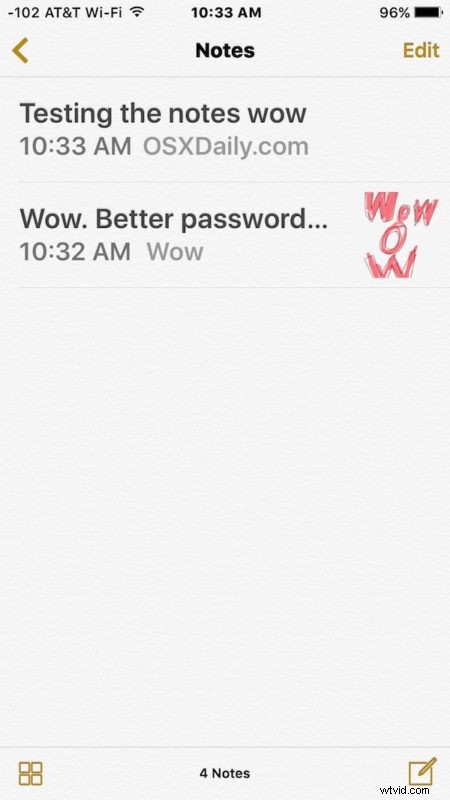
Stress averted, your note (or notes) have been restored to the iPhone, iPad, or iPod touch. Phew!
If the note is not found in the recently deleted section, it may be gone for good. The only other means of undoing a deleted note would be to restore the entire iPhone or iPad from a backup, assuming the backup was made prior to the note being deleted in the first place.
A similar undelete feature exists for recovering deleted photos in iOS, where you have up to 30 days to act before the system software takes over and permanently removes something.