

The Notes app on iPhone and iPad is super useful, allowing you to jot down information quickly for all sorts of purposes.
There are various ways to create a new note in the Notes app on iOS and iPadOS, some of them are quite fast and might be new to you, so if you’re an avid Notes app user, take a look and see some handy ways to make new notes on iPhone or iPad.
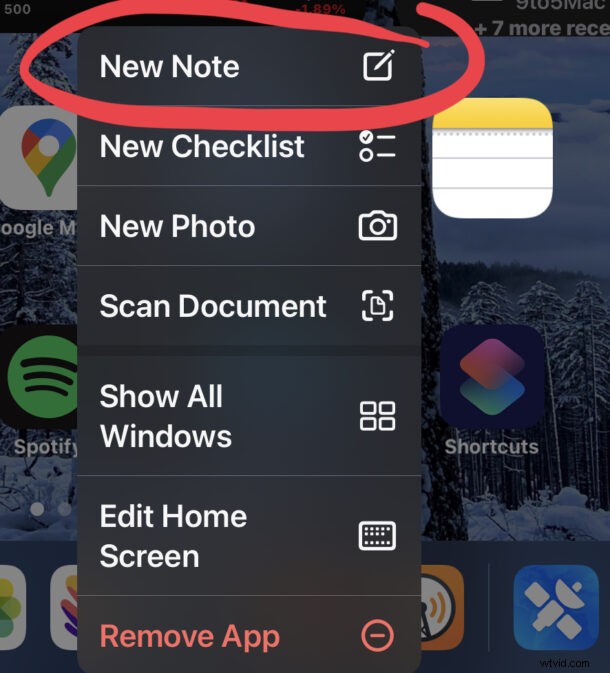
1: From the Home Screen Notes Icon
Long press the Notes app icon and choose “New Note” to instantly make a new note on iPhone or iPad.
2: From the Notes app
Simply tapping the New Note button in the Notes app also creates a new note.

Bonus: And if you have a keyboard hooked up to the iPad or iPhone, hitting Command+N from Notes app will create a new note too.
3: From Lock Screen, or Anywhere, with Control Center
Adding the New Notes option to Control Center allows you to easily create a new note instantly from anywhere on iPhone or iPad, whether from the lock screen, the Home Screen, or within another app.
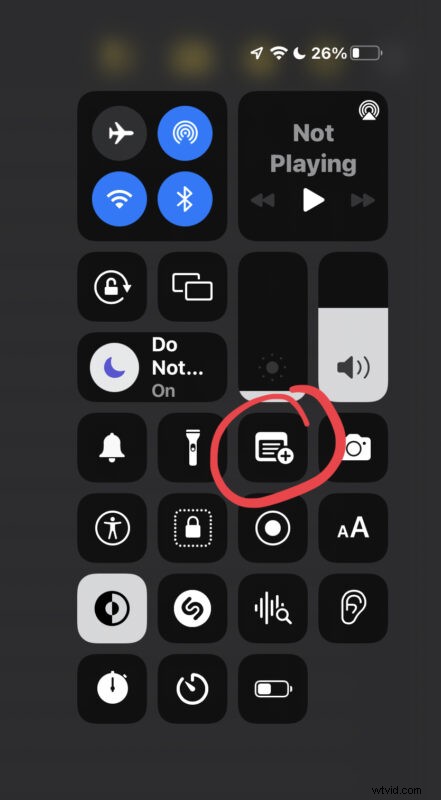
Go to Settings > Control Center > and make sure Notes and Quick Notes are enabled as options to be able to access this great feature.
This is perhaps the fastest universal way to make a new note from anywhere, no matter what device you’re on.
4: From Lock Screen with Apple Pencil
With Apple Pencil, simply tapping on the locked screen of an iPad will create a new note.
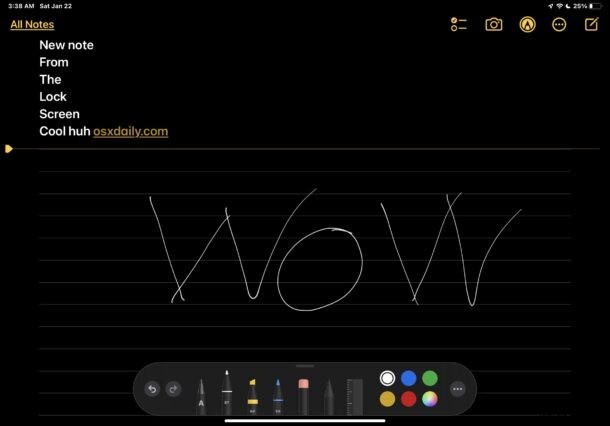
This is super convenient and perhaps the fastest way for iPad and Apple Pencil users to create a new note.
5: Swipe In from Bottom Right Corner of Screen for New Quick Note on iPad
You can use a finger, stylus, or Apple Pencil to swipe inward from the bottom right corner of the iPad screen to instantly create a new Quick Note.
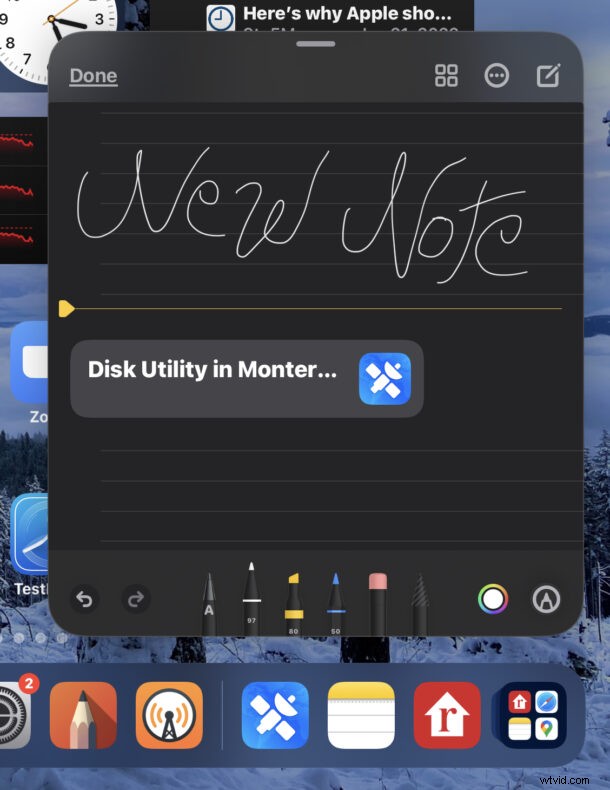
Quick Notes are handy because they hover over active screen items, allowing for multitasking with iPad. They’re useful enough that while they’re currently limited to iPad, surely they will make their way over to iPhone too.
6: New Quick Note with iPad Keyboard Shortcut
For iPad users with a keyboard hooked up to their device, hitting globe+Q or fn+Q will also create a new Quick Note from anywhere.
7: Create a New Note with Siri
You can instantly create a note with the help of the Siri virtual assistant.
Just summon Siri, then say “make a new note about (topic or item)” or “create new note about (item)”.

–
Any of these newly created notes can be searched, password locked, shared, documents scanned into, snap photos or videos directly into the notes, or any of the other handy notes tricks available out there. And if you accidentally or unintentionally delete one, you can recover them too.
Do you know of another fast way to make a new note on iPhone or iPad? Let us know your tricks in the comments!