

The Notes app in iOS now allows you to share notes with other iPhone, iPad, and Mac users over iCloud. This Note sharing feature is extremely useful, enabling other invited people to view and edit the same shared note that you are using in a collaborative fashion, and of course other people can invite you to view and change their notes as well. The use cases for this are vast and cooperative notes are easily one of the more useful features added to the Notes app in quite some time, so let’s review how to share Notes with other people using the latest versions of iOS.
There are a few basic requirements for note sharing and cooperative note editing to work this way. First, you’ll obviously need iCloud, since the shared notes are managed through iCloud. Beyond that, you will need iOS 10.0 or later on an iPhone or iPad, and Mac users will need Mac OS 10.12 or later. Assuming you have those requirements met, sharing Notes will be available to you and people you invite to a note.
And yes, you can share any note along with any contained drawings, pictures, checklists, and anything else.
How to Share Notes in iOS to Allow Other People to View & Change Notes
Essentially what you are doing is sending an invite to the person(s) of your choice with whom you wish to share the note, allowing the recipient to view and edit the notes in addition to yourself. Here’s how this works:
- Open the “Notes” app in iOS if you haven’t done so already, be sure you are in the “iCloud” notes section and not “Notes on my device”
- Select the note you want to share by tapping on it
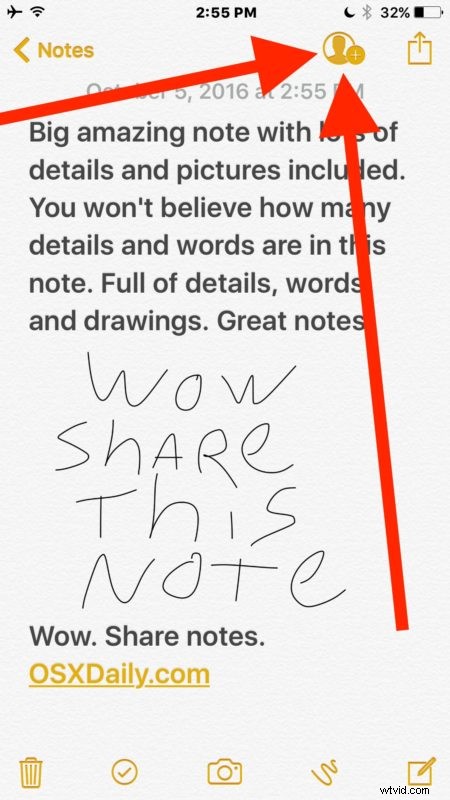
- In the upper portion of the note, tap on the Person icon with a + plus button on it
- Choose the method you wish to share the note: Messages, Mail, Twitter, copy a link, or “More” to choose a different service not listed that may be available through your apps
- Send the note sharing invitation


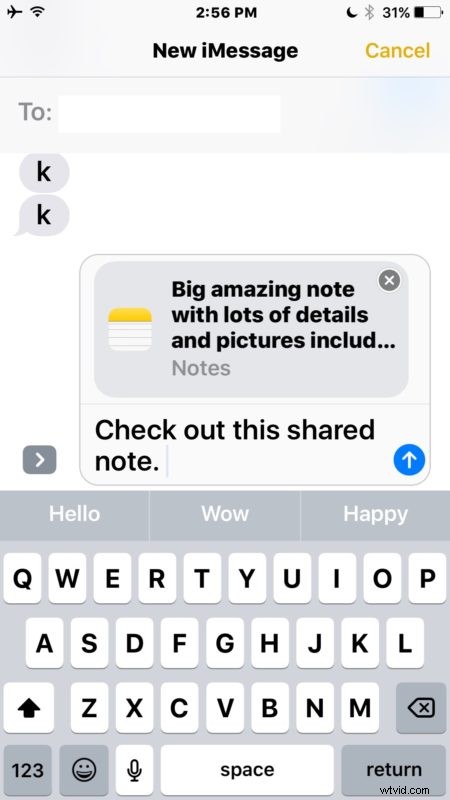
This will send an invite to the recipient to allow that person to view and make changes to the note using an iPhone, iPad, or Mac with the latest software versions.
For example, on the receiving end of a shared note in Messages, you’ll get a little Note icon and a preview of the first line. Tapping on the shared note will immediately open it into Notes app and it will be added to the iCloud Notes section of your own device.

Shared notes will be delineated in the Notes list by having the little person icon next to the note name and title, similar to how a password locked note displays that it has protection with the little lock icon.
This is a perfect feature for sharing grocery and shopping lists, a to-do list, to share notes from a class or conference, quickly sharing an idea, collaborating on some simple collection or concept, and so much more.
And yes the typical ‘sharing’ feature is still available as well, but pay attention to how this note invitation and collaborative editing feature is different from the normal Share Sheet based method of sharing a note from Notes app: with the invitation and cooperative editing, all invited users can edit and view a note immediately, whereas a standard shared note is a one-sided affair, requiring users to have to send the same note back and forth after it has been edited. Both have their uses, but the iCloud based sharing and invitation method is clearly superior for realtime cooperative editing of notes.