
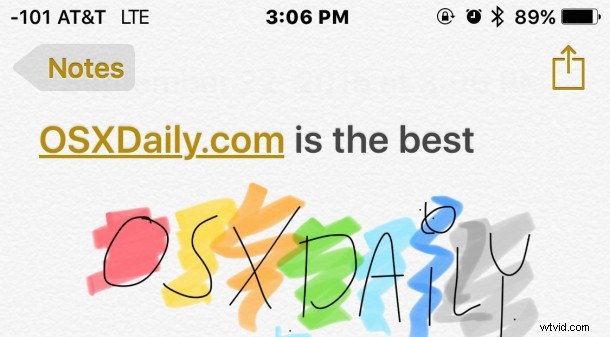
The Notes app in iOS now allows you to draw, sketch, and color, using your finger or a stylus on the touchscreen. This is a really fun feature that is quite well done, and you’ll find the Notes drawing ability is particularly great on the larger screened iPhone and iPad models, but it works well on the smaller screen iPod touch and iPhones as well.
To have access to the Notes drawing tools, you’ll need iOS 9 or later installed on the device, and beyond that it’s just a matter of knowing where to look and how to use the feature.
You can either start drawing immediately, or add a sketch after you’ve already entered text, and it doesn’t matter if there are images or styling inserted into the notes either, the drawing feature will always be available in Notes.
How to Draw & Sketch in Notes App for iOS
For demonstration purposes we’ll focus on a newly created blank note, but technically you can draw on existing notes too, and insert drawings just about anywhere. For creating a new drawing, here’s what to do:
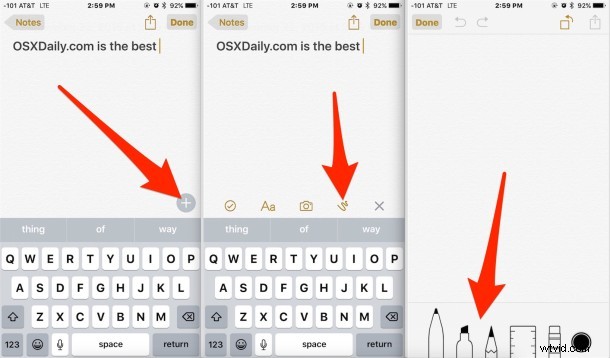
- Open the Notes app and create a new note
- Tap on the (+) plus button in the corner of the active note
- Tap on the little squiggly line icon to access the drawing tools
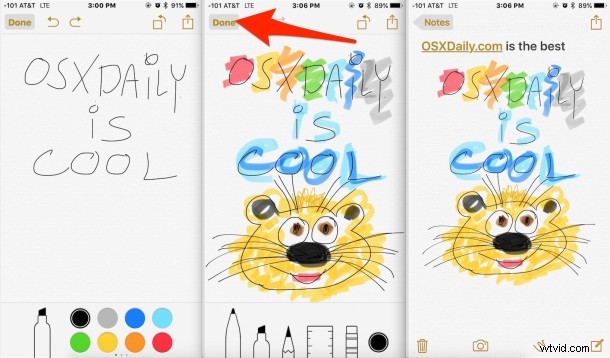
- Select your pen, pencil, or highlighter, change the color if you’d like, and start sketching
- When finished with the sketch, tap on “Done” to insert into the active note
The tools available in Notes app drawing mode are; pen, highlighter, pencil, ruler, eraser, and color picker. You can change the color of any of the drawing tools, and the ruler also works with any of the sketch tools to draw straight lines.
Troubleshooting Drawing / Sketching in Notes app: If you don’t see the drawing tools available, it’s possible that you’re using iCloud Notes rather than on-device Notes. You can quickly switch from the primary Notes app screen by tapping on the < Back button in the upper left corner, and choose 'On my iPhone' or 'On my iPad', then create a new note from there. I'm able to create drawings and sketches on both iCloud and on-device notes, but some users appear to have a limitation to on-device notes only for an uncertain reason.
How to Save a Drawing from iOS Notes App
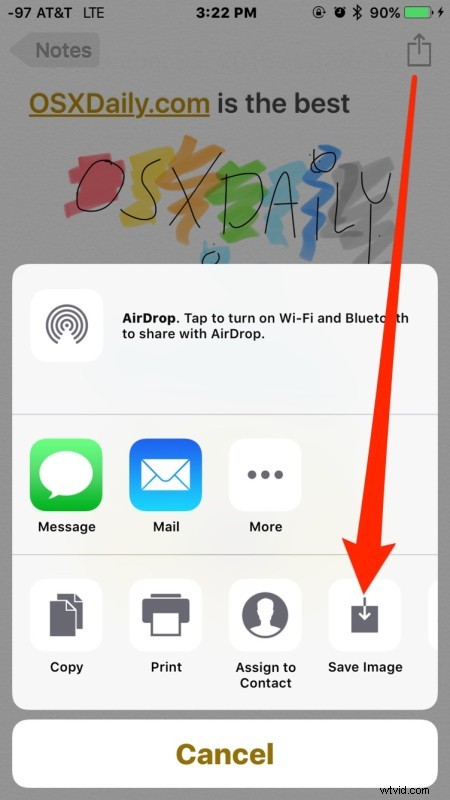
You can also save a sketch or drawing you created in Notes app if you want to by tapping the little sharing arrow icon and choose “Saving Image” – and no, even though Notes app has a skeumorphic textured background, that texture is not saved with the drawing, the sketch will save against a white background into your camera roll.
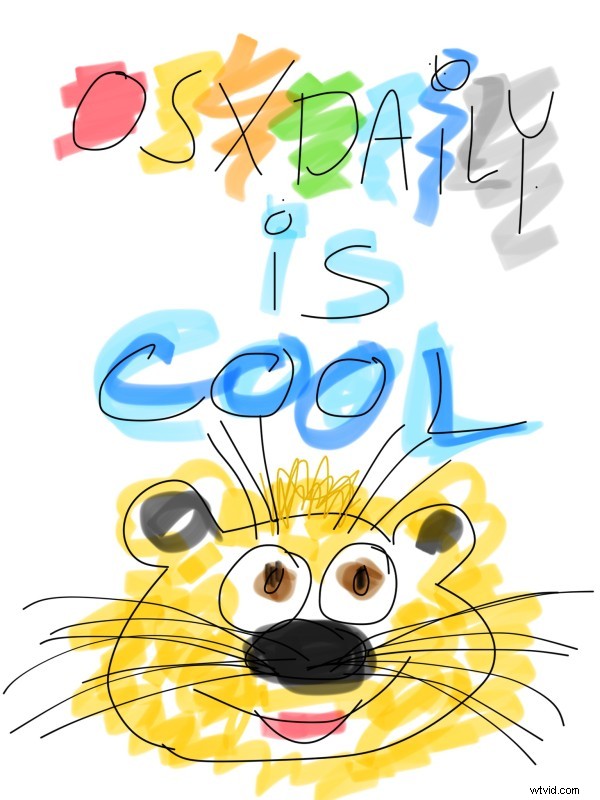
For those wondering, a drawing saved from Notes app on an iPhone Plus will save with a 1536 x 2048 resolution as a PNG file. You can click on the example image below (which has been converted to a compressed JPEG) to see a full sized sample of a lovely sketch image made in Notes app, as you can tell I did not do well in art class but sometimes it’s the effort that counts.
This is a fun feature to play around with, and it’s obviously going to be useful as well, whether you’re artistically inclined or artistically challenged doesn’t really matter. After playing with the Notes drawing feature for a while, it made me wish there was a similar drawing tool built into the Messages app of iOS, since it’s definitely fun to draw silly sketches and send them to your friends and family.
For iOS users with a Mac, you’ll find the drawn notes sync just fine to the OS X Notes app too, further extending the use of Notes as an iOS to OS X clipboard feature of sorts.