
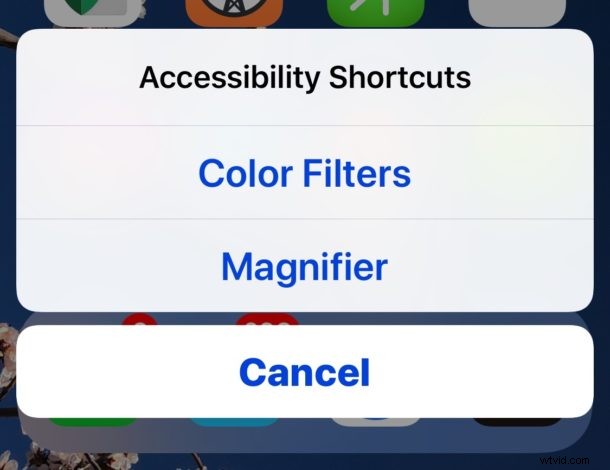
The Accessibility Shortcut in iOS allows users to quickly enable and use various accessibility features on an iPhone or iPad, giving near instant access from just about anywhere to features like AssistiveTouch, Invert Colors, Color Filters, the Magnifier, Reduce White Point, Smart Invert, VoiceOver, and Zoom.
For example, a great usage for the Accessibility Shortcut is to quickly access the Magnifier feature of iOS, or to toggle Smart Invert on, or to temporarily turn the screen greyscale, or zoom the display to read some text or element that is too small to distinguish without that extra zoom level.
There are nine possible Accessibility Shortcut options to choose from in the latest iOS releases, we will show you how to set the Accessibility Shortcut to customize it for your own use, and of course we’ll show you how to use the Accessibility Shortcut on an iPhone and iPad as well.
How to Set the Accessibility Shortcut in iOS
The Accessibility Shortcut can be customized to initiate a single Accessibility feature, or bring up a menu with multiple Accessibility choices. Here is how you can set and customize this capability on an iPhone or iPad:
- Open the “Settings” app in iOS
- Go to “General” and then to “Accessibility”
- At the bottom of the Accessibility section, tap on “Accessibility Shortcut”
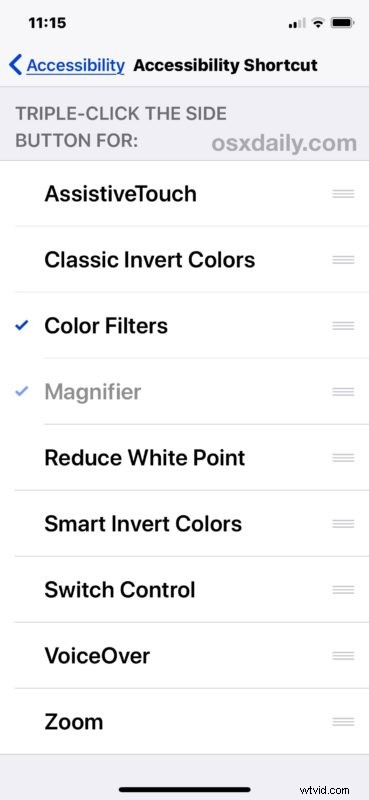
- Choose the Accessibility item you want to activate when the shortcut is accessed:
- AssistiveTouch
- Classic Invert Colors
- Color Filters
- Magnifier
- Reduce White Point
- Smart Invert Colors
- Switch Control
- VoiceOver
- Zoom
- OPTIONAL: select more than one to have the Accessibility Shortcut show a short menu with each selected option
- When satisfied exit out of Settings
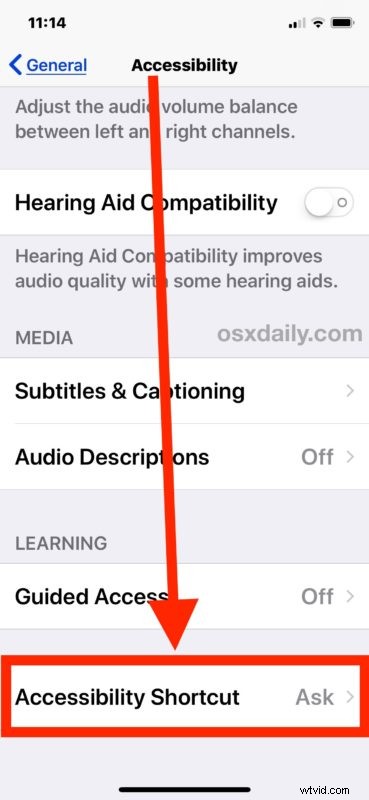
Go ahead and summon the Accessibility Shortcut* to confirm your changes are working as expected.
Note that whether you select multiple Accessibility Shortcut options or just a single option, summoning the feature is the same.
What is the Accessibility Shortcut for iPhone and iPad? How do I use it?
* Accessing the Accessibility Shortcut differs per iOS device, and whether or not the iPhone or iPad has a Home button or not.
For all devices with a Home button, including nearly all iPad and iPhone devices, you triple-click the Home button in rapid succession to access the Accessibility Shortcut.
For devices without a Home button, like iPhone X, you triple-click the side Lock / Power button to access the Accessibility shortcut instead.
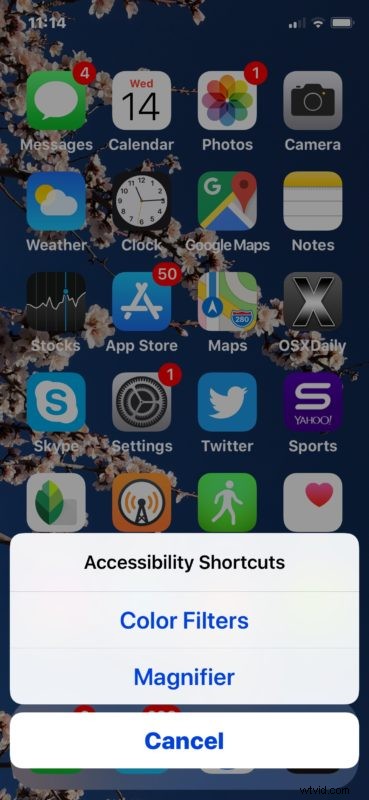
If you have just a single option chosen as the Accessibility Shortcut, then triple-clicking the button will enable that particular Accessibility feature. If you have multiple Accessibility Shortcut options enabled, then triple-clicking the button will trigger a menu:
It may be helpful to know that you can also change the click speed of the side button on iPhone X, as well as change the click speed of the Home button on other iOS devices if you find that the default click speed required isn’t working well for you.
The Accessibility Shortcut isn’t the only way to quickly get to various Accessibility features, and if you find yourself using some with some regularity but not often enough to include it in the Accessibility Shortcut, then you can customize the Control Center of iOS to have access to those, or also to have access to some other helpful Accessibility features as well, like the ability to increase text size.
It’s worth mentioning that Mac users aren’t left out either, where a similar feature exists with the instant Accessibility Options keyboard shortcut on Mac OS.