
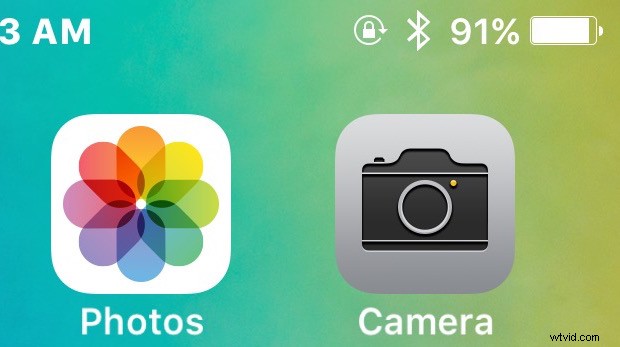
A handful of iPhone users have discovered their Camera app icon has gone missing after updating iOS to the latest version. Why the Camera mysteriously disappears after updating iOS isn’t always clear, but it’s typically an easy fix using one of the methods outlined below.
Check Camera Restrictions
Some iOS users have discovered the Camera app has been disabled through the devices Restrictions, preventing the camera icon from appearing on the home screen and also from being accessed from other applications.
- Open the Settings app and go to “General” followed by “Restrictions”
- Enter the passcode when requested and then locate “Camera”, be sure it’s turned to the ON position – you may need to toggle this OFF and then back ON again, but be sure it’s ON
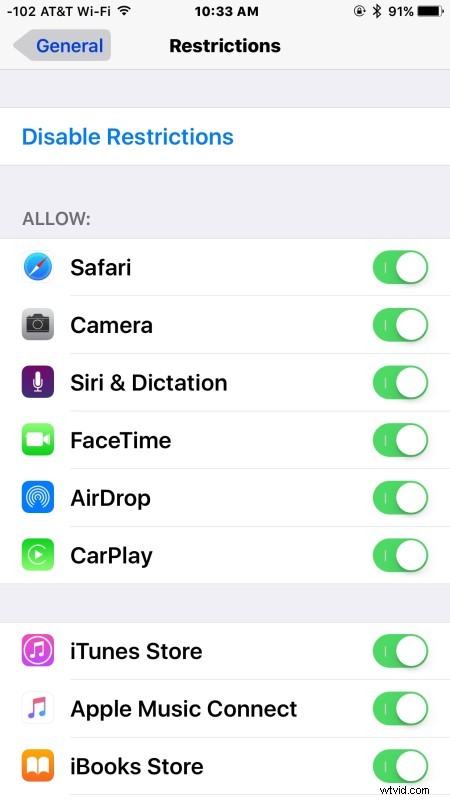
Go back to the home screen and see if Camera icon appears, it should be there.
Why this randomly gets turned off isn’t clear, but its’ likely that users either disabled the camera at some point or perhaps were hiding other apps and included the Camera app erroneously. Some users report this happened without any user intervention, which is a curious observation.
Reset the Screen Icon Layout
You may have inadvertently stuffed the camera icon into another folder or on a distant page, if so you can reveal it again by resetting the home screen icon layout:
- Open Settings and go to General
- Select the “Reset” option and tap on “Reset Home Screen Layout”
Return to the Home Screen, the Camera icon should be visible in the upper right corner.
Still Missing Camera Icon? Backup & Restore
If you’ve done the above and you’re still missing the Camera icon, you should backup and restore your device. This is fastest with iTunes:
- Connect the iPhone to the computer and open iTunes
- Choose to “Encrypt Backup” (this saves the passwords on the device) and then choose to “Back Up Now”
- Once the backup is completed, choose the “Restore” option and restore the device from the backup you just made
If your iPhone Camera is still missing at this point, you may have a hardware issue that is not related to updating iOS. If you suspect a hardware problem is causing your camera to go missing, you should visit an Apple Store or call an official Apple Support line to have a hardware problem remedied.