

Many users who are installing iOS updates (whether beta or final versions) encounter an issue where a spinning pop-up indicator message saying “Verifying update…” appears stuck on screen. This is a fairly common issue that is somewhat annoying because while the iOS update is verifying, the entire iPhone or iPad is unusable.
Fortunately, fixing a stuck verifying update issue on iPhone or iPad is really easy for almost all cases.
Before doing anything else, be sure of the following: the iOS device must have an active wi-fi connection, the iOS device must have enough available storage space to install an update.
Wait: Is the iOS Update Really Stuck on “Verifying Update”?
Note that seeing the “Verifying Update” message is not always an indicator of anything being stuck, and it is perfectly normal for that message to appear on screen of an updating iOS device for a while. Additionally, the verifying update process can take a minute or two as the Apple servers are contacted. The verifying update procedure can take even longer if you attempt to update an iPhone, iPad, or iPod touch when a new release of iOS has just debuted, because many millions of users are all attempting to update their devices at the same time, which can sometimes cause delays in processing. The good news is this typically resolves itself in short order.
So, the first step is to simply wait a while. Let the update verify as usual, do not intervene.
The vast majority of the time, the “Verifying update…” message will resolve itself and it is not actually stuck. This may take a few minutes or even longer, that is perfectly normal. Once the verifying update process completes, the iOS update will begin as usual.
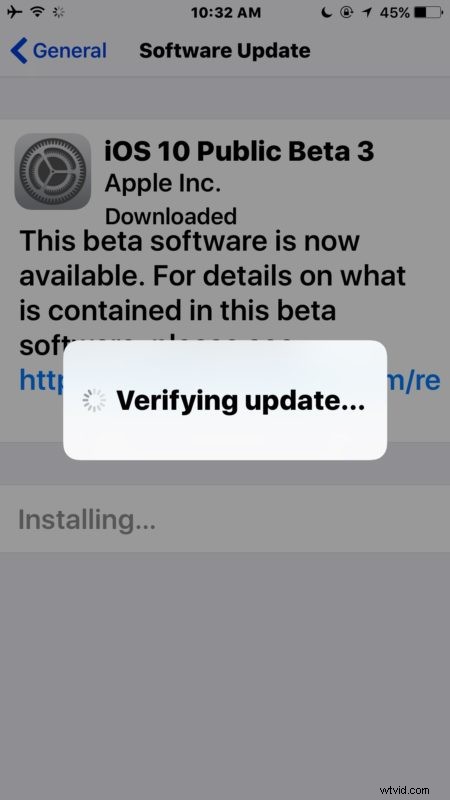
Seriously, give it ample time to verify. It will probably fix itself.
Fixing a Stuck iOS “Verifying Update” Message
If you are absolutely certain the iOS update is actually stuck on “Verifying update” screen, meaning you have waited at least 15 minutes, the device has a good wi-fi connection and ample storage available, and you know the iOS update is actually stuck on “verifying” then you can proceed with the first simple troubleshooting trick.
Use the Power button trick
The first step is to simply press the “Power” button on the side (or top) of the device a few times.
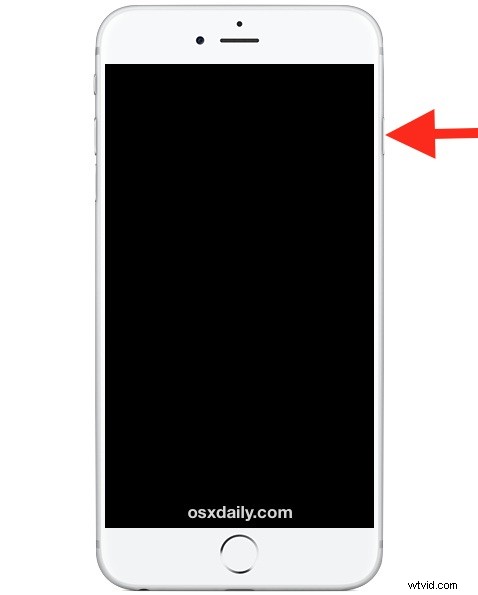
This will force the iPhone or iPad to lock the screen, then wake the screen up again, then lock again, and wake the screen up again. Repeat this several times in a row, waiting a few seconds in between each press. For whatever reason, continuously pressing the Power button will almost always resolve the stuck “verifying update” error. Sometimes it takes 5 to 10 press cycles, but doing so seems to push the iOS update along and the verification process suddenly accelerates and completes.
You’ll know if the Power button trick works because the device screen will go black and you will see an Apple logo followed by a progress bar, as the iOS update starts to install as usual. Once you see the Apple logo and the progress bars, let the device sit and install the software update, this can take 30 minutes or more depending on the speed of the device and internet connection.
Reboot and Try Again
If an hour or more has passed and the power button trick fails, you can try to force reboot the iPhone or iPad by holding down Power and Home until you see the Apple logo.
Once the device has booted back up again you can attempt to reinstall the update by going to “Settings” then to “General” and to “Software Update” and choosing “Install” as usual.
Everything messed up? Restore with iTunes
If the Power button trick doesn’t work, and you forced reboot the iPhone or iPad and everything is messed up or not working, you’ll have to restore the device with iTunes as described here. You’ll want to be sure you have a backup handy to restore from, otherwise you may reset the device as if it’s new to original settings.
Did these tips work for you? Do you know of another trick to fix iOS if it is stuck on the “Verifying update” screen? Let us know in the comments.