
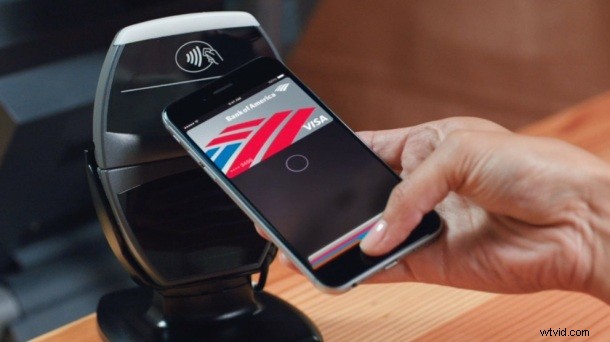
iPhone owners who have set up Apple Pay on their devices can use an optional shortcut to access the feature from the locked screen.
Assuming the lock screen access feature is enabled with Apple Pay, all you need to do is double-press the Home button on the locked Apple Screen to bring up Apple Pay immediately. If a lock screen shortcut for Apple Pay sounds convenient to you, you’ll likely want to enable the feature on the iPhone if you haven’t done so yet.
But some users may find they unintentionally enable Apple Pay through this lock screen shortcut, and on the latest iPhone models the Touch ID unlock is so fast that attempting to double-tap the Home button without unlocking the screen is nearly futile. Thus, some users may wish to disable the Apple Pay lock screen shortcut.
Enable or Disable the Apple Pay Lock Screen Access Shortcut on iPhone
Whether you want to turn the feature on or off, here’s how you can, you’ll obviously need an iPhone with Apple Pay setup and configured to have this option.
- Open the Settings app on the iPhone with Apple Pay and go to “Wallet & Apple Pay”
- Under the Cards section, look for “Allow Access When Locked” and toggle the switch next to “Double-Click Home Button” to ON or OFF depending on if you want to use the lock screen shortcut for Apple Pay or not
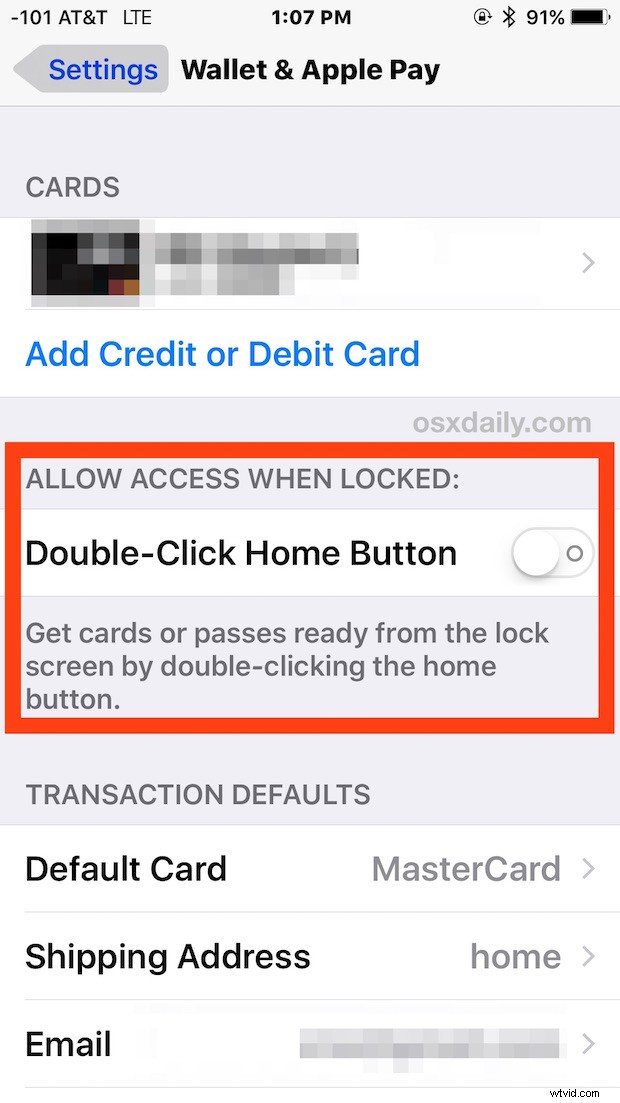
If you turn the feature ON, lock the iPhone screen and then double-tap the Home button to immediately summon the Apple Pay card wallet.
If you turn the feature OFF, Apple Pay will not be accessible from the lock screen.
Whether or not you like this feature probably depends on how often you use Apple Pay on the iPhone, whether you have Apple Pay setup on an Apple Watch, and whether or not you find yourself unintentionally accessing the feature when you don’t mean to.
Apple Pay is undeniably useful, so be sure to set your shortcut to suit your preferences and how you use the feature. And if you’re out and shopping, don’t forget you can quickly check which stores support Apple Pay by using Apple Maps to view location details for shops and restaurants.