
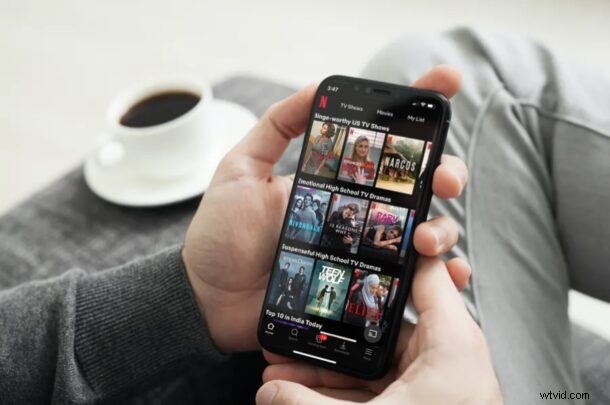
Ever accidentally tapped on the screen of iPhone or iPad while watching Netflix and paused the show or skipped ahead or something else? If you use the Netflix app on your iPhone or iPad to binge-watch your favorite TV shows and movies, you might be excited to know about this interesting new feature that prevents you from mis-clicking while watching video content. This feature can also be helpful for parents who want to lock the screen to Netflix on an iPhone or iPad so that it can’t be interrupted. It’s sort of like a Netflix specific guided access mode, and it’s worth checking out for many viewers.
Unlike televisions, watching Netflix on touch-screen devices like the iPhones and iPads is a slightly different experience. Tapping once on the screen while watching a show would bring up the playback controls and interrupt your viewing experience. Sometimes people then accidentally touch the screen and end up misclicking these playback controls. To stop this from happening, Netflix added a new feature recently that allows you to lock your screen.
Interested in taking advantage of this new feature the next time you watch Netflix content? Look no further, because, in this article, we’ll be discussing exactly how you can lock and unlock the screen in Netflix on iPhone and iPad.
How to Lock & Unlock Screen in Netflix on iPhone & iPad
First and foremost, make sure you’ve installed the latest version of Netflix from the Apple App Store. Now, without further ado, let’s take a look at the necessary steps.
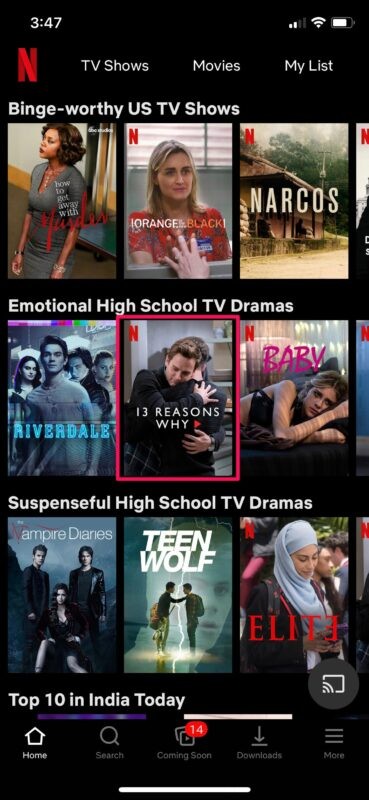
- Launch the Netflix app on your iPhone or iPad.

- Tap on any show and start watching it. Next, tap on the screen to access the playback controls and other video options.
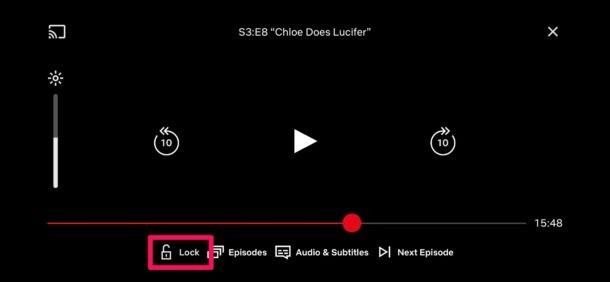
- Here, you’ll find the Lock option located on the extreme left. Tap on it to continue.
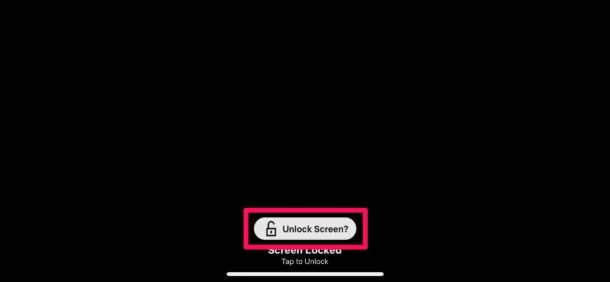
- You’ll get the indication that the screen has been locked. Now, whenever you tap on the screen, the playback controls won’t show up on your screen. Instead, you’ll see a lock icon. To unlock your screen at any time, tap on this lock icon.

- Now, you’ll be prompted to confirm your action. Tap on “Unlock Screen?” and you’ll be able to access your playback controls again.
That’s it. Now you know how to lock and unlock your screen while watching Netflix content on your iPhone or iPad.
From now on, you don’t have to worry about accidentally touching the screen and interrupting the view with playback controls. This feature also helps in avoiding misclicks and prevents you from accidentally pausing or skipping the playback.
Keep in mind that you’ll need to tap on the lock icon twice to unlock the screen and get back those playback controls again.
Also, it’s worth pointing out that Screen Lock doesn’t stop you from making accidental swipes on your iPhone that could take you back to the home screen.
If you’re the kind of person who enjoys watching shows or movies on your iPhone while laying on your bed, you’ll certainly find yourself taking advantage of this feature on a regular basis. You might also need this if you’re watching movies with your kids together on an iPad.
Netflix is a fun service with a lot of customizations available, don’t forget you can also disable auto-playing new episodes, turn off auto-playing previews, and you can always watch Netflix offline by downloading videos to iPhone or iPad too.
Now you know how to use Netflix’s new screen lock feature, you can put it to good use on your iOS device. How often do you see yourself taking advantage of this nifty addition? Share any of your thoughts or opinions in the comments below.