
Want to disable the camera on the Lock Screen of iPhone? Whether for privacy purposes, part of work provisioning, for a child’s iPhone, or to prevent accidental pictures being taken, you can disable the camera on iPhone if need be, which also prevents the camera from being usable while the iPhone is locked.
So, want to limit camera access? Read along, we’ll cover turning off the camera on your iPhone as well as its lock screen. We’re focusing on iPhone here, but the same applies to disabling the camera on iPad as well.
How to Disable Camera on iPhone / iPad Completely (Camera App & Lock Screen)
We’ll be making use of Apple’s Screen Time functionality to disable the camera on your iOS / iPadOS device.
- Open “Settings” from the home screen of your iPhone or iPad.

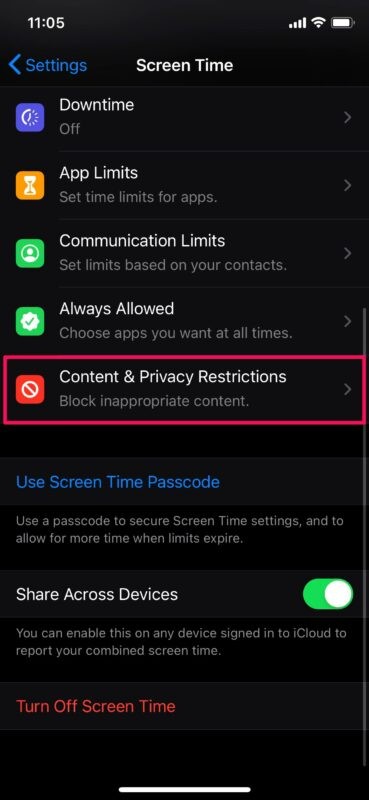
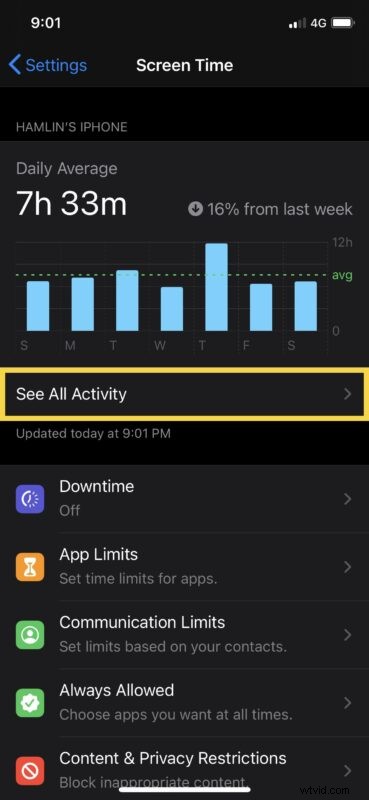
- In the settings menu, scroll down and tap on “Screen Time”. If you haven’t configured Screen Time before, you’ll need to go through the on-screen instructions to set it up. Once you’re in the Screen Time menu, scroll down and tap on “Content & Privacy Restrictions”.
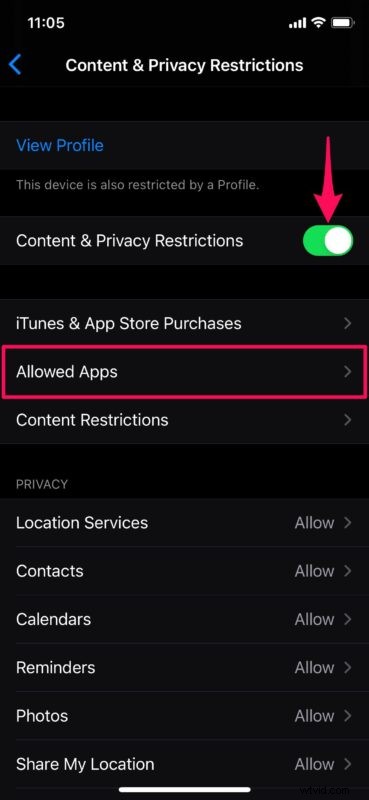
- Now, turn on the toggle for “Content & Privacy Restrictions” to make changes here. Tap on “Allowed Apps” to proceed further.
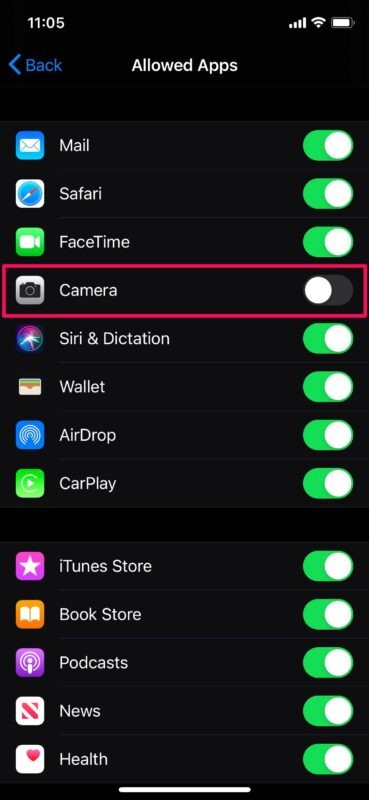
- Here, simply use the toggle to disable “Camera” on your iPhone, as shown in the screenshot below.
- Once disabled, you won’t see the Camera app on the iOS home screen. The camera shortcut in the lock screen will be grayed out too.
Assuming you followed along properly, you have disabled the camera on your iPhone or iPad and the devices lock screen.
It’s worth noting that you can’t disable just the camera shortcut in the lock screen, so if that’s what you were looking for, you’re out of luck. It’s all or nothing, so you will remove the Camera app and disable camera access for all apps as well. This could potentially change in future versions, but for now, that’s the way it works.
If you just want to disable camera access for certain apps that are installed on your device, you don’t have to follow this procedure. Instead, you can head over to privacy settings to disable camera access for specific apps individually, which is an excellent privacy tool.
Is your iPhone running an older version of iOS? Although Screen Time isn’t available on iOS 11 and earlier versions of iOS, you can still completely disable the camera on your old iPhone by changing Restrictions in settings, and that applies to much older versions too.
If you’re a parent who’s using Screen Time on your kid’s iPhone to restrict camera access, don’t forget to use a Screen Time passcode to prevent them from changing your settings and set it to something they won’t know or guess (and that you won’t forget!).
Did you disable your iPhone or iPad camera? Why did you do so? Let us know your experiences and thoughts in the comments, and share any tips fo your own of course too.