
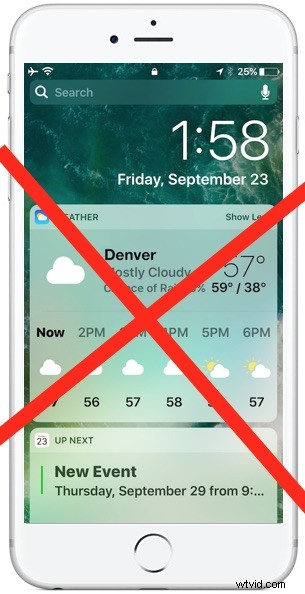
With new iOS versions came the removal of Slide to Unlock, which now if the slide right gesture is repeated sends you to the Today view Widgets screen complete with weather, calendar events, tabloids and news, Siri app suggestions, stocks, maps, and whatever optional widgets you have enabled on the iPhone or iPad. This Widget screen is accessible from the lock screen by default on any iOS 10, iOS 11, or later device.
But what if you don’t want widgets available on the lock screen? Perhaps you’d prefer to maintain more privacy and not reveal anything about the device itself let alone the calendar or app suggestions, or notifications. For any reason, you can disable and hide the widget section of the lock screen completely. The end result is if you slide over from the lock screen, nothing happens, because there is nothing to swipe over to.
How to Hide Widgets & Notifications from Lock Screen of iOS 11 and iOS 10
This works to disable the Today view, widgets, and Notification view with any iPhone or iPad running iOS 10 or newer:
- Open the “Settings” app on iPhone or iPad and then go to ‘Touch ID & Passcode’
- Under the “Allow Access When Locked” section, toggle the switches next to “Today View” and “Notifications View” to the OFF position
- Exit out of Settings and lock the device again, swiping over will now do nothing
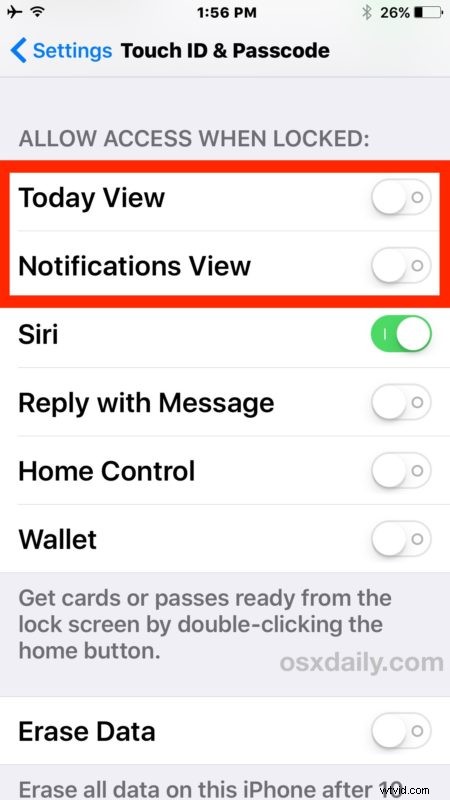
Note that you will still have access to widgets, Today view, and notifications from an unlocked iPhone or iPad, just not from the lock screen.
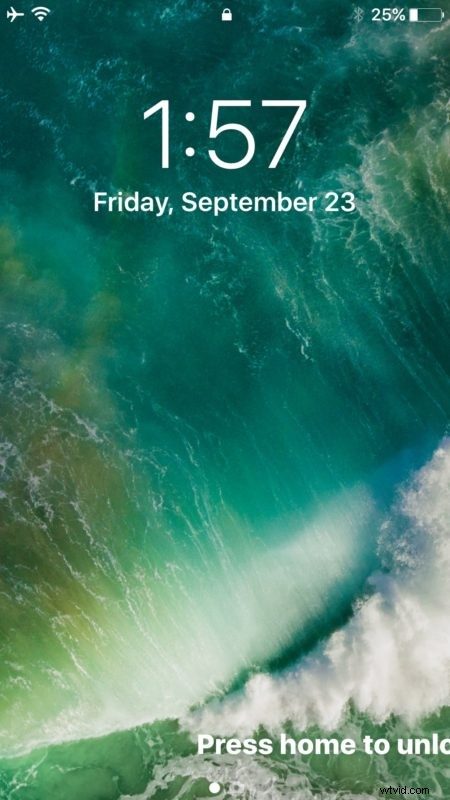
That’s the key difference, by making this settings change the only way to see additional details and widgets on the device itself is by authenticating with Touch ID or a passcode.
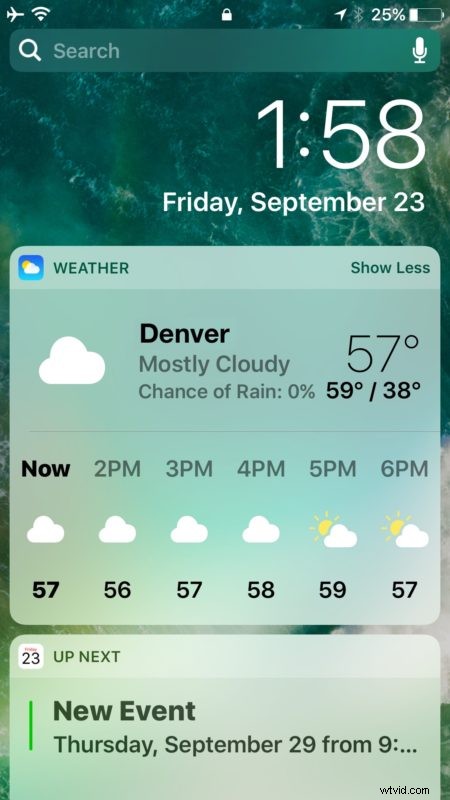
You can also edit the widgets and adjust what shows up in the widget and today screen if desired, like removing the “News” and tabloid headlines from the Spotlight screen of iOS, though if you’re aiming for privacy turning off the lock screen access in general is likely more desirable than toggling specific sections off or on.