
You can delete iCloud backups directly from iOS for any iPhone, iPad, or iPod touch that has been backed up to iCloud before. This means you can delete any new iCloud backups, or remove old iCloud backups, for any reason you want. Perhaps you’re trying to free up iCloud storage space, or you just no longer need a particular set of iOS backups in iCloud anymore, or maybe you sold a device and already restored the backup to another iPhone or iPad and thus no longer need that particular devices iCloud backup. Whatever the reason, this article will show you how to delete iCloud backups in modern versions of iOS system software on an iPhone or iPad, including iOS 13, iOS 12, iOS 11, and iPadOS.
Note that you must have used iCloud backups with an iPhone or iPad at some point in time, otherwise there will be nothing to delete from iCloud. If you’re aiming to delete the iCloud backups of a different device than what you are currently using, then that device must have been backed up to the same iCloud at some point in the past. Obviously you will not be able to access and delete someone elses iCloud backups this way, unless you logged into their Apple ID first.
How to Delete iCloud Backups on iPhone or iPad
You can delete any iCloud backups of any iPhone or iPad that are associated with your Apple ID. Keep in mind that you can not undo the deletion of an iCloud backup, so be absolutely certain you want to permanently remove the backup from iCloud before doing so.
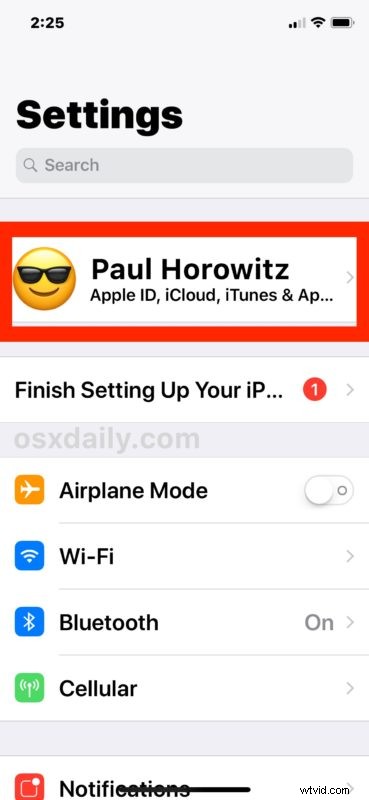
- Open the “Settings” app in iOS
- At the top of Settings, tap on your name to access iCloud and Apple ID settings *
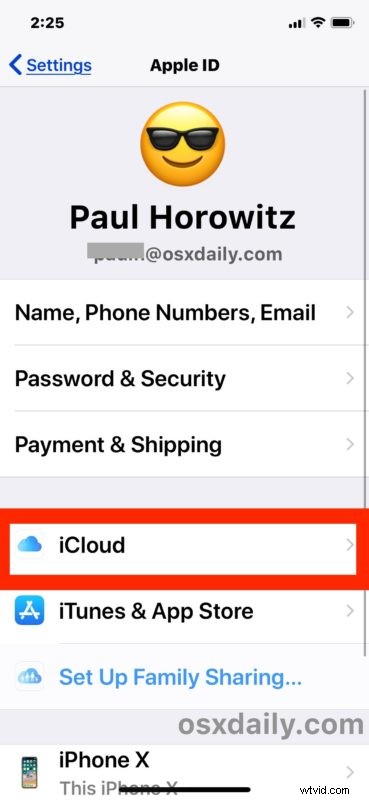
- Tap on “iCloud”
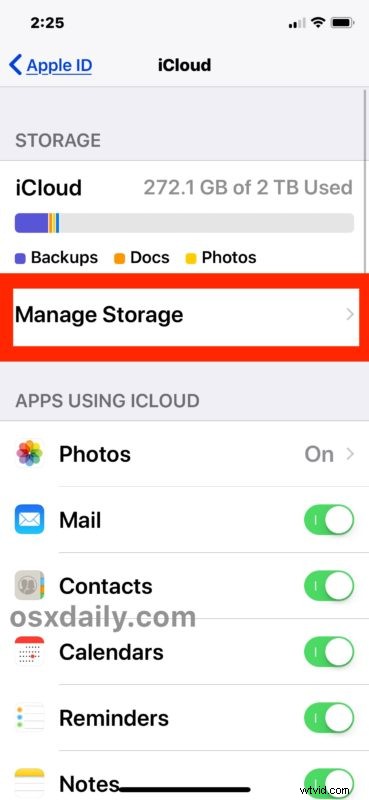
- Tap on “Manage Storage”
- Now tap on “Backups”
- Under the Backups section, tap on the iPhone, iPad, or other device you want to delete the iCloud backups for
- Tap on “Delete Backup” (you may need to scroll to the bottom of the Info iCloud data screen to see this option)
- Confirm that you want to delete the iCloud backup and turn off iCloud backups for that device **
- Repeat by deleting other backups for other devices if necessary

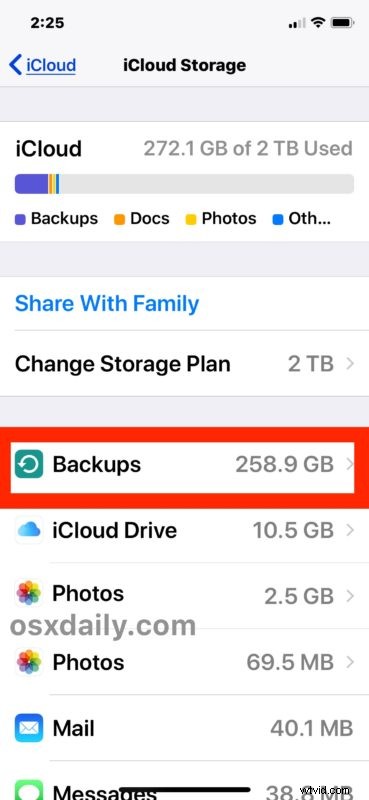
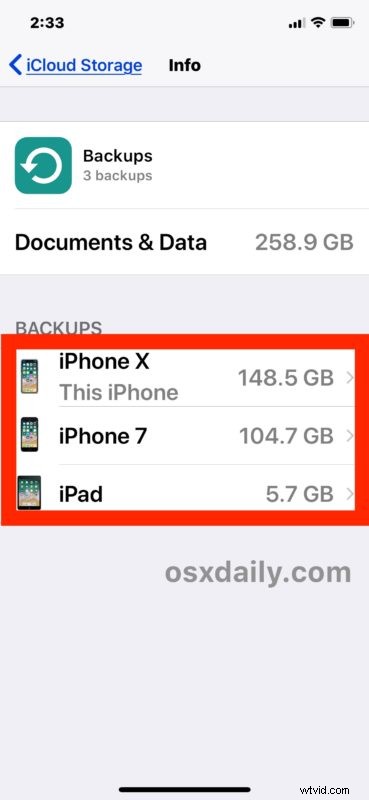
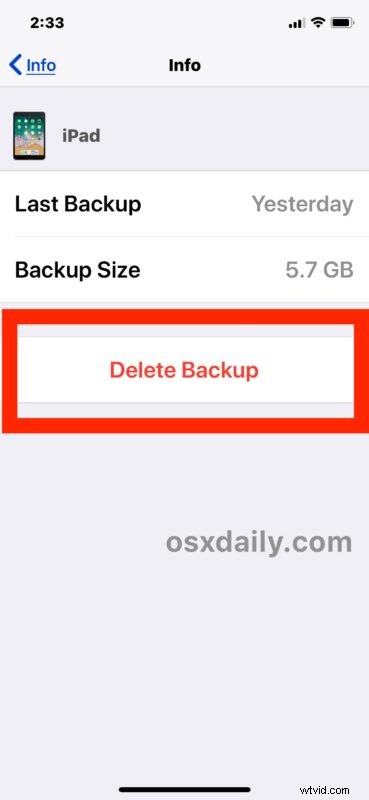
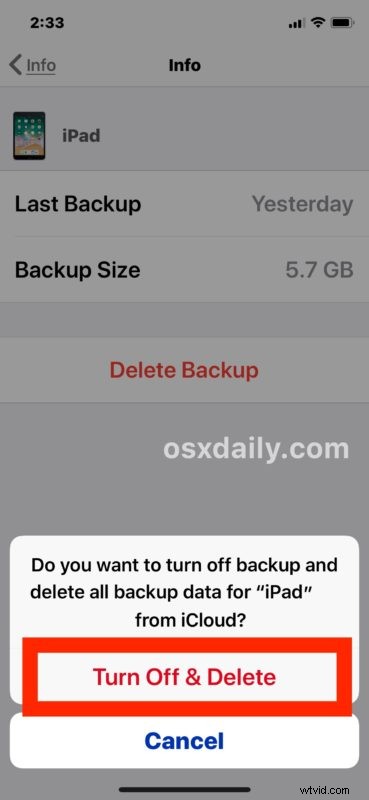
The iCloud backup removal is practically instant, and it irreversible. Once you delete an iCloud backup it can not be recovered or restored from. However, you can then immediately make a new backup to iCloud from the iPhone or iPad which will then be usable as normal.
If you are deleting the iCloud backup of your current device, it is strongly recommended to immediately backup the iPhone or iPad to iCloud again right away so that you maintain current device backups of your devices. Failure to consistently backup your iOS devices can result in permanent data loss.
The instructions here are for deleting and removing iCloud backups on modern versions of iOS, including iOS 13, iOS 12, iOS 11, and iOS 10, and iPadOS 13 and later too. If your iPhone or iPad is running an earlier version of iOS system software, you can still delete iCloud backups but the process is a bit different because Apple moved some of the settings around, nonetheless you can learn how to remove iCloud backups from older iOS versions here.
A fairly common reason for many iPhone and iPad users to delete iCloud backups is when you run out of iCloud storage space. If iCloud backups become full then further backups will fail, and additionally a completely full iCloud account will bounce back emails sent to name@icloud.com email addresses because the quota is full, meaning a full iCloud account may mean losing out on inbound emails. Additionally, no other data could be uploaded or stored on iCloud, including from the apps you use. Thus you may want to clear out iCloud backups if they’re no longer relevant or useful to you, or if they’re old, or even if you just must free up some iCloud storage for creating a new backup. Of course another solution is to simply upgrade your iCloud storage capacity and pay the fee associated with that, but shelling out additional funds is not always an option or desirable for all users.
* Newer versions of iOS changed how you get to these preferences, and accessing the Apple ID and iCloud settings in iOS Settings app can be confusing for many users as they are now tucked behind the name of the persons Apple ID at the top of the Settings app. Just tap on the name at the very top of Settings app if you’re on a new version of iOS.
** It’s important to point out that by deleting a device backup, further iCloud backups for that device are also simultaneously turned off. That might not be what you’re aiming for however, in which case you’d need to return to the device in question and then manually enable iCloud backups through the Settings app of that particular device. Don’t skip that if you do intend to have further backups made from any iOS device.
For the most part users should not need to regularly delete iCloud backups, or ever delete them at all, but should you need to this is the approach to take. If you have any other methods, opinion, or techniques for handling iCloud backups of iOS devices, share with us in the comments below.