
 Backing up a device to iCloud is highly recommended, but sometimes users get a new iPhone or iPad and they have old backups laying around in their iCloud account, which may not do much and just end up taking space. Assuming you have no use for the old backups anymore, you can easily delete them from iCloud and free up some iCloud space this way.
Do not delete an iCloud backup that you’ll need to use unless you plan on making a new one right away for a given device. Once you delete an iOS device backup from iCloud, it’s gone for good, and there is no undoing that removal.
Note: the approach covered here works to delete old iCloud backups from iOS 9, iOS 8, and iOS 7. Apple has moved the settings in newer versions, so if you want to delete iCloud backups from iPhone or iPad in newer versions like iOS 12, iOS 11, or iOS 10, then click here instead.
How to Access & Remove Old iCloud Backups from iOS
The iCloud management panel is accessible from all iOS devices:
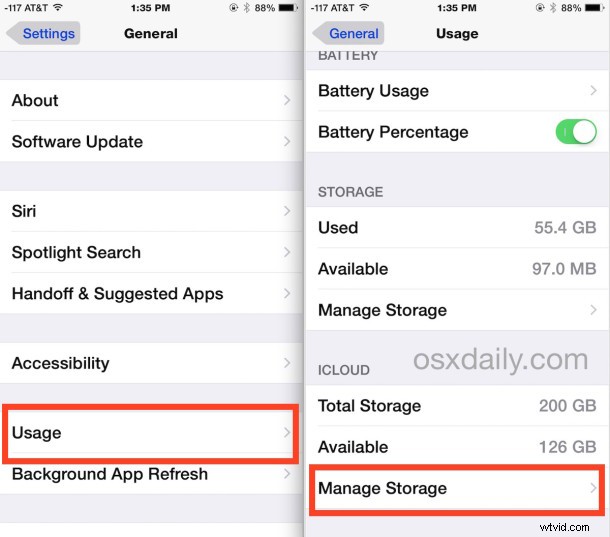
- Open the “Settings” app on any iPhone or iPad that is connected to the same Apple ID account containing the backups you wish to remove from iCloud
- Go to “Usage” and then under ‘iCloud’ choose “Manage Storage”
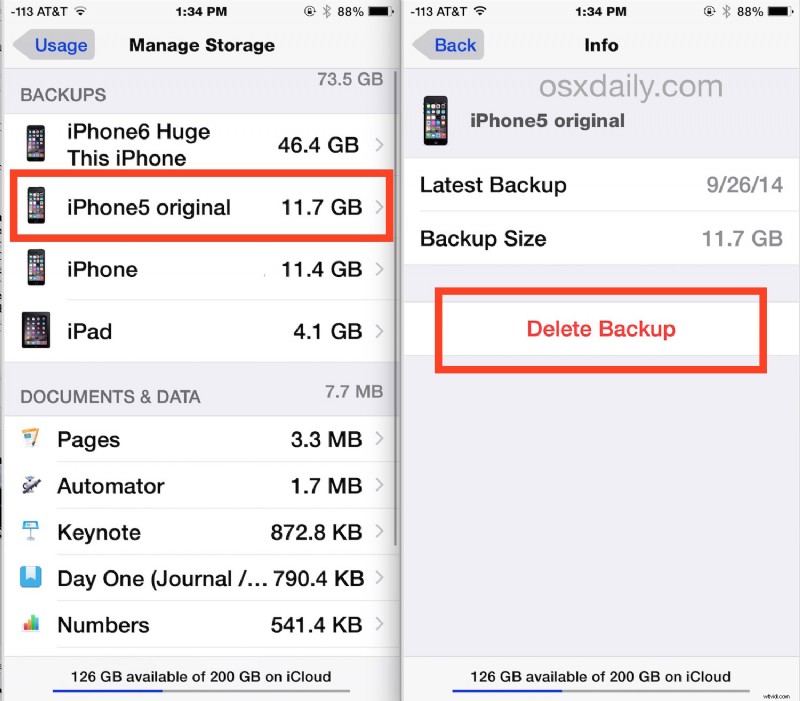
- Under the “Backups” list, you’ll see all devices which have current backups stored in iCloud, including the size of each backup, tap on the backup you wish to remove from iCloud
- Confirm this is an iCloud backup that you wish to delete permanently, then tap on “Delete Backup”
- Repeat for other old iCloud backups and old devices as necessary, then exit out of Settings when finished
If you’re deleting a current backup for some reason, perhaps to free up iCloud space, be sure you immediately start a new manual backup to iCloud of the iPhone, iPad, or iPod touch in question, otherwise you will not have a backup available for the device. If for some reason you don’t want to use iCloud, you can always backup an iOS device to iTunes and also manage iOS devices backed up to iTunes in a similar manner.
Removing old iCloud backups can be an easy way to free up space from iCloud and remove iCloud clutter, particularly for devices that are no longer in use, no longer needed, or no longer owned. Mac users can also manage and delete these same iOS iCloud backups directly from Mac OS X with the iCloud System Preference panel.
Of course, another option is to maintain the old backups and simply upgrade the iCloud storage plan to a larger capacity, the 200GB plan is generally our recommendation for users who have multiple devices, as it allows for plenty of storage capacity for multiple complete iCloud backups, copied files, and whatever else you wish to store in iCloud.