

Have you created a lot of custom Memojis on your iPhone or iPad? In that case, you may have a few that you no longer use. Fortunately, it’s pretty easy to remove all the unwanted Memojis from your iOS or iPadOS device.
Memojis allow users to create an animated version of themselves and express themselves in a much better way during iMessage conversations. The custom Memojis you create can also be used as Memoji stickers that work in other messaging apps like WhatsApp, Facebook, Discord too. If you made a lot of cartoony digital avatars when this feature first came out or when you first got your iPhone, there may be a few Memojis that you’re not actively using.
If you’re looking to clean up your Memoji library, you’ve come to the right place.
How to Delete Unwanted Memojis on iPhone
Removing a custom Memoji from an iPhone is actually a pretty simple and straightforward procedure. Just follow the steps below to get started.
- Launch the stock Messages app from the home screen of your iPhone.

- Open any message thread or conversation and tap on the Memoji icon as shown in the screenshot below.
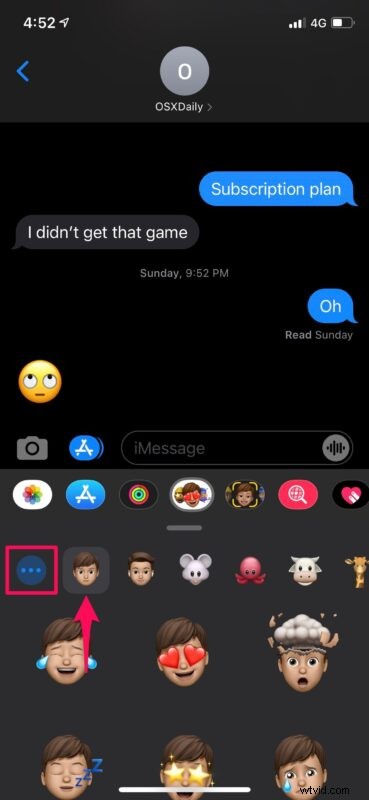
- Now, you’ll be able to see all the Memojis you’ve created in addition to the default set of Animojis. Simply select the Memoji you want to remove and tap on the triple-dot icon as indicated below.
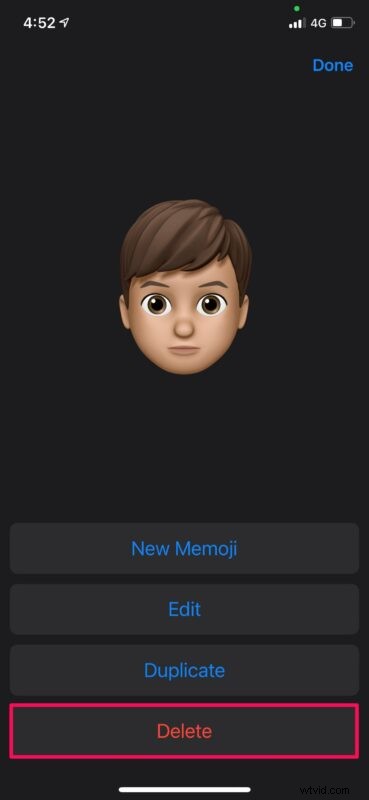
- This will take you to the dedicated Memoji section where you can create a new Memoji or edit an existing one. Here, tap on “Delete” which is the last option in the menu.
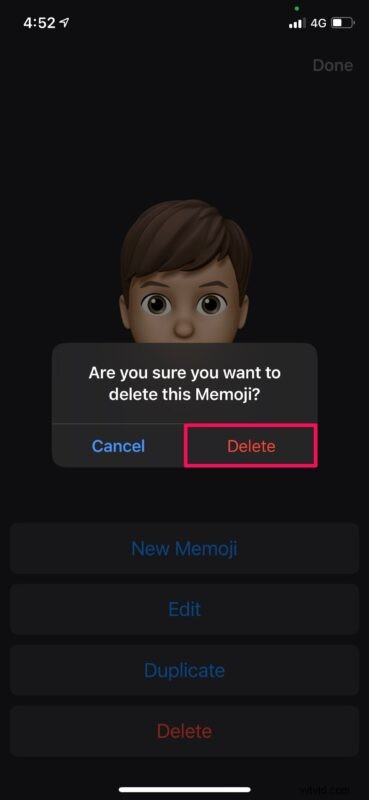
- You’ll get a pop-up prompting you to confirm your action. Choose “Delete” to confirm and you’re good to go.
As you can see, it’s pretty easy to remove unwanted Memojis from your iPhone.
Keep in mind that you can only remove the custom Memojis you have created. The default set of Memojis or Animojis that came with your iPhone cannot be deleted.
As of this writing, there’s no option that allows you to select multiple Memojis and delete them all at a time. So, you’ll have to remove the unwanted Memojis one by one.
Although we were focusing primarily on the iPhone in this article, you can follow these exact steps to delete unwanted Memojis on an iPad too. Likewise, you can also delete unwanted Memojis on an Apple Watch running watchOS 7.
We hope you were able to remove all the unwanted Memojis and reduce the number of custom Memojis you have. How many Memojis did you have before and how many do you have now? How often do you use this feature? Let us know your valuable thoughts and experiences in the comments section down below.