
Have you noticed taking a screenshot is harder in iOS 11 or iOS 10 and with iPhone 7 and iPhone 8? Maybe you tried to take a screen shot in iOS 11 or iOS 10 only to discover that you either locked the device, sent it to the Home Screen, or summoned Siri instead? This is a fairly common occurrence when taking a screenshot with an iOS 10 device, whether it’s an iPhone, iPad, or iPod touch, and has led some users to think that the mechanism for how to take a screenshot with iOS 10 was changed. Well, screenshots have not changed, but the sensitivity seems to be slightly different which requires a minor adjustment for some users to successfully capture screenshots in new iOS versions.
To be completely clear, taking a screenshot in iOS 10 and iOS 11 is the same as it was before: just press the Home button and Power button concurrently, the screen will flash, and the screenshot is captured and stored in the Photos app.
So why does it appear different for some users in iOS 10? This is where the minor behavior adjustment matters.
Take a Screen Shot with iOS 11, iOS 10, iPhone 8, or iPhone 7
This refers to taking screenshots in any iOS version past the 10 release, including iOS 11 and later.
Having difficulty taking screen shots in iOS 10? Try this approach instead
- Press down the Power / Lock button and Home button simultaneously as usual, but press the Power button a fraction of a second before the Home button
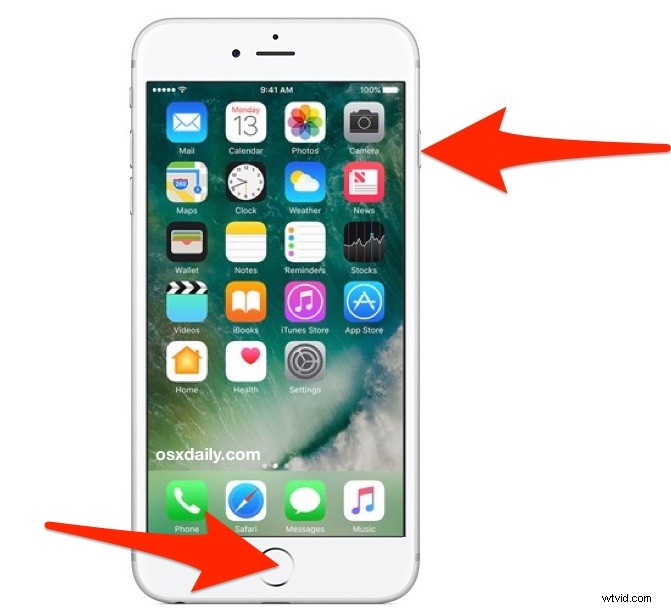
You can tell the screenshot has been successful as indicated by the screen flashing briefly.
The key difference with new iOS releases is simply pressing the Power / Lock button first as part of the concurrent Power & Home button screen shot maneuver. You still need to press Power and Home buttons simultaneously, press both buttons down at the same time, but place your finger on the Power button first in that process. The difference is barely a fraction of a second but it appears to matter, as the screenshot mechanism is a bit more finicky in iOS 10 with any iPhone, iPad, or iPod touch. This is particularly true on the iPhone 7 and iPhone 8 Plus without physical clicking Home buttons, and with iPhone 7, iPhone 8, and iPhone 8 Plus it even works better to press the Power button first and hold it slightly longer than usual as you press down on the Home button. You will see the screen flash demonstrating the screenshot was captured.
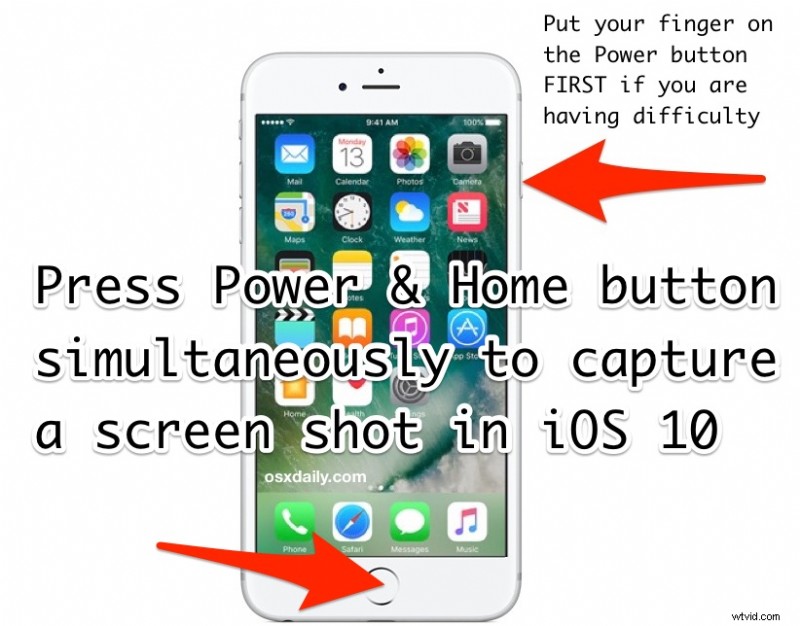
If you go the other route and press the Home button a fraction of a second before the Power button, you’ll almost always get sent to the Home Screen, or wind up with Siri instead.
The reason this issue only appears to impact some users and not everyone is likely due to slight variations in how people were taking screenshots in the first place. For example, if you were in the habit of doing a quick-press of both the Home and Power button, or to press the Home button first, you’re more likely to experience the unexpected result of going to the Home screen, finding Siri, or locking the display, rather than taking a screenshot. Try the Power button first and slightly longer press approach discussed here instead, it’s a very minor change to behavior but it makes all the difference.