
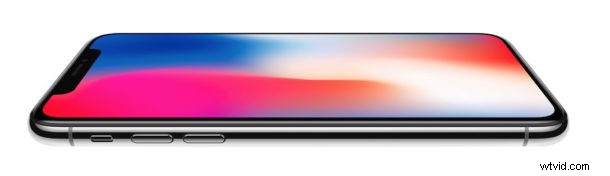
Want to take a screenshot of iPhone X, iPhone XR, iPhone XS, or iPhone XS Max? Of course you can snap screenshots of iPhone X-series, but you’ve undoubtedly noticed by now that iPhone X line has no Home button, and thus the familiar screenshot method pressing the Home Button and the Power Button no longer works to capture the screen of iPhone X, XR, XS, XS max.
Instead, the iPhone X, XS, XR uses a new and different button pressing combination to snap screenshots. It’s equally simple as what you used to use for snapping screen captures of iOS devices, but because it’s entirely new it may take a bit of getting used to before the new screenshot method becomes habit for iPhone X series owners.
You might want to practice it a few times to get the hang of it.
How to Screenshot iPhone X, iPhone XR, iPhone XS, iPhone XS Max
- Press Volume Up button and Power button together at the same time
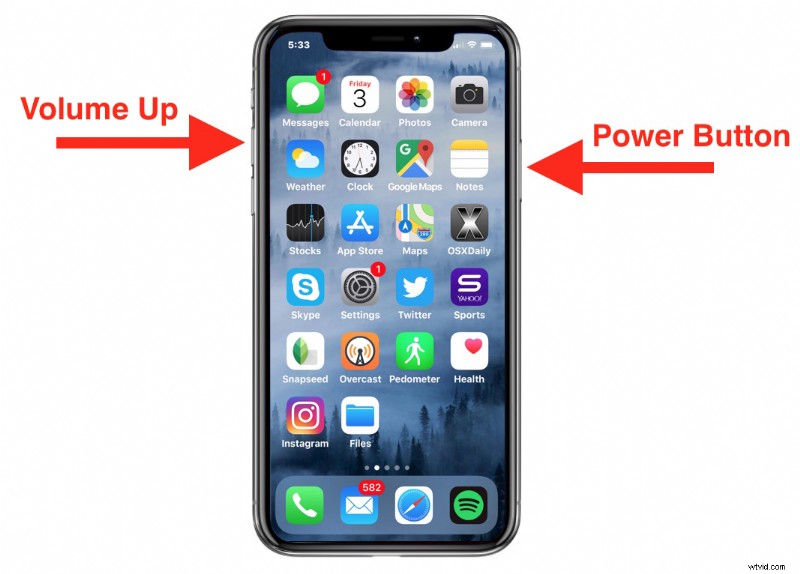
You must press the Volume Up button and Power button concurrently to take a screenshot of iPhone X, XR, XS. When the screenshot is successful, you will hear the familiar shutter camera sound, then see a little thumbnail of the screenshot preview appear in the bottom left corner of the screen.
The Power button is on the right side of the iPhone X, XS, XR, and the Volume Up button is the topmost button on the left side of iPhone X, XR, XS (it’s the button, not the little mute switch).
Some people refer to the Power button as the Side button or the Lock button, whatever you want to call the button the functionality is the same and it is a required step for taking a screenshot on iPhone X, iPhone XR, or iPhone XS.
A quick warning: do not HOLD the Power button and Volume Up button for too long, because it will quickly attempt to trigger the Shutdown screen and the Emergency SOS feature. When held too long, Emergency SOS will go a step further and then activate and attempt to call local authorities and emergency services, which is likely not what you want to do if you’re simply trying to take a screenshot. So beware of how that. Just a quick simple concurrent press of Power and Volume Up will snap the screenshot without doing anything else.
Notice while still using a dual button press procedure, this is different from screenshotting iPad or screenshotting iPhone models prior to iPhone X. It’s also worth noting that the process of taking screenshots with iOS 11, iOS 10, iPhone 7, iPhone 8, or iPhone 8 Plus was adjusted ever so slightly (at least in perception which required a minor behavior adjustment for some users) but remained the same with Home button and Power button pressing, whereas iPhone X, XR, XS is completely new behavior with a new button press.
And in case you were wondering, screenshots from iPhone X and newer are a substantial resolution of 1125 x 2436 pixels, making a large and tall image.
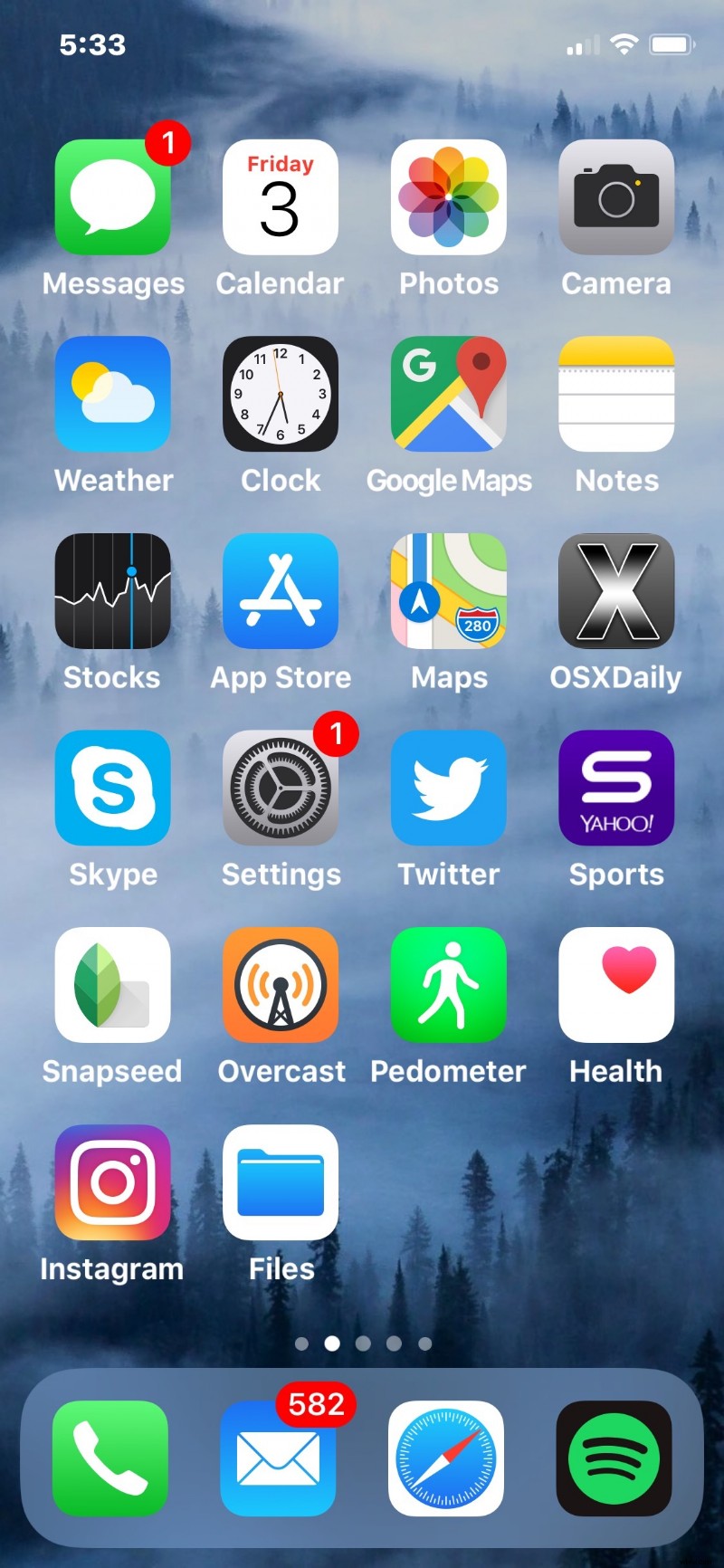
Enjoy taking your screen shots with iPhone X, iPhone XR, iPhone XS, iPhone XS Max, and you can check out more screenshot tips here if you’re interested in the topic.