
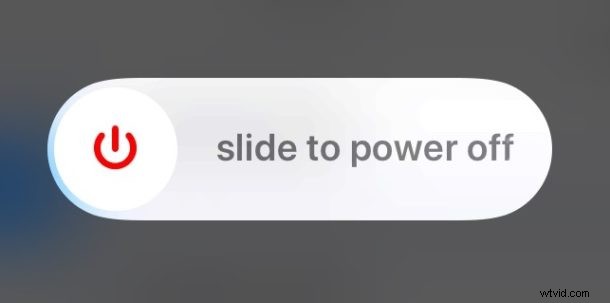
Want to turn off iPhone for whatever reason? Newer iPhone models have a different method of shutting down the device to turn off the iPhone compared to earlier model devices. This article will show you how to turn off iPhone XS Max, iPhone XS, iPhone XR, and iPhone X.
Note that turning off the iPhone literally turns it off completely by shutting it down. When the device is powered off it will not be able usable in any way until it is turned back on again.
How to Turn Off iPhone XS, XS Max, XR, X
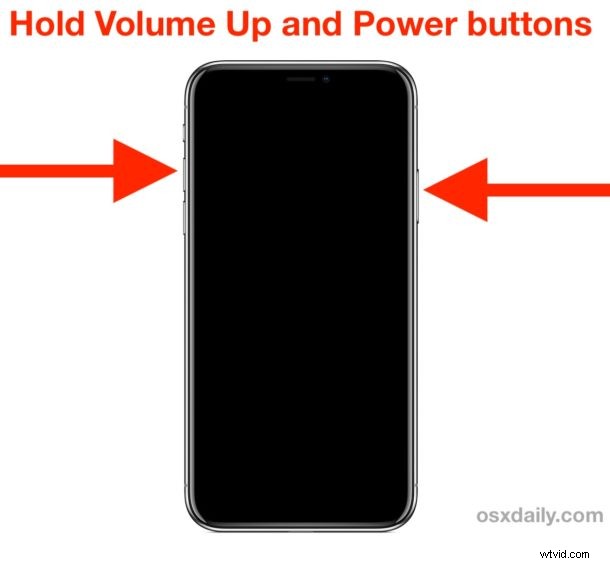
Turning off a newer model iPhone without a Home button is accomplished by holding down a button sequence to access the power off option. Here is how to turn off iPhone XS Max, XS, XR, and iPhone X:
- Hold down both Volume Up button and Power / Lock button until you see “Slide to Power Off” at the top of the iPhone display
- Swipe the slider right on the “Slide to Power Off” option to turn off the iPhone
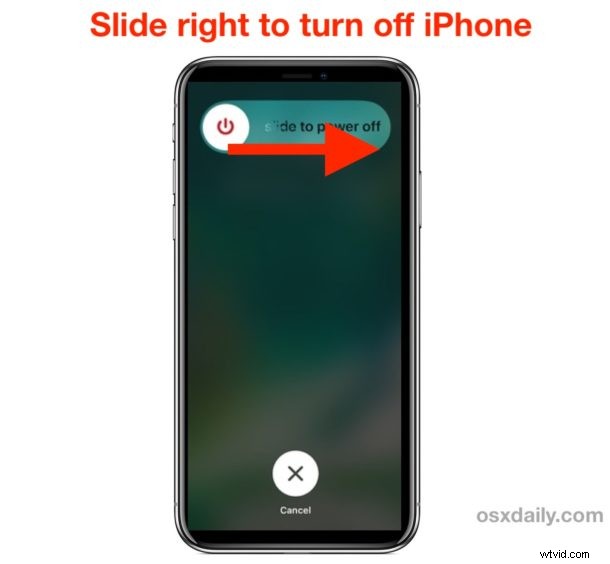
The iPhone will power down and turn off completely. It will stay turned off until it is turned back on again.
Another Option for Turning Off iPhone: Shut Down via Settings
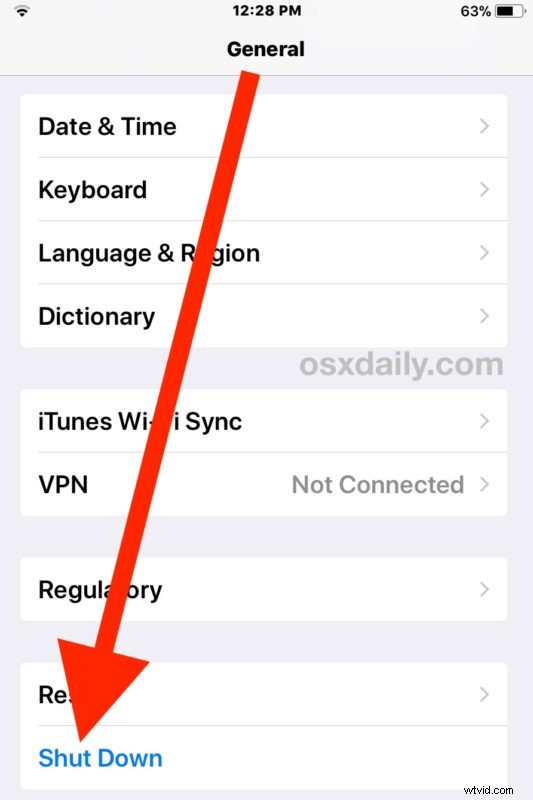
Another option is to shut down the iPhone or iPad through Settings, which does not require pressing any hardware buttons, but does still require using a slide to power off gesture:
- Open the “Settings” app then go to “General”
- Scroll down to the bottom of General settings and tap on “Shut Down”
- Swipe on “Slide to Power Off” to shut down the iPhone
How to Turn On iPhone XS, XS Max, XR, X Again
If the iPhone is turned off, you can turn it back on again using either of the following methods:
- Pressing the Power / Lock button on the side of the iPhone
- Plugging it into a power source
These methods of turning the shut down iPhone back ON apply to all iPhone models, including iPhone XS, XS Max, XR, X, and even other iPhone models like iPhone 8, 8 Plus, 7, 7 Plus, 6s, 6s Plus, 6, 6 Plus, SE, 5S, and prior iPhones too.
If the iPhone won’t turn on, then read these troubleshooting steps to fix that. Note that hardware damage can prevent an iPhone from turning back on again, so if the iPhone is damaged or destroyed then it may need repair first.
Turning off the iPhone and turning it back on again can also be used as a method to perform a soft reboot of the iPhone. Hard reboots are immediate and less graceful and are a different process, though performing a hard reboot differs per iPhone (and iPad) model. If necessary you can read how to force reboot iPhone XS, iPhone XS Max, and iPhone XR, iPhone X, iPhone 8 and 8 plus, 7 and 7 plus, force restarting iPad Pro, and how to force reboot all iPhone or iPad with clickable Home buttons which includes basically all older model devices and all modern devices where the Home button can physically be pressed down.