
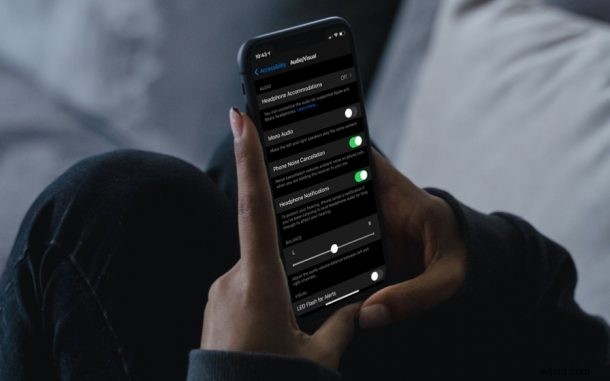
The iPhone has a nice optional health feature called Headphone Notifications, that aims to protect your hearing from loud music and sounds.
What exactly does Headphone Notifications do, you ask? In layman’s terms, the feature notifies you if you’ve been listening to loud audio via headphones. How does your iPhone know if your music is too loud, you ask? Basically, your iPhone analyzes your headphone audio levels, and checks if you’ve reached the recommended 7-day audio exposure limit. This is a feature that some users may really want to enable, while other users may not want the headphone notifications and wish to turn them off.
How to Enable / Disable Headphone Notifications on iPhone
For starters, you need to make sure that your iPhone is running at least iOS 14.5 or later, since earlier versions do not support this feature.
- Open the Settings app from the home screen of your iPhone.

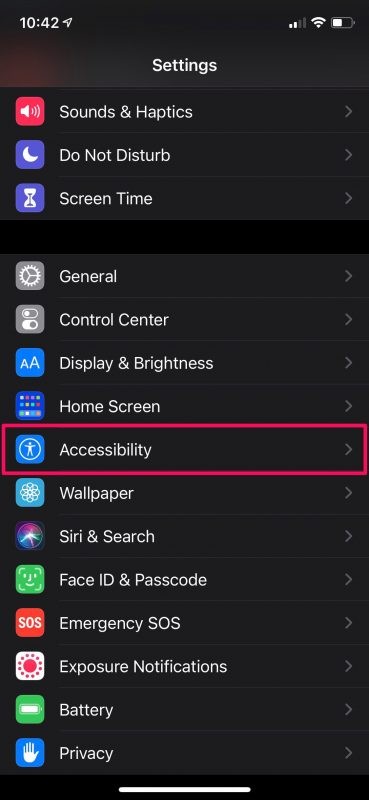
- In the settings menu, scroll down and tap on “Accessibility”, since it’s an accessibility feature as we mentioned earlier.
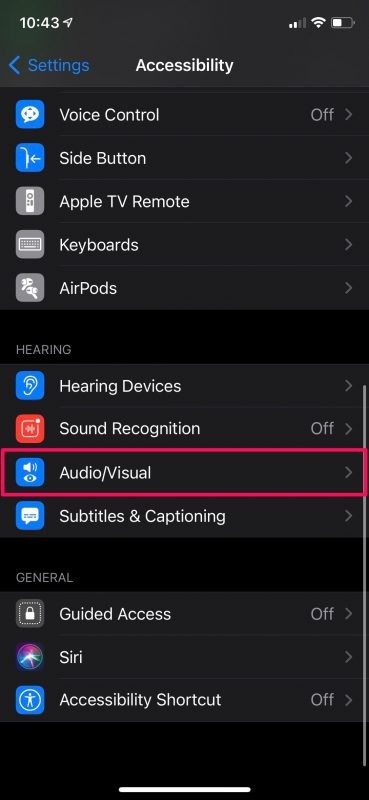
- Next, scroll down to the Hearing section and select the “Audio/Visual” option to proceed.
- Here, you’ll find the Headphone Notifications setting. Simply toggle the switch ON to start using this feature, or OFF to turn headphone notifications off.
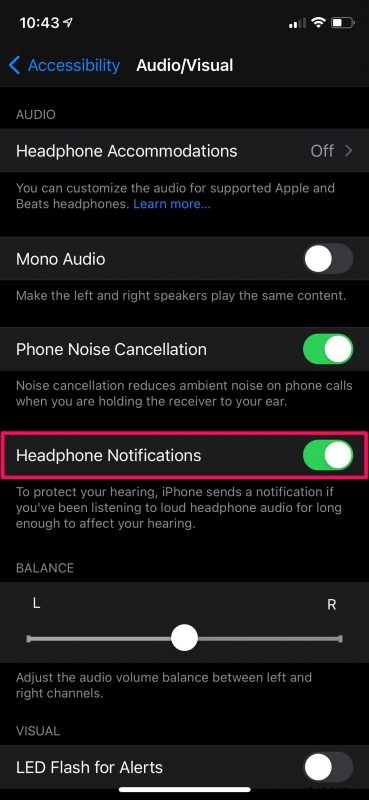
It’s that easy to enable and disable Headphone Notifications on your iPhone.
Keep in mind that your iPhone only analyzes the audio that you’re listening to on your headphones, and not the sound that’s coming out of the internal speakers. Also, the 7-day exposure limit only applies to media volume, and phone calls won’t get counted towards this.
While this particular feature is located under accessibility settings, it can also be accessed from the sound settings menu. Just go to Settings -> Sound & Haptics -> Headphone Safety to access the same toggle.
In certain countries or regions, this feature may be turned on by default and you may be unable to disable it even if you wanted to. This is due to the regulations and safety standards set by the respective government that Apple has to comply with.
If you use an Apple Watch alongside your iPhone, you can use this feature when headphones like the AirPods are connected to your Apple Watch too. But, iPad users won’t don’t have access to this feature for some reason, even though iPadOS is just iOS relabeled for the big screen.
What do you think of Headphone Notifications feature on your iPhone? Are you using it to protect your hearing? Do you turn it off because it does not concern you? Let us know your thoughts and experiences in the comments.