
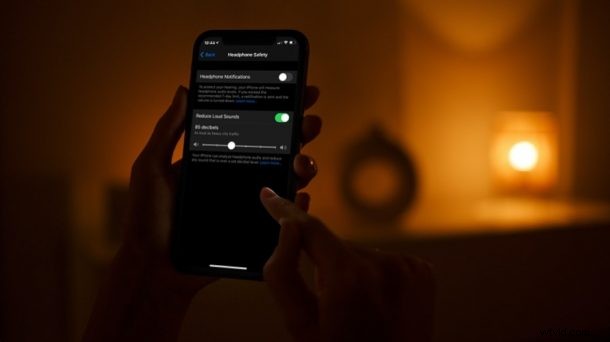
Did you know that your iPhone can automatically lower the audio level coming out of your headphones? That’s right, no more “RIP headphone users” moments when you’re watching YouTube videos. This feature is pretty easy to enable and use on iPhone and iPad.
When you watch videos, regardless of the type of content and where they’re from, the audio levels aren’t consistent and in fact, they’re ever-changing depending on the scene. This is most noticeable when you’re wearing a pair of headphones and the volume spikes out of nowhere. Well, thankfully, Apple has a solution in form of a setting called Reduce Loud Sounds. You can set the threshold for the feature to kick in and lower your headphone volume.
Too excited to try out this nifty feature by yourself? Understandable, and we’re here to help. In this article, we’ll be guiding you on how to automatically reduce loud headphone audio on your iPhone or iPad, and it works with not only the Apple earbuds, AirPods, AirPods Pro, Beats headphones, but also third party headphones and earbuds too.
How to Automatically Reduce Loud Headphone Audio on iPhone
This feature was introduced alongside the release of iOS 14. So, make sure your iPhone is updated to a modern version before you go ahead with the following steps. Now, let’s take a look:
- Open the “Settings” app from the home screen of your iPhone.

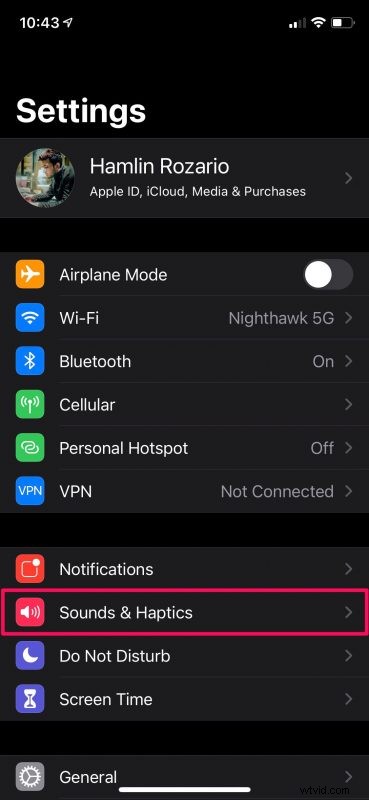
- In the settings menu, tap on the “Sounds & Haptics” option located below the notification settings as shown below.
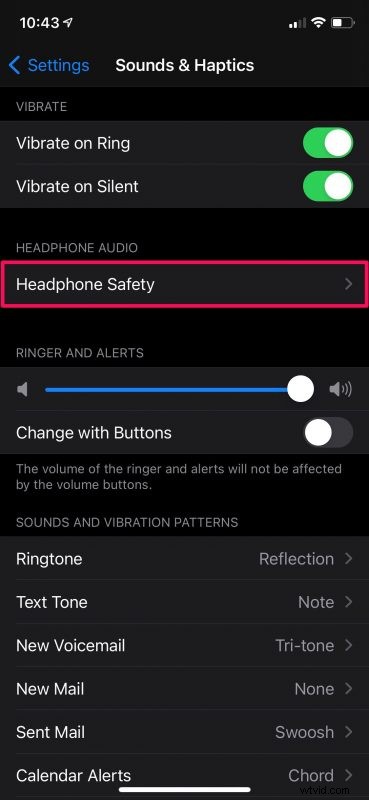
- Here, under Headphone Audio, select the one option called “Headphone Safety”.
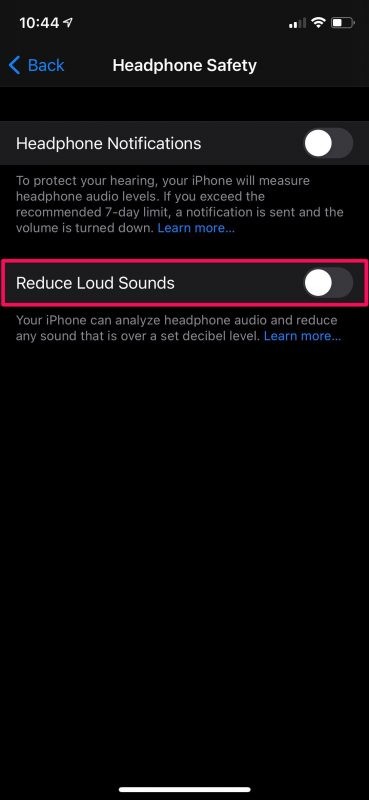
- Now, you’ll find the toggle to enable Reduce Loud Sounds. Tap on it to turn on the feature and view more options.
- You’ll now have access to a decibel slider. By default, the threshold for the feature to kick in is set to 85 decibels, but you can adjust the slider according to your preference.
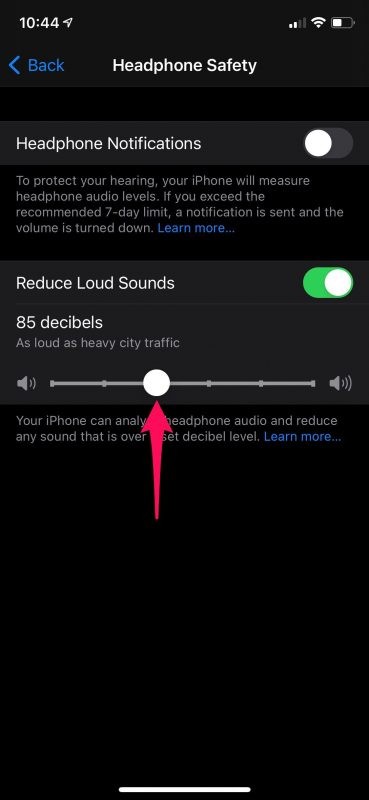
There you go, now you know exactly how to set your iPhone to reduce headphone volume automatically.
From now on, you don’t have to worry about volume spikes while watching videos. The moment the audio level exceeds the decibel threshold that’s set by you, the volume will automatically be lowered to make it stays below that threshold.
According to the World Health Organization, exposure to audio levels of 85 dB (which is the default setting) for anything more than 2 hours is considered unsafe. But, if you lower it down to 80 dB, you can safely keep listening for up to 5 hours. On the other hand, raise it to 90 dB, and the safe exposure duration drastically reduces to 30 minutes.
Now, we understand that the audio levels that you’re listening to on a daily or weekly basis may be difficult to keep track of. Apple has fortunately thought this through as they’ve added a feature to check decibel level of audio playing, and there’s even a Headphone Notifications feature in iOS 14.5 and later. Users can turn it on to receive a notification whenever they’ve reached the recommended 7-day audio exposure limit. However, this only applies to media volume and doesn’t take phone calls into account.
We hope you were able to use these new features in the best way possible to protect your hearing in the long term. How do the volume spikes feel when you’re watching videos now? What threshold did you set on your iPhone? Share your views on this feature and let us know your personal experiences in the comments section down below. Don’t forget to leave your valuable feedback as well.