
Many Siri interactions and requests submit anonymized audio recordings to Apple servers in order to process, review, and to ascertain for accuracy and quality. For example, if you ask Siri on iPhone for the weather, that request may be recorded as audio and processed on Apple servers. While this data is anonymized from an Apple ID, it is apparently associated with a specific iPhone or iPad.
Some users may wish to delete any stored Siri audio history and dictation history that is associated with their devices, whether for personal, professional, or privacy reasons, and that’s what this article will show you how to do.
How to Delete Siri Audio History from Apple Servers for iPhone & iPad
Because this feature is device specific, you may want to repeat the same removal process with other iPhone and iPad hardware that you have used Siri with. Here’s how the Siri data removal process works:
- Open the “Settings” app on iPhone or iPad
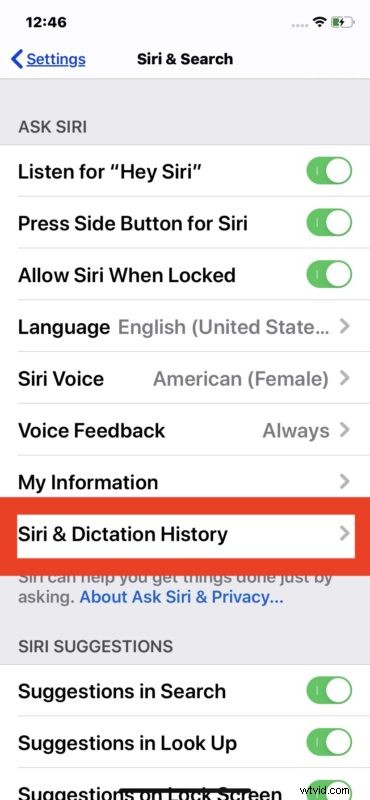
- Go to “Siri & Search”
- Choose “Siri & Dictation History”
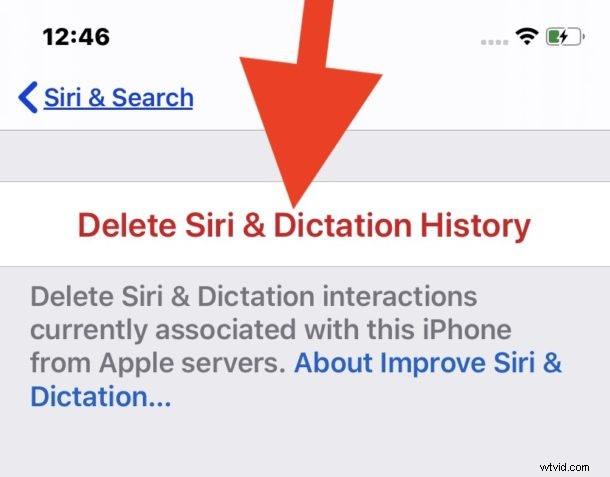
- Choose “Delete Siri & Dictation History”
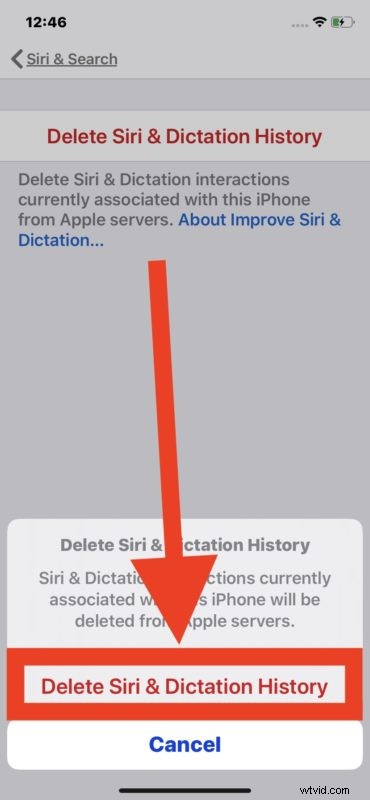
- Confirm that you want to remove all Siri and Dictation data associated with that device from Apple servers by choosing “Delete Siri & Dictation History”

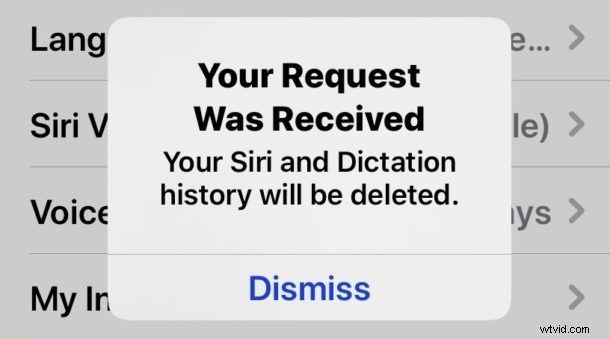
You’ll then get an alert stating that the request was received and that your Siri and Dictation history data will be removed from Apple servers.
Note that deleting Siri Audio History has absolutely no impact on the ability of Siri commands and tricks to work, it only removes any recordings that are made from Siri and that particular device.
Remember you can also disable Siri completely on iPhone and iPad, and turn it off on Mac too, if you find yourself either never using the feature, or for any other reason.
The ability to delete Siri audio recordings is available in iOS 13.2 or later and iPadOS 13.2 or later, earlier versions of system software do not contain this ability.
This data removal and privacy feature may be in response to a Guardian story, which claimed:
In response to that Guardian article, Apple told the Guardian:
Since Apple promotes data privacy as a feature, the company introducing a new feature to allow users to delete any of these Siri audio recordings from Apple servers makes sense as it gives users more control over their personal data.
Another separate and new feature in the latest iOS and iPadOS versions allows you to opt out of Siri audio recordings storage and review on iPhone and iPad in general. That setting can be accessed through Settings > Privacy > Analytics & Improvements > turn off “Improve Siri & Dictation”. Similar privacy features exist on the latest MacOS versions as well.