
You can adjust privacy settings on iPhone and iPad to stop Apple from storing, collecting, and reviewing audio recordings from your device and Siri usage. This is a new optional privacy feature that some iPhone and iPad users may be interested in, particularly if they don’t like the idea of their audio recordings from Siri use being used for analysis and improvement, or stored by Apple in general.
To be clear, Apple uses Siri and Dictation audio data to help improve the Siri and Dictation services, and by doing so they may store and review audio interactions with those features. By disabling this capability, you are opting out of using your Siri audio usage to help with analysis. You can get more information about this behavior in the Settings screen that you’ll be at in a moment by following the instructions below.
How to Opt Out of Siri Audio Recording Sharing & Collection on iPhone or iPad
Here is how disallow storage and review of audio captures from Siri & Dictation on a particular iPhone or iPad:
- Open the “Settings” app on iPhone or iPad
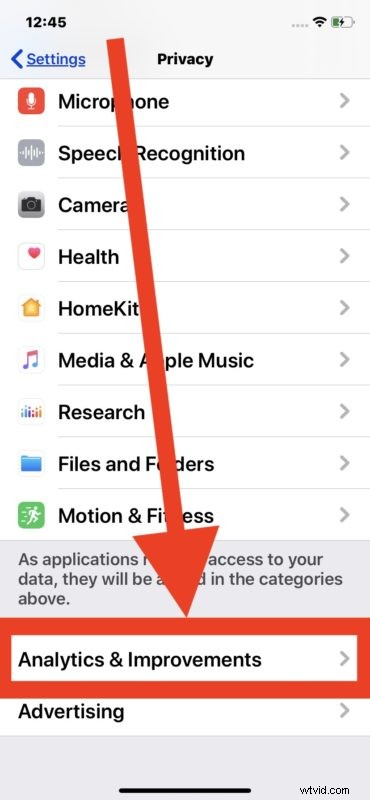
- Go to “Privacy”
- Choose “Analytics & Improvements”
- Locate “Improve Siri & Dictation” and turn that feature OFF

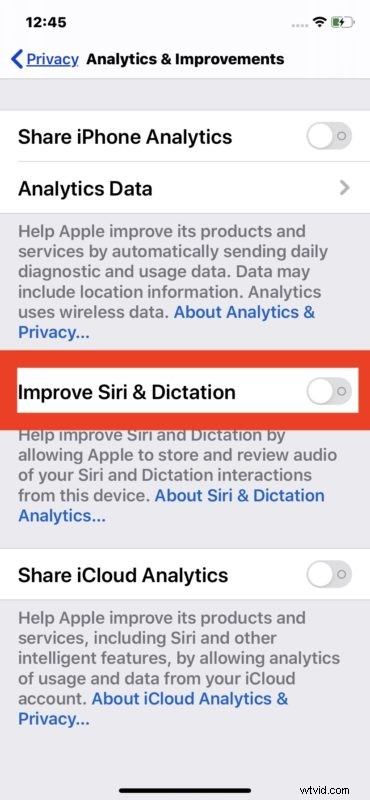
That’s all there is to it. With this feature disabled, Apple should no longer store and review audio from your Siri and Dictation interactions on that particular device.
Separately, you may also want to delete any existing Siri recordings that are associated with the iPhone or iPad from Apple servers, which is a separate process.
These settings are specific to each iPhone and iPad, so if you have multiple devices then you’d need to toggle and adjust the setting on each piece of hardware individually.
If you never use the Siri features in general, another choice would be to disable Siri on iPhone and iPad, and disable Siri on Mac, but of course if you do use the virtual assistant features then you likely won’t want to turn off the capability entirely on any of your devices or computers.
The ability to modify Siri audio history and recordings review was introduced in iOS 13.2 and iPadOS 13.2, so if you do not find these features available on your device then you’d have to update to those versions of iOS or ipadOS, or later.