
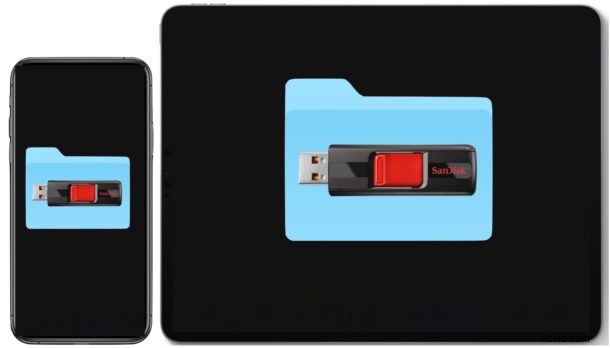
You can easily connect external storage drives to iPad and iPhone, providing easy access to all the files and data on those drives via the Files app. This includes connecting flash drives, USB hard drives, SD cards, and just about any other storage medium to iPhone, iPad Pro, and iPad you can think of, as long as you have the appropriate adapter to connect it to the iPhone or iPad.
This article is going to demonstrate how to use and connect external storage drives to iPhone or iPad, including external hard disks, USB flash drives, SD cards, and other common storage formats. You’ll then have direct access to the files on those storage mediums, right from iOS or iPadOS.
How to Connect External Storage Drive to iPad & iPhone
These are the steps to connect to and access external storage devices on iPhone or iPad. The demo screenshots here are shown on iPad but it works the same on iPhone too:
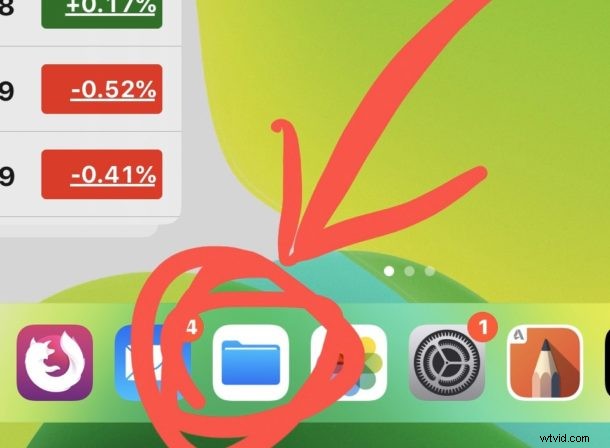
- Open the ‘Files’ app on the iPhone or iPad
- Connect the USB drive to the iPhone or iPad, either directly or by using an appropriate adapter for the device model * (adapter information further below)
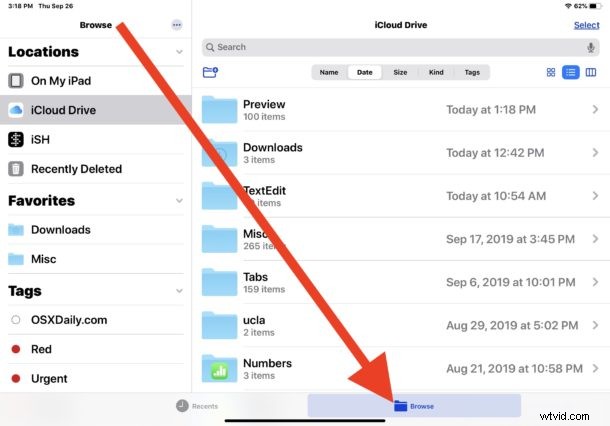
- Tap on “Browse” if you’re not at the primary Files app screen already
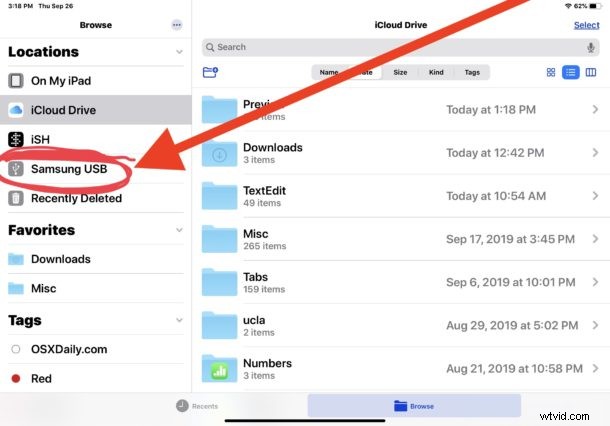
- Now from Browse, look under “Locations” to find the name of the external storage drive you connected
- Tap on the name of the external storage drive to access the contents and use that data from iPhone or iPad
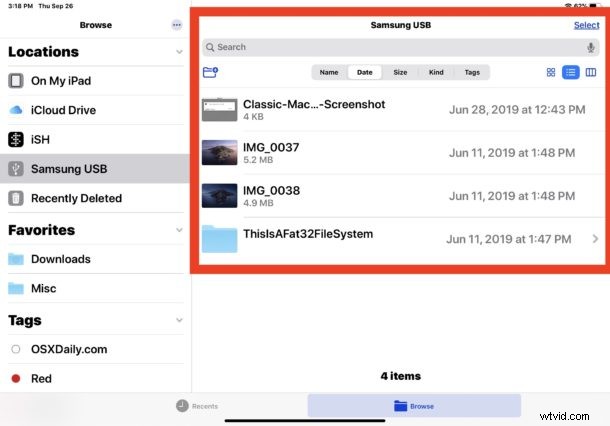
You can use all the regular Files app tips and functions with the external storage device.
You’re free to create new folders, cut, copy, paste, drag, drop, rename files and folders, and move files and data around as needed, sort files as make them easier to browse through, or whatever else you wish to accomplish. As long as the external drive is not locked (as can sometimes be the case with some SD cards and other external storage devices) then the external storage medium will be writeable and readable.
Files app appears to support a variety of common file systems, including APFS, ExFAT, FAT32, HSF+, so as long as the external storage device you’re trying to use is one of those formats, it should be easily readable.
What Adapters do I need for Connecting iPad or iPhone to External Storage Drives?
* Depending on your iPad or iPhone model, and depending on the device you want to connect, you may need a different adapter. The most common adapters for connecting external storage to iPhone and iPad are the following, these are partner affiliate links pointing to the products on Amazon:
- Apple Lightning to USB-3 adapter (works for iPhone, iPad, iPad Air, iPad mini, older iPad Pro, to connect to USB-C)
- Apple Lightning to USB camera adapter (works for iPhone, iPad, iPad Air, iPad mini, older iPad Pro, to connect to USB-A)
- Apple Lightning to SD Card reader (for iPhone, iPad, iPad Air, iPad mini, older iPad Pro to connect to SD card readers)
- Apple USB-C to USB-A adapter (works with new iPad Pro to connect to USB)
- Apple USB-C to SD card reader (works with new iPad Pro to connect to SD card)
- If you’re connecting a USB-C drive to iPad Pro, it will plug directly in without an adapter
What you use will ultimately depend on what device you are trying to connect to the iPhone, iPad, iPad mini, iPad Air, or iPad Pro. If your device has a Lightning port, then it will need a Lightning adapter. If the device has a USB-C port, it will need a USB-C based adapter.
We’re assuming you have a modern iPadOS version running on the iPad, as anything prior to iPadOS 13 will not have the features available in Files app to be able to natively access external drives this way. Likewise an y iPhone that wishes to use external storage devices must be using iOS 13 or later, as earlier versions of Files app there doesn’t support the capability either.
Files app is not limited to external storage access however, and you can also connect to external SMB servers with Files app on iPad and iPhone running the latest OS versions too.
Do you use external storage devices, hard drives, flash drives, SD cards, and other storage mediums with iPhone or iPad through Files app? What do you think of this great feature that is now available to iPad and iPhone? Let us know your thoughts and experiences in the comments below.