
Many iPhone and iPad users may wish to connect their device to a Bluetooth speaker, particularly since Bluetooth speakers are becoming increasingly ubiquitous in the world, and the AUX jack / headphone port is no longer included on new iOS devices. Apple seems to be nudging us into the wireless world, and Bluetooth speakers are certainly part of that world.
Connecting an iPhone or iPad to Bluetooth speakers is quite easy, and while it may not be as simple as plugging a cable into a port like a headphone jack, we’ll show you how to quickly connect an iOS device to a Bluetooth speaker device.
In the tutorial here, we’ll demonstrate connecting an iPhone to a portable Bluetooth speaker called the Tribit Sound Go, but this works exactly the same with something like a Klipsch set, and whether you’re on an iPhone, iPad, iPod touch, and regardless of what the Bluetooth speaker is.
How to Connect iPhone or iPad to a Bluetooth Speaker
- Power on the Bluetooth speaker set, and place it into Bluetooth discovery mode (typically Bluetooth speakers have a little Bluetooth sync button on them, just tap that)*
- Now open the “Settings” app on the iPhone or iPad
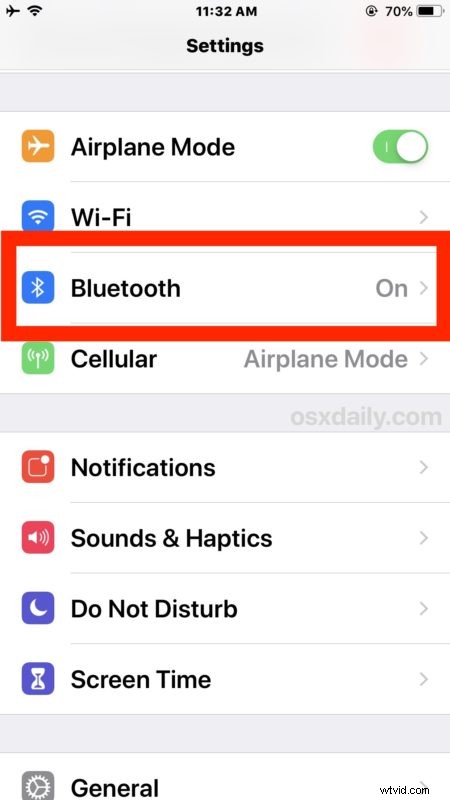
- Tap on “Bluetooth” near the top of Settings, and make sure that Bluetooth is toggled ON
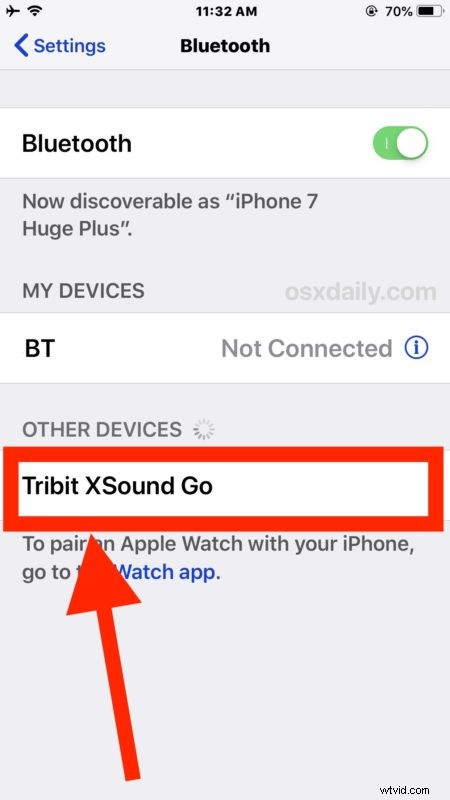
- Wait a moment for the iPhone or iPad to find the Bluetooth speaker, it will appear under the “Other Devices” section of Bluetooth, then tap on the name of the Bluetooth speaker
- Wait another moment or two for iOS to pair to the Bluetooth speaker, once completed it will appear under ‘My Devices’ and show as “Connected”
- Leave Settings as usual, the Bluetooth speaker will now be the audio output of the iOS device
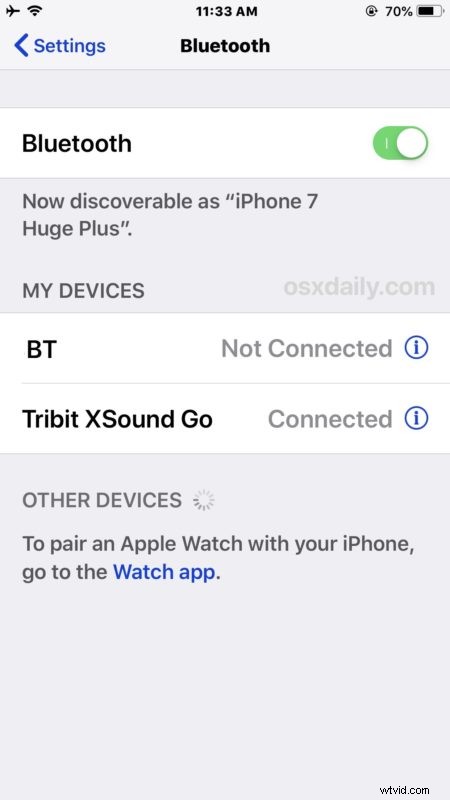
That’s it, now your iPhone or iPad is connected to the Bluetooth speaker!
The Bluetooth speaker now becomes the default volume output, as long as it’s within Bluetooth range, or until it is disconnected.
Disconnecting the Bluetooth speaker from the iPhone or iPad is possible either by turning off the Bluetooth speaker, disconnecting the Bluetooth device from iOS via Settings, or by disabling Bluetooth in general in iOS.
With some of the more recent changes in iOS, don’t forget to learn how to check Bluetooth status in iOS 12 and later
It’s also noteworthy to recall how to change Bluetooth audio sources on iPhone when on a phone call, since if you’re using an iPhone that is actively synced to a Bluetooth speaker than it will likely default to playing over that rather than using the iPhone built-in earphone. If you have a Bluetooth enabled car stereo you may have encountered this before (along with the auto-playing music thing)
Bluetooth audio is undeniably convenient, since you can control music and audio output from anywhere nearby and entirely wirelessly. Of course Bluetooth isn’t limited to audio though, and you can use it to connect a keyboard to an iPhone or iPad too, along with many other handy external accessories to iOS.
If you have any tips, tricks, or advice about using and connecting Bluetooth speakers to an iPhone or iPad, share them in the comments below!