
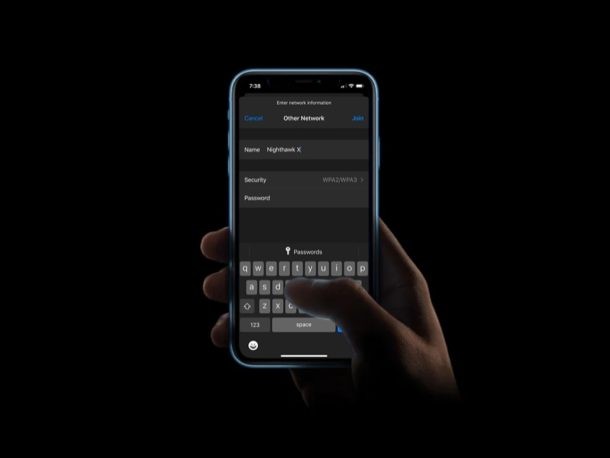
Connecting to Wi-Fi networks on an iPhone or iPad is a fairly straightforward procedure.
If you’re not already familiar, you’ll find that learning how to connect to a wireless network is pretty easy. Depending on whether the Wi-Fi network is public, private, or hidden, the way you connect to the network may slightly vary.
In this article, we’ll be covering how to connect to a Wi-Fi network on both the iPhone and iPad.
How to Connect to a Wi-Fi Network on iPhone & iPad
Regardless of what iPhone or iPad you have or what iOS version your device is running on, the procedure is going to be identical across all devices and basically all system software versions. Let’s take a look at the steps.
- Head over to the “Settings” app from the home screen of your iPhone or iPad.

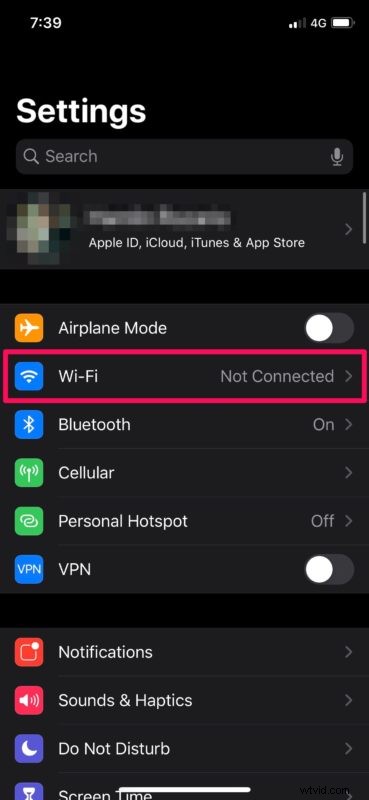
- In the Settings menu, tap on Wi-Fi as shown in the screenshot below.
- Here, you’ll see the list of public and private Wi-Fi networks. Simply tap on the Network name in order to connect to Wi-Fi. If it’s a private network, you’ll be asked to enter the password. However, if you’re trying to connect to a hidden Wi-Fi Network or if the network you want to connect to doesn’t show up in the list, tap on “Other…” as shown below.
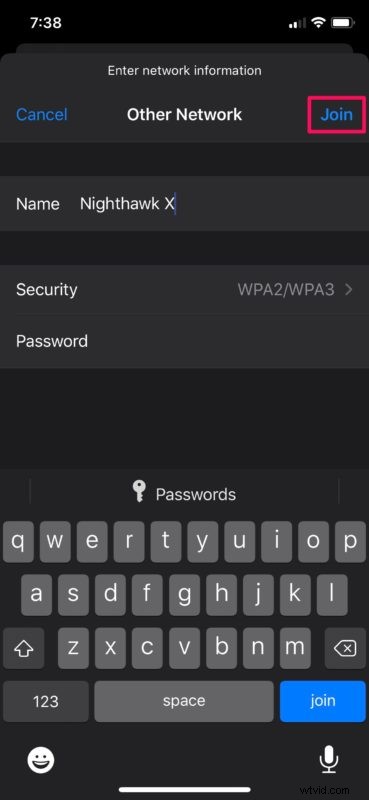
- Now, simply type in the network name, password and tap “Join” located at the top-right corner of the screen.
That’s it, now you know how to connect to a new Wi-Fi network.
Once you have connected to a Wi-Fi network for the first time, you won’t be asked to enter the password details again whenever you try to reconnect to the network. In fact, your iPhone and iPad would automatically connect to the wireless network, as long as you’re within its range.
A nifty trick that relates to this is the ability to easily share wi-fi network passwords from iPhone and iPad to other iPhone and iPad users that are nearby, allowing you (or them) to connect easily to a wireless network without having to enter a password or any credentials. That trick is particularly helpful if the password to the network is obscure, or if someone is continuously experiencing an incorrect password error on their iPhone or iPad.
There’s also a quicker way to quickly join wi-fi networks; Thanks to the toggle within the Control Center, you can easily connect and switch between Wi-Fi networks without leaving the home screen or exiting an application.
Wireless networking is convenient and simple, so hopefully you have a better understanding of how to connect to wi-fi networks from your iPhone, iPad, or iPod touch.
Let us know your thoughts and opinions in the comments!