
Want to see a wireless networks wi-fi signal strength from an iPhone or iPad? That’s easy enough, and you have two quick and simple ways to view the wi-fi signal strength of a currently active wireless network right from iOS, and you can even see the signal strength of other nearby networks too.
The first option is fairly obvious and that’s in the device status bar at the top of an iOS device screen, that will show you the currently connected and active wi-fi signal strength. The second option is through the iOS Settings app and can show you not only the currently connected wireless networks wi-fi signal, but also other nearby networks wi-fi signal strength too.
How to Check Current Wi-Fi Networks Signal Strength in iOS
As mentioned, the currently active Wi-Fi signal strength is always shown in the upmost status bar of an iPhone or iPad, and that can be the first place you look if you want to check the signal of an active current wireless connection from an iOS device.

Three bars is a good signal, two bars is OK, and one bar is generally a pretty weak or bad wi-fi signal that may even have trouble sending and receiving data.
How to View Other Wi-Fi Networks Signal Strength in iOS
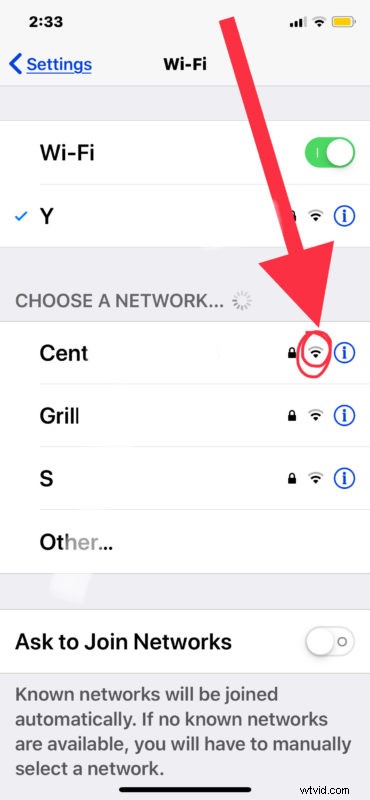
Additionally, you can also check wi-fi signal strength of other nearby wifi networks directly from the Settings app:
- Open the “Settings” app on iPhone or iPad
- Go to “Wi-Fi”
- Under the Wi-Fi network list, locate the name of the wi-fi network or wireless router you want to check the signal strength for
- Look alongside the wi-fi network name for the little wi-fi signal indicator, which can be generalized as so:
- Three bars – Good wi-fi signal
- Two bars – OK wi-fi signal
- One bar – weak wi-fi signal
There can be many reasons why a wi-fi signal may be good or bad, but the two main factors for wi-fi signal strength are generally distance from the access point, and signal interference. For most situations, the closer you are to the wi-fi router or access point, the stronger the signal. Similarly, the less interference the better the signal. Some types of walls and other metals and machinery can also impact a wireless signal.
The good news is that because you’re checking the wi-fi signal on an iPhone or iPad, the device itself is very mobile and so often simply moving around or moving the device can make the difference between signal strength.
Checking wi-fi signal strength in iOS is pretty easy, but if you’re an advanced user or a network administrator you might find this simple method to be insufficient. There are various wi-fi tools for iOS however that can be helpful to check out, for example the Fing network scanner tool for iOS is pretty good, though generally you’ll find that the iOS based tools are not nearly as robust as comparable options are on the Mac, Linux, or Windows desktops, let alone with the Mac Wi-Fi Diagnostics wireless tool or airport command line tool.
If you know of any other handy tips or tricks for monitoring wi-fi signal strength and connections on iPhone or iPad, share in the comments!