
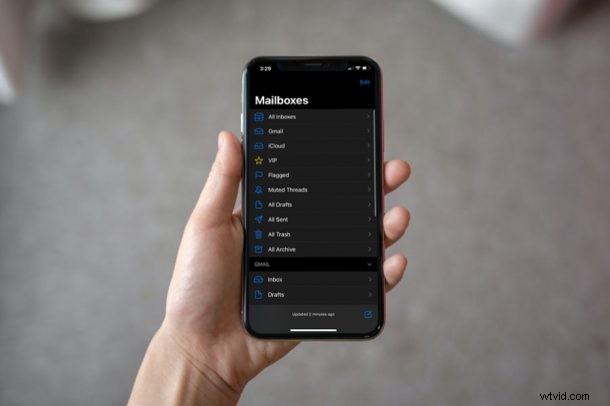
The Apple Mail app offers different mailboxes that are not visible by default, and depending on which email provider you use, you’ll have different options. Some of the optional hidden mailboxes include Flagged, Unread, VIP, To or CC, Attachments, Thread Notifications, Today, Muted Threads, All Drafts, and more.
You’ve probably noticed that the Apple Mail app lists out a few mailboxes that most users would normally use or need, like Unread, All Sent, All Trash, All Archive, and of course each individual inbox for email accounts. The additional mailboxes that are disabled by default could come in handy for some users though, for instance, there’s a mailbox that lets you view just the emails with attachments. There’s also a mailbox that only shows you the unread mails so you don’t have to go through the trouble of finding them in your primary inbox.
Let’s check out how to view some of the alternate mailboxes on your iPhone and iPad.
How to View Additional Hidden Mailboxes on iPhone & iPad
Regardless of the iOS or iPadOS version that your device is currently running, you can follow this procedure to view the hidden mailboxes in the Mail app since its user interface has remained mostly the same for years. Here’s what you need to do:
- First, launch the stock Mail app from the home screen of your iPhone or iPad.

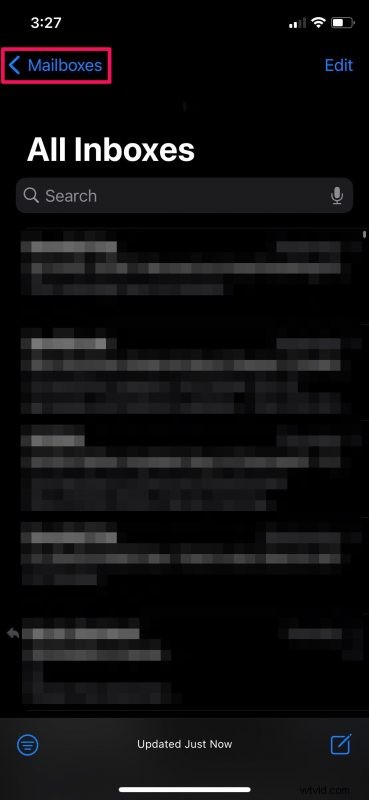
- Upon launching the app, you’ll typically be taken to your primary inbox. Tap on “Mailboxes” at the top-left corner of your screen to access the Mailbox list.
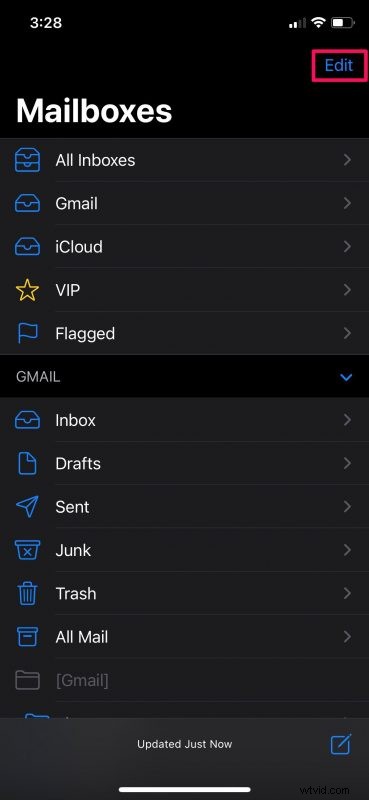
- Here, you’ll be able to see all the mailboxes that are visible by default. Next, tap on “Edit” located at the top-right corner of the menu as shown below.
- You’ve entered the Mailbox edit menu. If you scroll down below, you’ll see that a lot of mailboxes are unchecked. These are the optional or hidden mailboxes. Simply select the ones that you want to view.
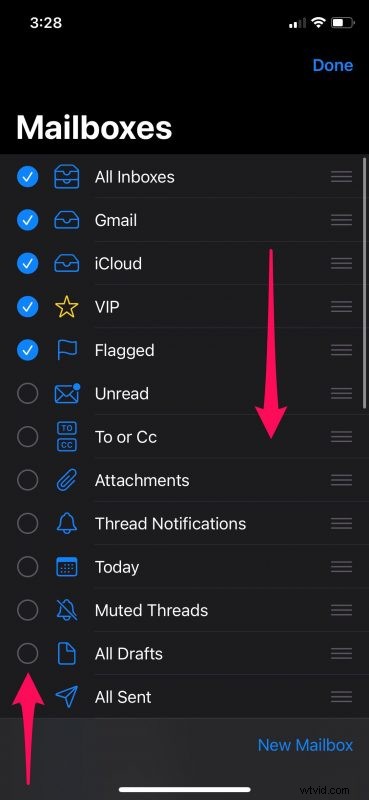
- Once you’ve selected the mailboxes by checking the boxes, tap on “Done” to save your changes in the Mail app.
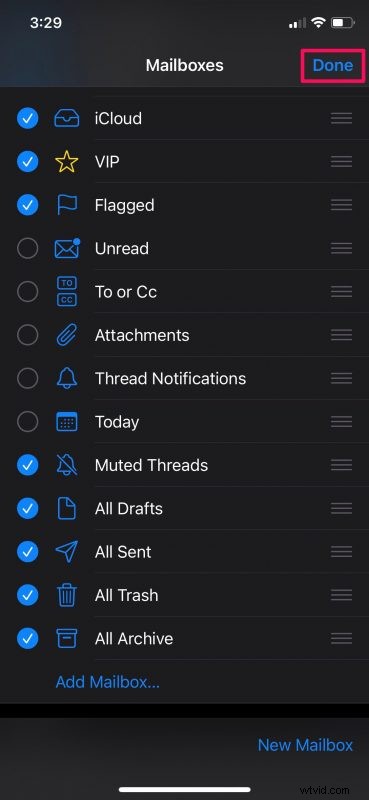
- Now, all the mailboxes you chose to unhide will show up in the main menu of the app. At this point, simply tap on them to view all the mails stored in that particular mailbox.
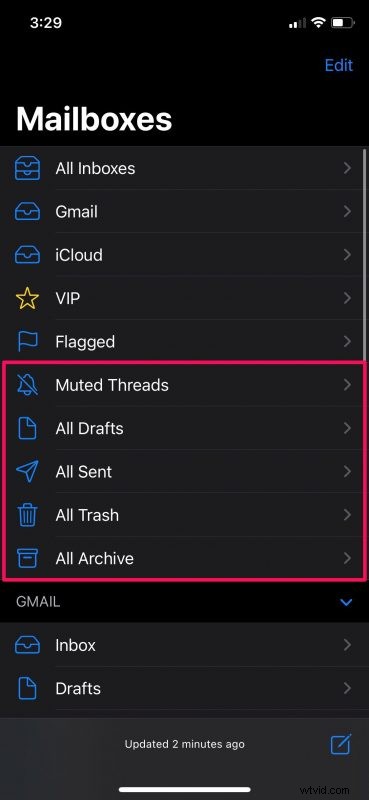
That’s it. As you can see, it’s really that simple to view hidden mailboxes in the Mail app.
Depending on your personal preferences, the mailboxes that you chose to unhide my vary. A lot of people would use this procedure to view emails with attachments only in the Mail app since the Attachments mailbox makes filtering a whole lot easier.
Likewise, you can use these steps to hide existing mailboxes that you don’t really use from the main menu of the Mail app. Simply uncheck the boxes and you’re good to go. You can also add new mailboxes and rearrange how all the mailboxes are arranged from the Mailbox Edit menu if you prefer it. Simply drag the mailboxes around after pressing the triple-line icon for rearrangement.
There’s also a super handy toggle in the Mail app that lets you easily show Unread emails only on iPhone or iPad, if you aren’t familiar with that feature you’ll be sure to appreciate it.
Did you enable any of the hidden mailboxes on your iPhone or iPad? Which do you think is the most useful? Let us know your thoughts in the comments.