
Have you ever wanted to update the software on your iPhone using your cellular network? Perhaps you don’t have access to a Wi-Fi connection but want to install an iOS update? Apple allows users to update their iPhones over LTE and 5G, at least in some countries.
In most parts of the world, cellular data is pretty expensive, so it’s understandable why Apple doesn’t want users downloading iOS updates over LTE. Each major update that you download is a couple of gigabytes in file size and a lot of users don’t have that much data allocation. However, people who pay for unlimited LTE data plans may wish to take advantage of this newly added option on their iPhones.
Thanks to this feature, you can now update your iPhone while you’re driving or just on the move. In this article, we’ll cover how you can update your iPhone over a cellular network.
How to Update Your iPhone Over a Cellular Data Network
This functionality was added as a part of the iOS 14.5 software update, so obviously the iPhone must be running at least that version or newer before proceeding with the steps below:
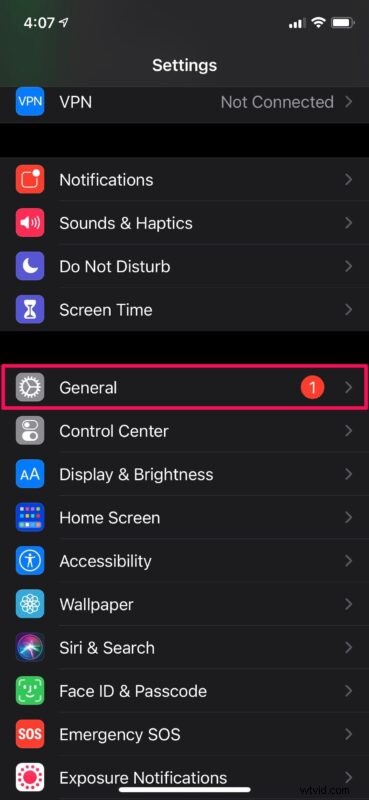
- Head over to “Settings” from the home screen of your iPhone.

- In the settings menu, scroll down and tap on “General” to proceed.
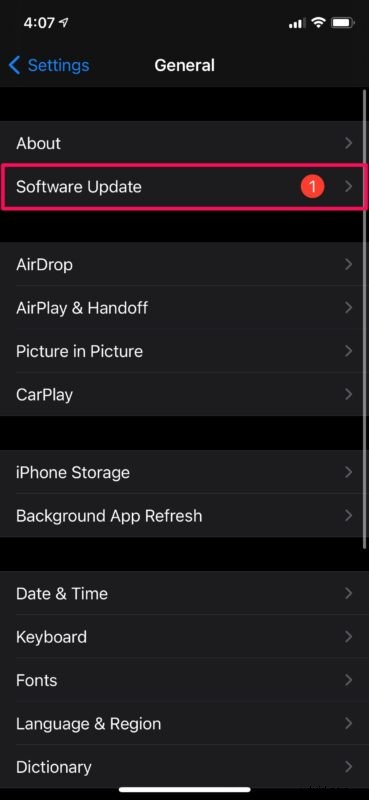
- Now, tap on “Software Update” located just below “About” at the top as shown in the screenshot below.
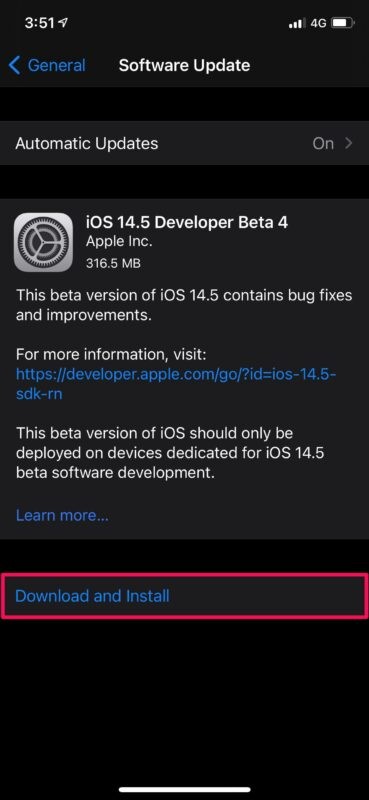
- Any updates that you have will show up here. Note that you need to have a software update available to change the setting. Make sure you’re connected to your cellular network instead of Wi-Fi and then tap on “Download and Install”.
- You will now get a prompt about the cellular download. Choose “Continue” to begin downloading the iOS update via your cellular network.
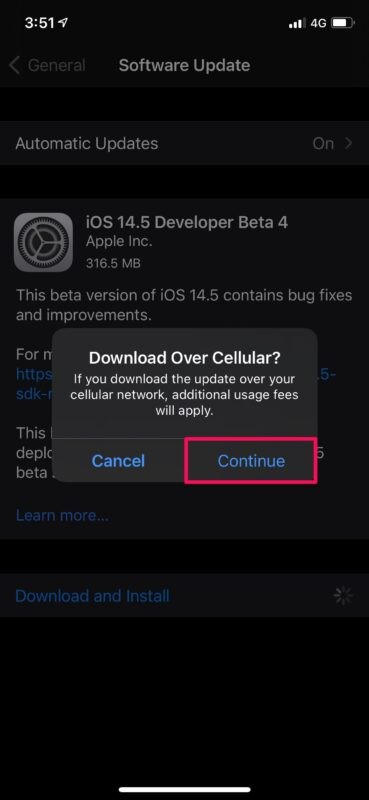
As you can see, it’s pretty similar to how you’d normally update your iPhone, except that you’ll now get a prompt when you’re connected to LTE instead of Wi-Fi.
How to Update Your iPhone Over 5G
If you don’t live in a country where Apple supports software downloads over LTE, the only way to use your cellular connection for iOS updates would be by using an iPhone with 5G support. The good news is that if you do indeed own an iPhone 12, iPhone 13, iPhone 12 Mini, or iPhone 12/13 Pro/Pro Max at the moment, you can download updates over cellular no matter where you live. Here’s what you need to do:
- Launch “Settings” on your iPhone and tap on the “Cellular” option.
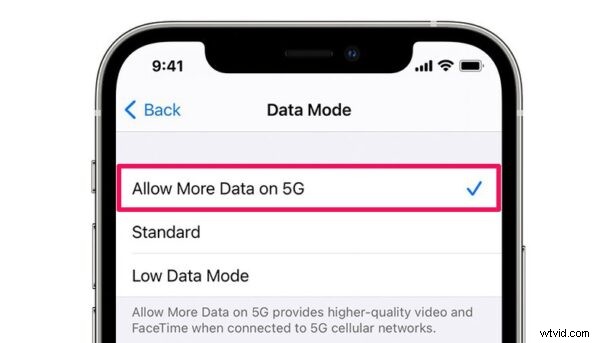
- Here, select “Cellular Data Options” as shown in the screenshot below to proceed further.
- Now, go to the “Data Mode” settings and select the option “Allow More Data on 5G” instead of Standard which is set by default.
That’s it. You’ll now be able to update your iPhone over a 5G cellular connection.
Once again, be warned that cellular data is pricey and could incur additional charges, so it’s highly recommended to not use a cellular network for software updates unless you’re paying for an unlimited data plan or your daily/monthly data allocation is high.
Allowing More Data on 5G can also increase data consumption by a large amount if you FaceTime often since it provides a higher-quality video feed, similar to the quality you’d get on Wi-Fi. You also get access to high-definition content on Apple TV and higher quality streaming on Apple Music.
Having said all that, we’re not exactly sure which countries support software updates over cellular at the moment, since Apple hasn’t provided an official list just yet. We tried this out in India where cellular data isn’t expensive and people have access to unlimited data plans. What you can do is try it out for yourself and let us know if your country or region is supported.
Hopefully, you were able to learn how to update your iPhone using a cellular connection. Does Apple allow you to download iOS updates over LTE from where you live? Are you paying for an unlimited cellular data plan? Do share your experiences and make sure to leave your valuable feedback in the comments section down below.