
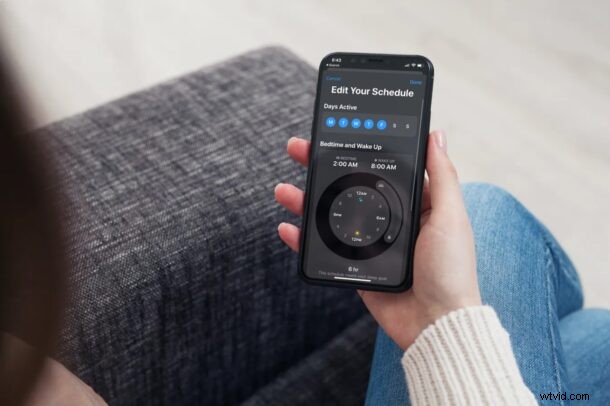
Do you make use of the built-in sleep scheduling feature on your iPhone? Although it helps you prioritize your sleep, not everyone has a fixed sleep schedule. So, if you’re trying to change your current schedule to make sure your alarm doesn’t go off at the wrong time, we got you covered.
For those who aren’t aware, Apple added a customized sleep schedule feature to the Health app with the release of iOS 14. As mentioned above, most users don’t adhere to the same schedule for long. More often than not, you may want to wake up earlier than usual for an important meeting or sleep in on your days off. As a result, you would want to adjust this feature accordingly within the Health app.
Whether you want to just tweak your bedtime for the next day or you completely follow a revised sleep schedule, you can read the following procedure to learn how you can adjust your sleep schedule on both the iPhone and iPad.
How to Adjust Your Sleep Schedule on iPhone & iPad
Note that the steps below will only cover how you can adjust your sleep schedule and not how to set the feature up. Regardless, setting it up is pretty easy as well, provided your device is running iOS 14 or later. Now, let’s see what you need to do:
- Launch the Health app on your iPhone or iPad.

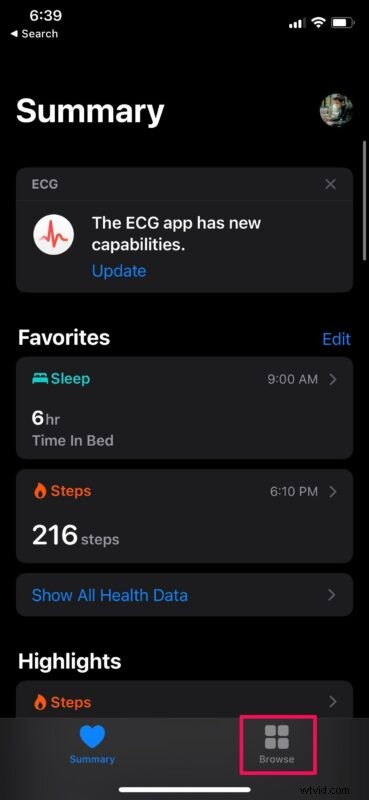
- This will take you to the Summary section of the app. Head over to the “Browse” section from the bottom menu.
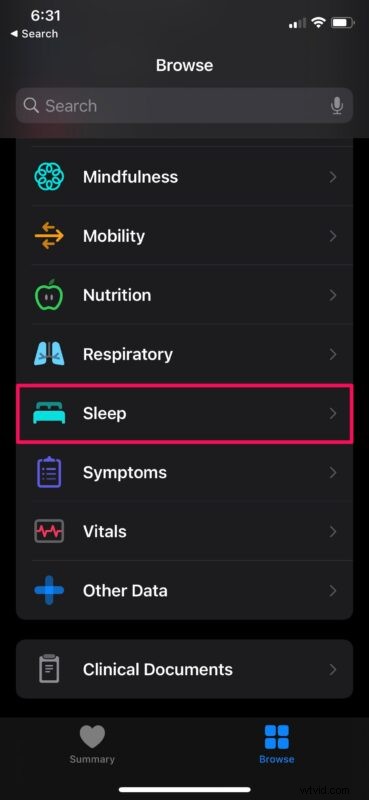
- In the Browse menu, scroll down and select “Sleep” to proceed.
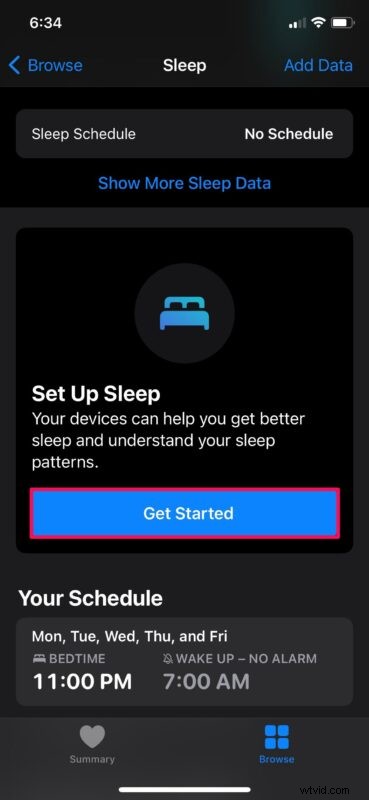
- If you haven’t set up a sleep schedule, you can tap on “Get Started” in this menu and follow the on-screen instructions to configure it according to your needs. On the other hand, if you already have a schedule, you can skip this step.
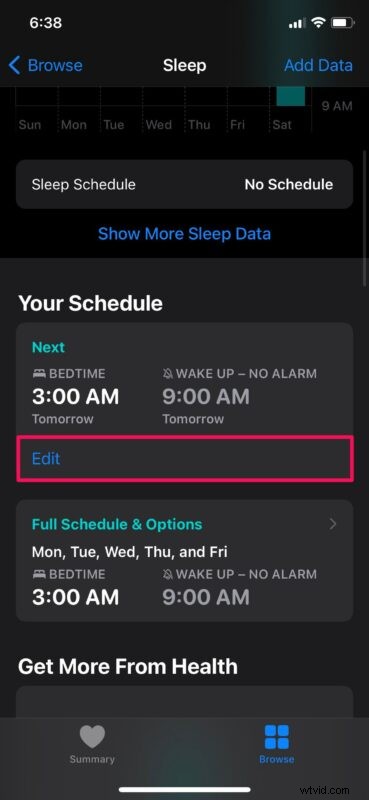
- Scrolling down a bit in the Sleep menu will show “Your Schedule”. To change your schedule for just the next day, tap on “Edit” below your “Next” schedule.
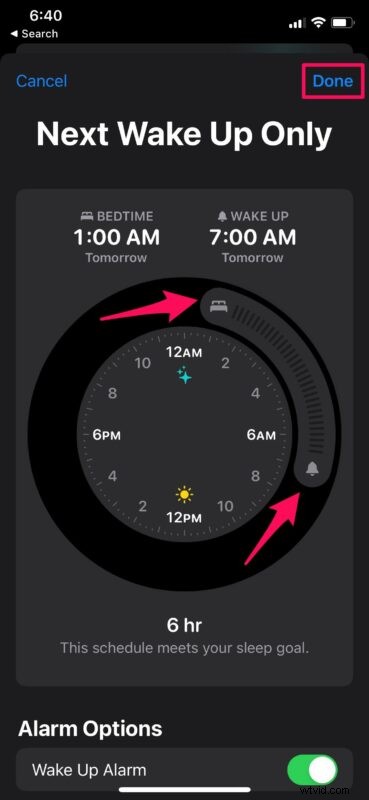
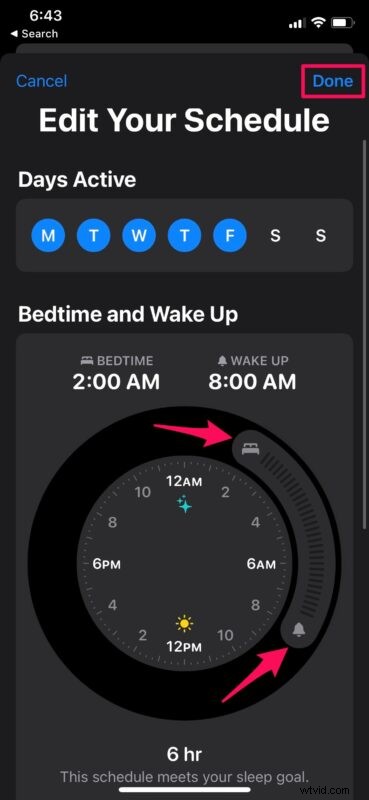
- Now, simply adjust your schedule by sliding or dragging the dial as shown in the screenshot below. Once you’ve finished configuring, tap on “Done” at the top-right corner.
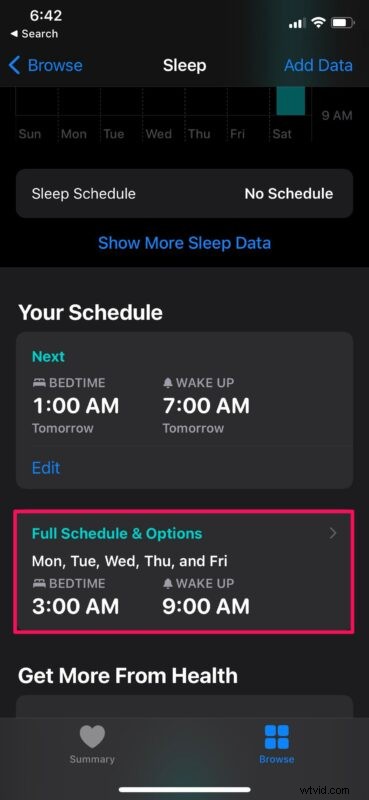
- To change your sleep schedule altogether, go back to the Sleep menu and tap on “Full Schedule & Options”.
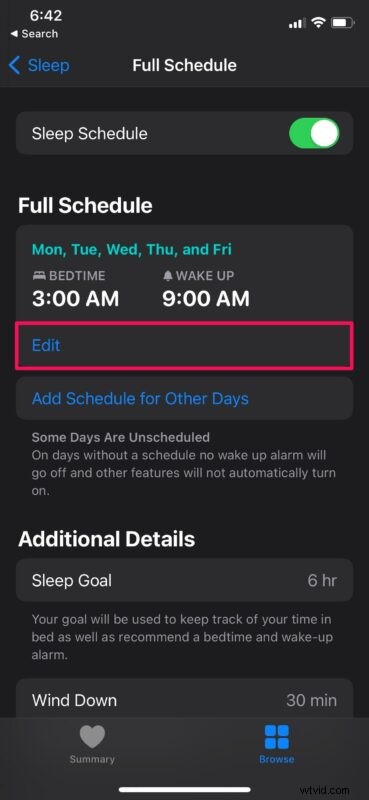
- Next, tap on “Edit” under Full Schedule to change it.
- Just like earlier, drag the dial to match your current sleeping pattern and tap on “Done” to save your changes. Make sure to change the active days too if it applies to you.
There you go. You’ve successfully changed the sleep schedule that’s used by your iPhone to remind you when to go to bed.
From now on, you don’t have to worry about your wake up alarm going off at the wrong time or your device winding down way earlier than the time you go to bed. When you adjust your sleep schedule in a way that your sleep duration is less than your sleep goal, the dial will turn yellow indicating that it’s not meeting the goal set by you.
This is just one of the many new Health features that have been added to iOS 14. With this latest revision of iOS, the Health app supports several new data types for mobility, symptoms, and ECG. There’s also a new Health checklist which makes it ever so easy to manage the Health features that matter to you. Yet another notable feature is Hearing which will notify you and reduce your headphone’s volume once you reach WHO’s recommended safe weekly listening dose.
Remember, Apple Watch offers sleep tracking too, which is even better since it is worn on your wrist and picks up signals from your body to determine sleep activity. So if you happen to have an Apple Watch and want to monitor your rest, don’t miss that.
Hopefully, you were able to change the sleeping schedule on your iPhone and iPad to match your current sleeping pattern or tweak it for certain days according to your needs. What’s your take on the customized sleep schedule feature that iOS has to offer? What other Health features do you use? Feel free to share your experiences and drop your valuable opinions in the comments section down below.