
Have you ever wanted to unlock your iPhone with just your voice? In that case, you may be excited to learn that it’s possible to do that, thanks to a little known Accessibility feature.
You may already be familiar with the Voice Control functionality that has been around for years. For those who aren’t aware, it can be used to perform a lot of different operations on your iPhone with just your voice. The feature had its limitations until now, however. For instance, you could not use it when you’re on the lock screen, meaning it wasn’t possible to enter the passcode and unlock your iPhone. But from iOS 14.6 onward, Apple is bringing Voice Control to the lock screen too. If you’re interested to use it, just read along to learn how to unlock your iPhone with your voice.
How to Unlock iPhone Using Voice Control
It’s obvious that your device has to be running be iOS 14.6 or later to use this functionality. So, make sure your device is updated before you proceed with the steps below:
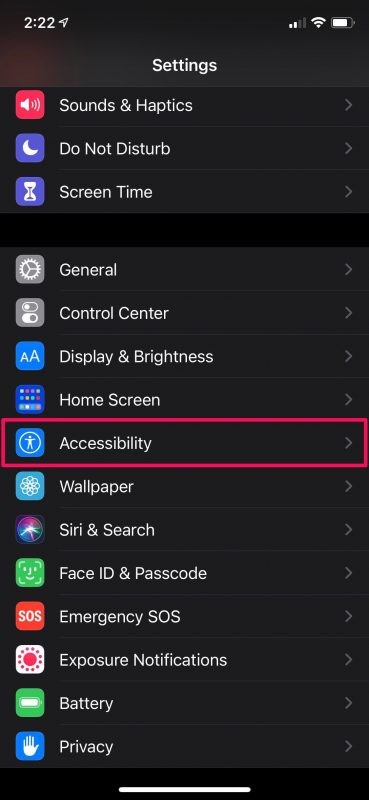
- You need to enable Voice Control first on your iPhone. To do this, go to “Settings” on your iPhone.

- In the settings menu, scroll down and tap on “Accessibility” to proceed.
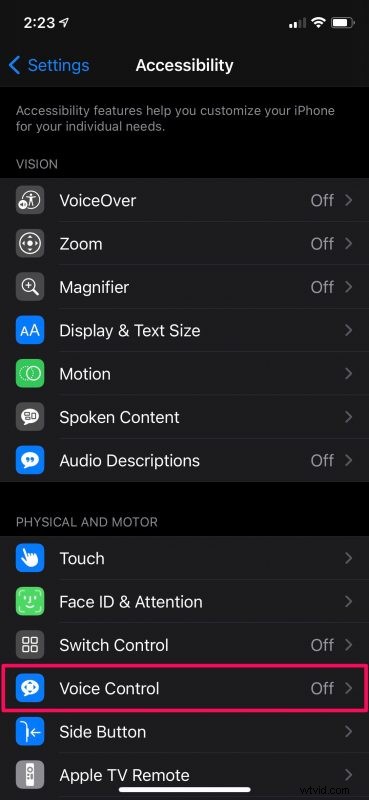
- Now, you’ll find the Voice Control option under the Physical and Motor section. Tap on it to continue to the next step.
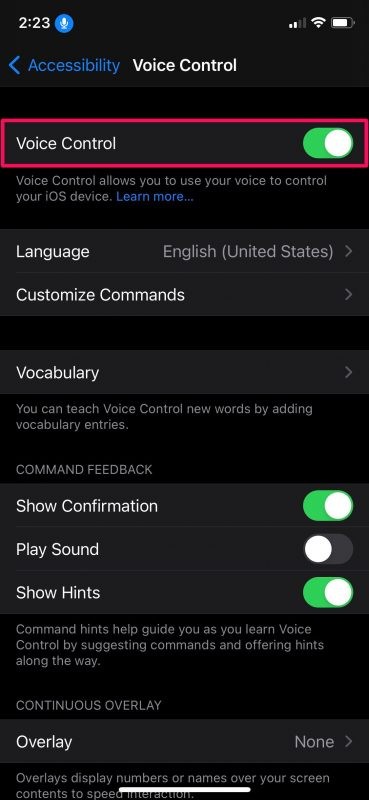
- Here, at the top of the menu, you’ll find the toggle to enable or disable Voice Control. Turn the feature on and lock your iPhone.
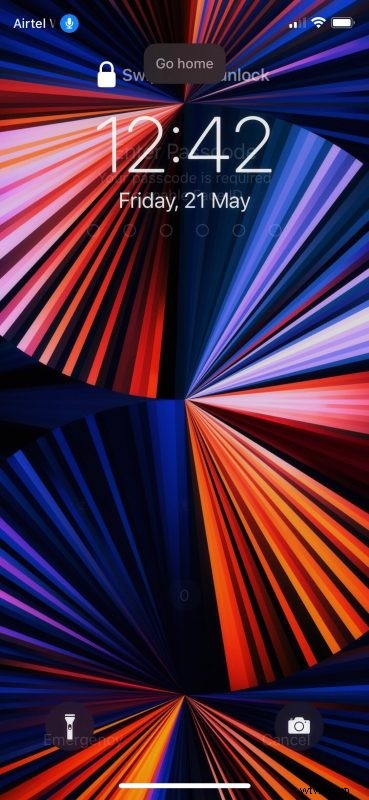
- While you’re on the lock screen, say the voice command “Go Home” to unlock your iPhone with Face ID. However, if the authentication fails and you’re prompted to enter the passcode, check out the next step.
- You’ll need to enter the passcode using your voice now. You can say “Tap 1” to hit the 1 key on the keypad with your voice. Do the same for all the 6 digits in your passcode and your iPhone will unlock.
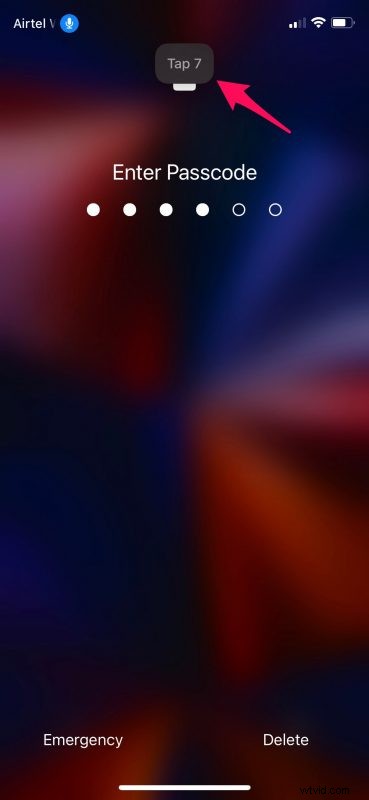
There you go. Now, you know exactly how to unlock your iPhone with just your voice and nothing else.
And yes this works the same on iPad, but obviously we’re demonstrating it here on iPhone.
This feature might be most useful when you restart your iPhone and you have to enter your password to unlock it and get to the home screen, or if your iPhone is sitting on the desk and you want to unlock it without using Face ID or a manual passcode entry.
Note that on some versions of iOS, when you lock an iPhone with Voice Control enabled, you get indicated that Voice Control is no longer listening. However, that’s really not the case since the voice commands work just fine as you can see from the screenshots above.
Voice Control can be used to do other cool things on your iPhone too. For example, you can use it to send iMessage effects on your iPhone and iPad.
Perhaps one day you’ll be able to use a voice phrase to authenticate and unlock iPhone or iPad too, as some other services out there offer voice as a biometric authentication, but for now this is what is available to iOS and iPadOS.
Did you set up your iPhone to unlock with Voice Control? What do you think of this feature? Let us know what you think and share your opinions in the comments section down below.