
The iPhone includes a Voice Memos app that allows anyone to quickly record their voice, a speech, something nearby, or any other ambient audio from the devices built-in microphone. The resulting audio quality is quite good, and going further, you can save and share the recorded sound with another iPhone, Mac, Windows PC, Android user, or nearly anything else, as it arrives as a universally compatible audio file.
Though the iPhone microphone will pick up audio from a distant, for the best results you’ll want to have the recorded subject to be fairly near the iPhone itself. Another option is to use the bundled headphones that come with iPhone, which also include a microphone, and make recording your own voice easy and sound great. The earbud trick is particularly helpful for
How to Record Voice & Audio on iPhone with Voice Memos
The Voice Memos app is often overlooked, but it offers by far the simplest way to record audio from the iPhone microphone, here’s how it works:
- Open the “Voice Memos” app located on the iPhone
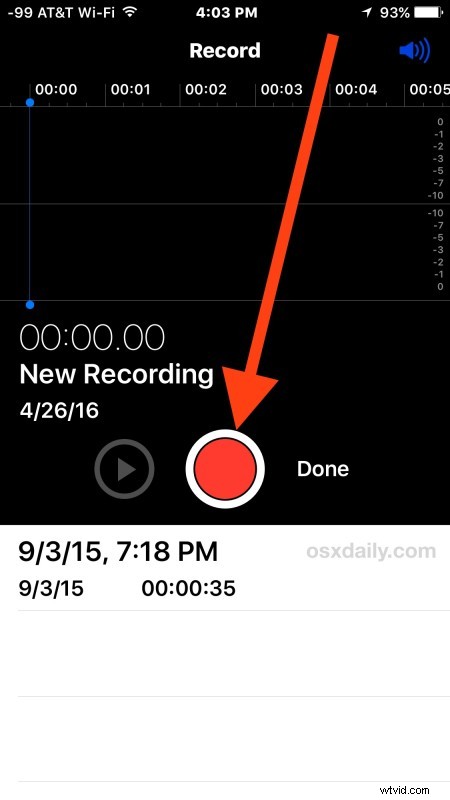
- Tap the red record button to start recording the voice or audio, when finished tap again on the same button to stop recording
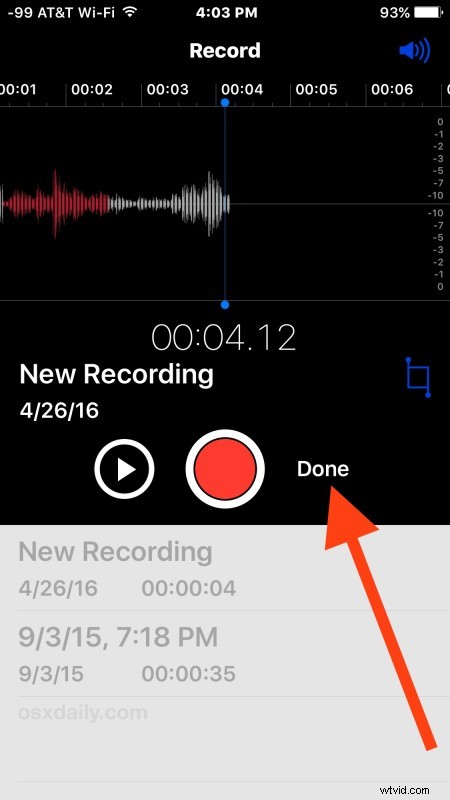
- When satisfied with the recording, tap on “Done”
- Save the voice recording and give it a name
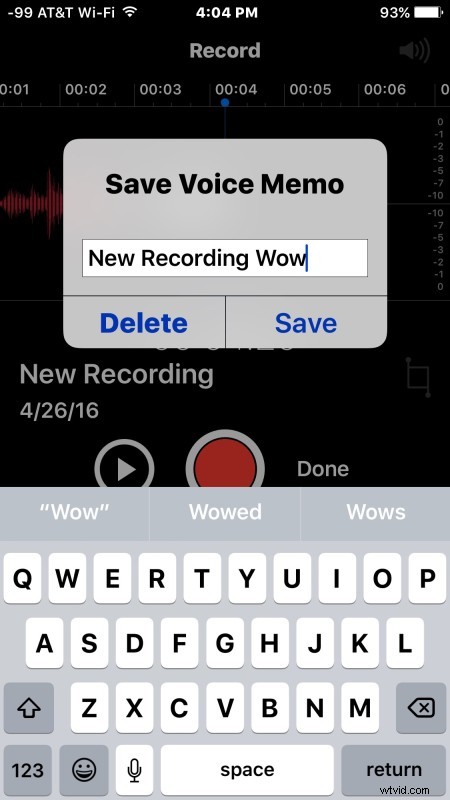
Now the voice recording has been saved to the iPhone, you can play it back, record over it, edit it or trim them down to shorter length, or trash it if desired.
Another option is to share the recorded voice or audio capture, which we’ll cover next.
Sharing the Voice Recording from iPhone
You can share saved voice recordings from the iPhone to anyone else through messages or email, here’s how:
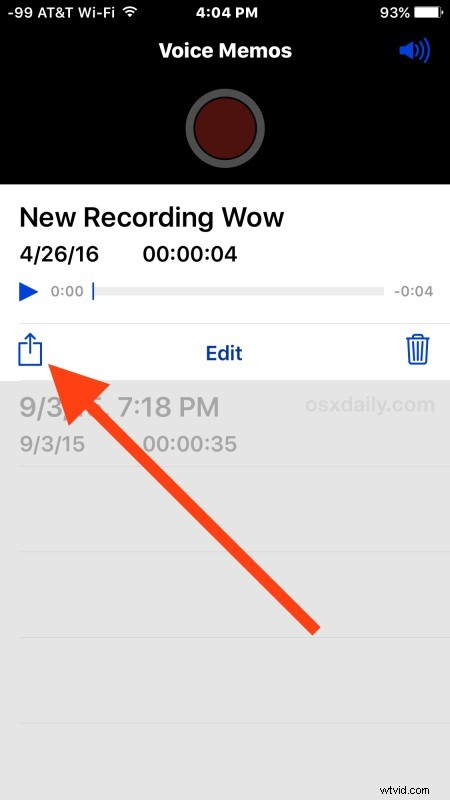
- Back in the Voice Memos app on iPhone, tap to select on the voice recording you want to share
- Tap the sharing button, it looks like a box with an arrow flying out of the top
- Choose the method which you want to share the voice recording with; Message, Mail, Add to Notes, or a third party app of your choice
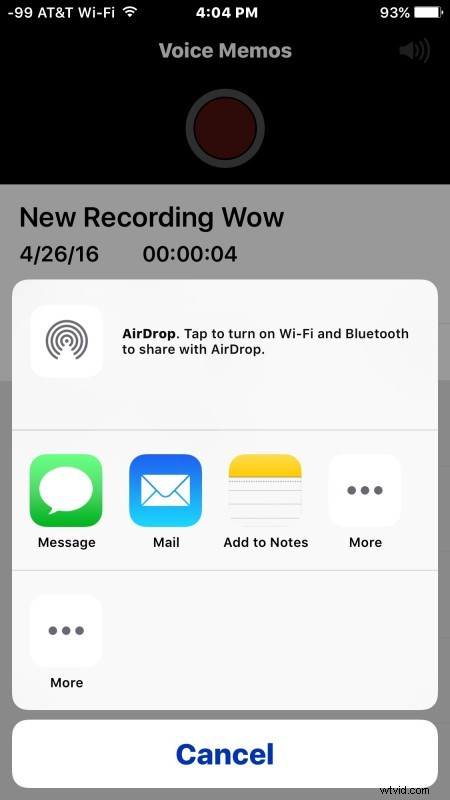
The shared voice recording arrives as a .m4a file, which means it’s compatible with nearly any audio player on any modern operating system. Additionally, m4a files are basically ringtone files that are waiting to be renamed, meaning you can convert a voice recording into a ringtone or text tone for iPhone easily with these instructions, which offers a fun way to personalize your device. Another method of
The Voice Memos app is exclusive to iPhone, missing from the iPad for some unknown reason. Mac users do have a comparably simple option, however, where there is the ability to record audio on the Mac with QuickTime, which results in a similarly formatted m4a file which can be shared universally as well.