

Do you use the Voice Memos app on your iPhone or iPad to record audio clips? In that case, you may be interested to trim these recorded voice clips and remove the unwanted portions to make the final recording more appealing.
The built-in Voice Memos app offers a convenient way to create custom audio recordings for free within a matter of seconds. This could be anything from a personal voice clip to even a podcast with professional audio equipment. In addition to this, Voice Memos can also edit the recorded clips so that you don’t have to rely on a third-party app or software for post-processing work.
Since most people would want to trim their voice recordings and fine-tune the recordings, that’s exactly what we’ll be focusing on in this article.
How to Edit & Trim Voice Memos on iPhone & iPad
To access the built-in editor in the Voice Memos app, you’ll need an iPhone or iPad that’s running at least iOS 12.
- Launch the pre-installed Voice Memos app on your iPhone or iPad.
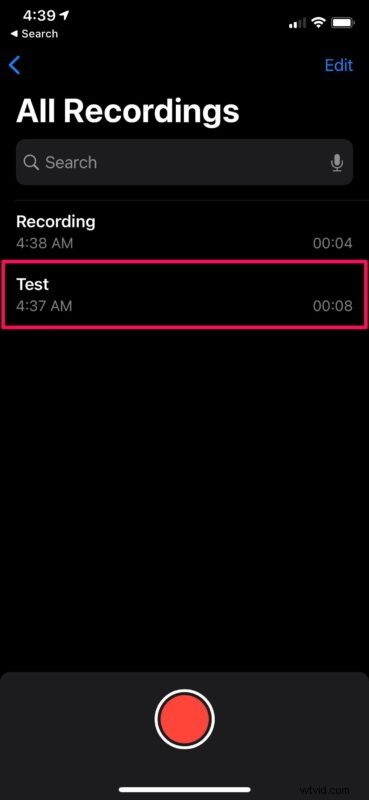
- Once the app opens up, you’ll be shown all your recordings. Tap on the audio recording that you want to edit to get started.
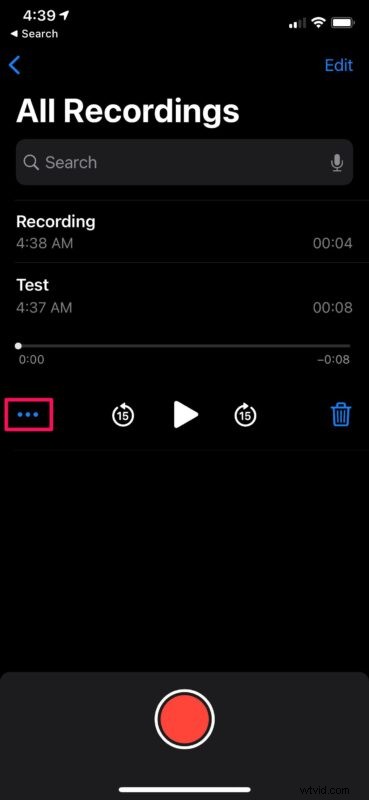
- Now, you’ll have access to playback controls and more options. Tap on the triple-dot icon as shown in the screenshot below to continue.
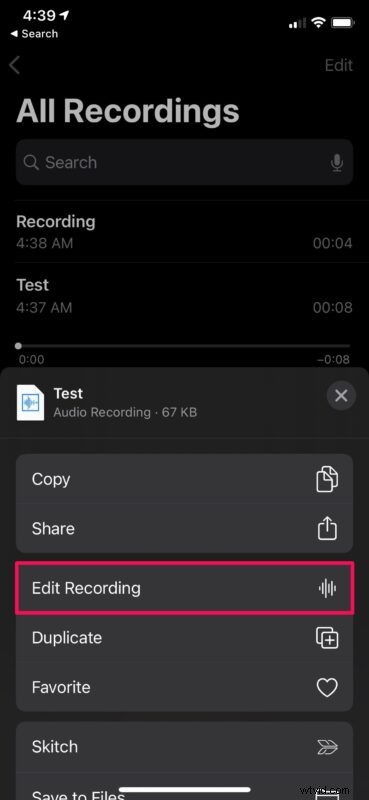
- This will bring up the actions menu on the screen. Here, tap on “Edit Recording” located right below the share option.
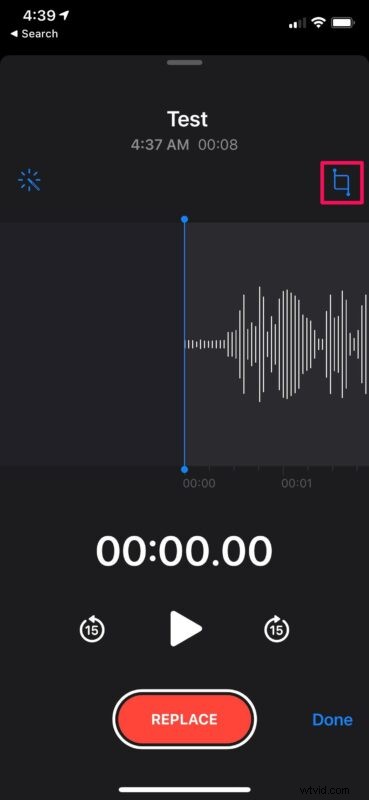
- Now, you’ll have access to the Voice Memos editor. Tap on the trim icon located right above the audio waveform as shown below.
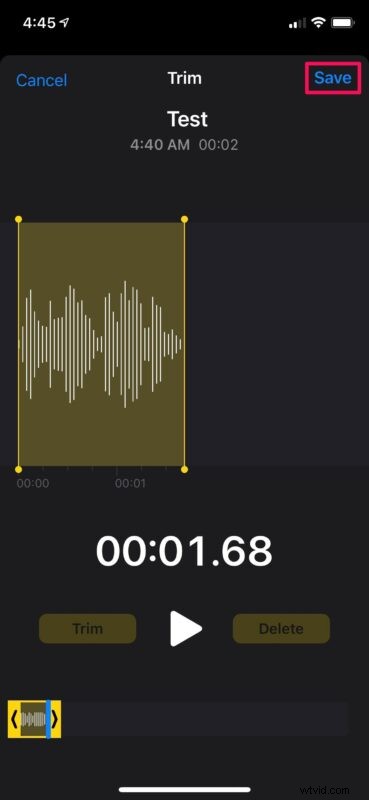
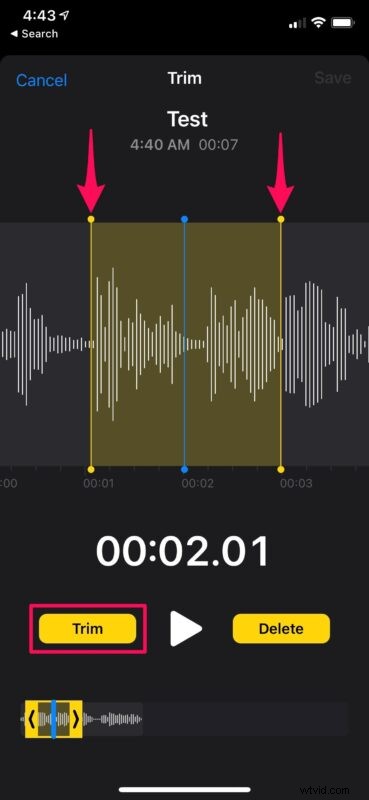
- Now, you’ll notice two yellow trim lines at the beginning and end of the recorded clips. Drag both the trim lines according to your liking to remove the portion that’s outside the yellow highlighted area. Once you’re reading the cut the audio clip, tap on “Trim”.
- The trimmed clip will now be available for preview. If you don’t like the result, you can cancel and redo the trim again. Or, if you’re satisfied, tap on “Save” to overwrite the recording with all the changes.
And there you have it, the recording has been trimmed as needed.
Apple’s Voice Memos app not only makes it easy to record voice clips and other audio recordings using your iOS/iPadOS device, but also provides a quick and convenient way to remove the parts that you don’t want in the final recording.
In addition to trimming, the built-in editor in Voice Memos can also be used to record over parts of the audio or replace the entire voice clip altogether. Plus, if your device is running iOS 14/iPadOS 14 or later, you’ll even be able to remove background noise from the recorded clip at the push of a button.
Did you know that you can make ringtones from the recordings on your iPhone? That’s right, with Apple’s GarageBand app that’s available for free on the App Store, you can turn a voice memo into a ringtone within a matter of minutes, which offers a fun way to customize your ringtones and text tones on a device.
If you find yourself using Voice Memos often, you might also be interested in increasing the recording audio quality with a Settings adjustment to lossless. Just be aware the size of the recordings increases by doing so.
We hope you were able to easily fine-tune your voice recordings without installing a third-party app on your iPhone. Do you use Voice Memos? What’s your take on the Voice Memos app’s built-in editor? Make sure to drop your valuable opinions and experiences in the comments section down below.