

Having Hey Siri enabled for hands-free activation of the virtual assistant is undoubtedly useful, but sometimes you may find that Siri doesn’t always respond on the iPhone. Conversely, sometimes you may experience Hey Siri activating out of the blue seemingly unsolicited. Both of these issues are usually a result of Siri not recognizing your voice well enough, and thus you can improve Hey Siri responsiveness by training it to your voice.
The Hey Siri voice recognition training process is attempted when setting up iOS on new devices, but some users may skip the process, or they may rush through it and not put much thought into the setup. It turns out this is a fairly important step to getting Hey Siri to respond accurately and appropriately, however, and so we’ll show you how to run through the Hey Siri recognition and setup process again.
How to Improve “Hey Siri” by Training to Recognize Your Voice
This works with any iPhone or iPad that supports “Hey Siri” mode. For best results, be in a quiet location and speak in your natural voice.
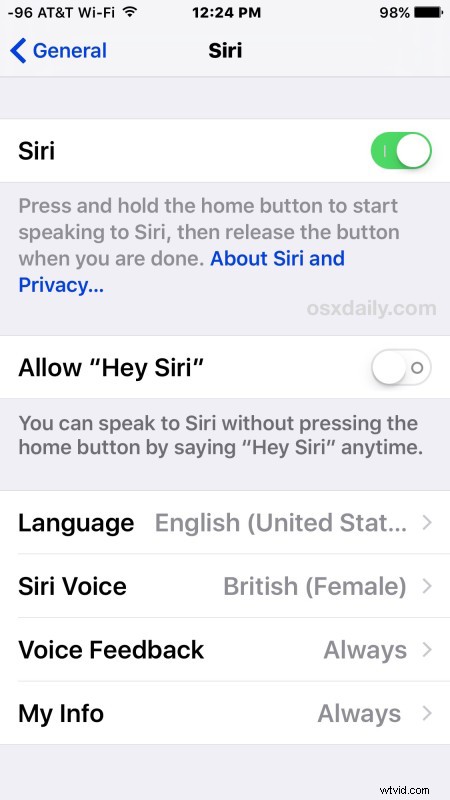
- Open the “Settings” app and go to “General”, then choose “Siri”
- Flip the switch for “Allow ‘Hey Siri'” to the OFF position – leave it off for a few seconds
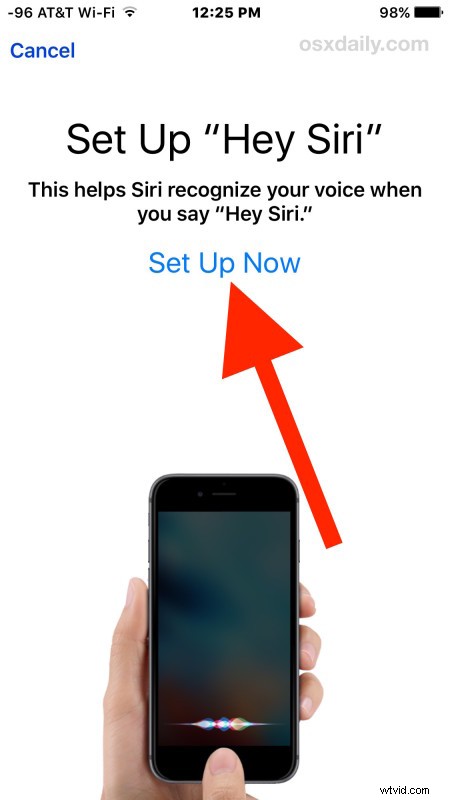
- Now flip the switch for “Allow Hey Siri” back to the ON position – this will trigger the learning voice recognition procedure again
- At the ‘Set Up Hey Siri’ screen, choose to “Set Up Now”
- Go through the voice recognition tests, use the same voice you’d use to attempt to activate Siri in the future
- When finished, Hey Siri will say it’s ready, so tap on “Done” to reactivate the feature
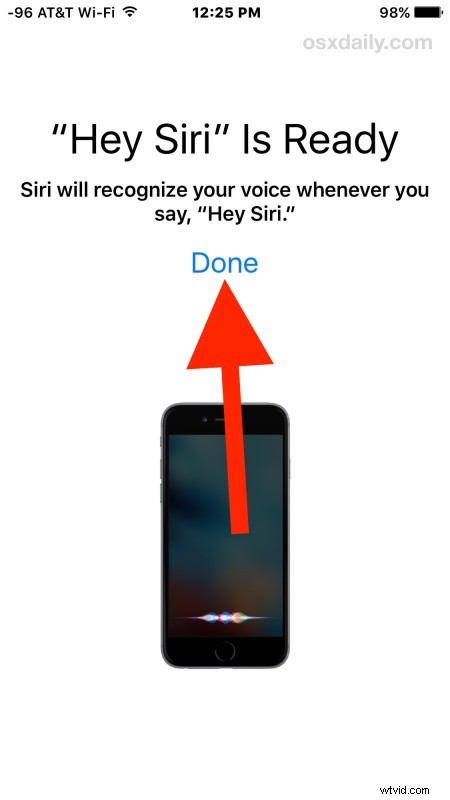
This immediately turns Hey Siri back on again, but now freshly trained to your voice.
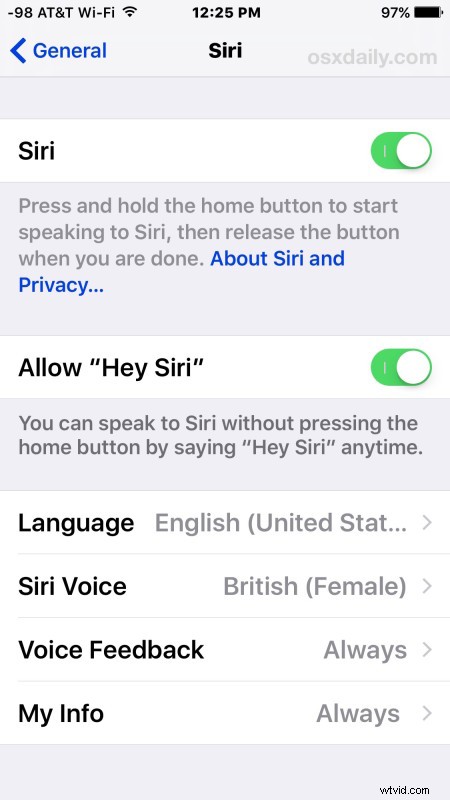
Now Siri will recognize your voice specifically when “Hey Siri” is attempted to be activated. Go ahead and try it out as usual by summoning thy voice assistant with Hey Siri, followed by a regular Siri commands.
Going through this setup process (or re-training it by running through it yet again) can make a huge difference in how well the feature works, and it should dramatically reduce the accidental incident of enabling Hey Siri as well, whether Siri is talking out of nowhere or whether Siri is attempting to respond to the Cookie Monster commercial.
For now, the Hey Siri training process does not seem to make a difference with the same voice activated Siri feature on the Apple Watch, but perhaps a few release of software will allow it to be trained as well.