
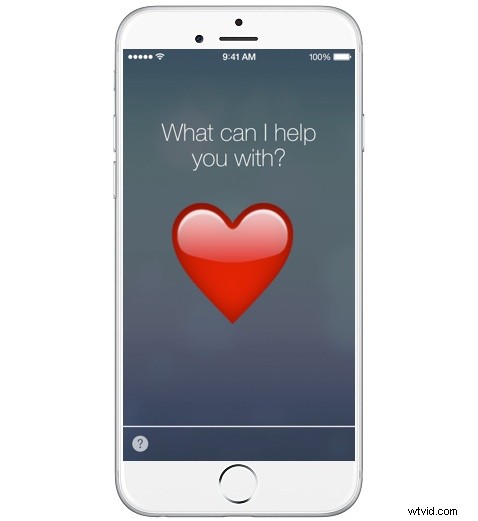
The Hey Siri feature is undeniably useful, allowing you to engage with the iPhone from just about anywhere by voice commands, but sometimes you definitely don’t want Hey Siri to activate (let alone start talking out of the blue or answering questions at a White House press conference).
A simple solution is available with the latest versions of iOS, allowing you to immediately and instantly disable Hey Siri but only on a temporary basis, without disabling the feature completely on iPhone.
The trick? Flip the iPhone down on it’s face, screen down, to temporarily disable “Hey Siri”
As long as the iPhone is face down, Hey Siri will not activate.
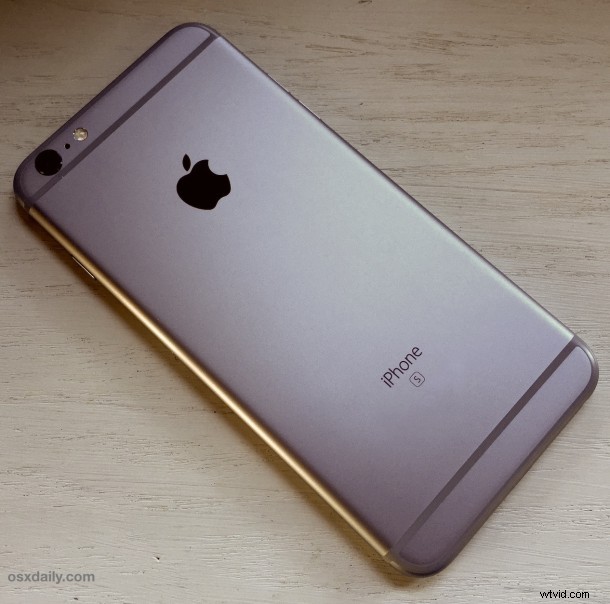
If you turn the iPhone over onto its back (or side, or whatever other orientation you can imagine that is not down), then Hey Siri will activate again as usual when the magic phrase is uttered.
Of course, this won’t work at all if you turned off the Hey Siri feature or disabled Siri completely, but that’s because Siri itself won’t activate regardless of how many “Hey Siri” or similar phrases are heard.
Perhaps the best use for this trick comes with multi-device households, when you’re using Hey Siri on one device but you don’t want it to activate on another, you can just turn the other devices face down to prevent them from activating on the voice command.
Now this is obviously not the most complex trick in the world, but a simple one that is very useful nonetheless, so if you want a little peace and quiet just turn that iPhone on it’s face.