
 You almost certainly know that Siri can make phone calls from the iPhone with voice commands, but with new versions of iOS you have another great option; you can make calls that are automatically set to be on speaker mode.
This Siri speakerphone call trick is particularly useful with “Hey Siri” voice activation, since you can make calls entirely hands free from iPhone, from the desk, in the car, or even from across the room if need be.
This is a really easy trick to use that is incredibly convenient, just be sure your iPhone is updated to the latest version of iOS before attempting to use it. Of course your iPhone will need cell service as well, the rest is just knowing the proper commands to give to Siri.
How to Make a Call on Speakerphone from iPhone with Siri
Want to make a phone call on speakerphone from your iPhone by using Siri? Then all you need to do is the following:
- Summon Siri as usual, and say “call (name) on speakerphone”
This works however you bring about Siri, whether it’s “Hey Siri”, raising the phone, the long Home button press, holding the Power button on an iPhone X, or even from an Apple Watch.
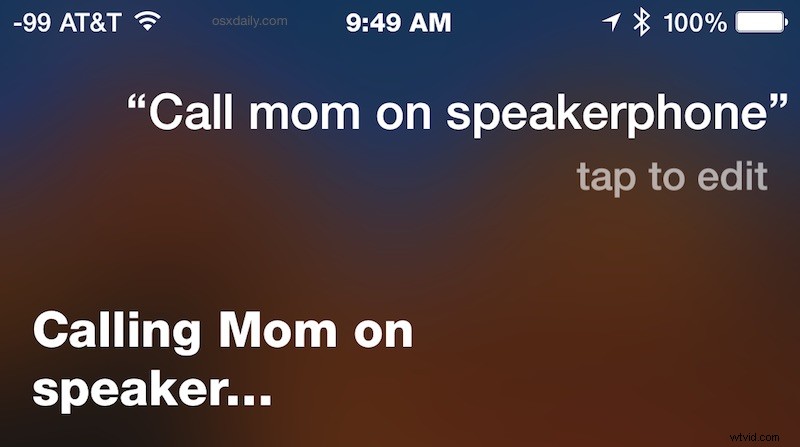
For example, “call Mom on speakerphone” will call the contact ‘Mom’ and place the call on speaker mode automatically, without having to interact with the iPhone at all (and yes you should call your mother!).
This works with all names, so “call David Letterman on speakerphone” would work too if you happen to have that contact information and phone number on your phone. If you have contacts with names that Siri does not recognize or pronounces in some discombobulated manner, recall that you can correct Siri pronunciation to greatly improve name recognition for features like this.
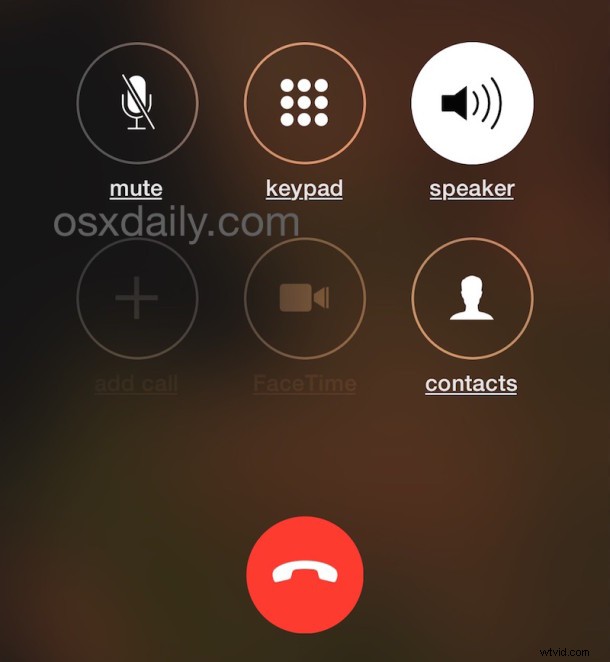
Once the call is placed, you’ll find the Speaker button is already highlighted and the call will go through the external output speakers rather than the ear speaker.

This may seem like a small feature, but it’s very useful once you start using it. Previously, the only way to accomplish this was to adjust preferences to set all calls to default to Speaker phone mode, and then make a call with Siri, but that setting is quite literal in that every single call on the iPhone will default to speaker phone if the setting is enabled, which is not necessarily desirable for all users.