
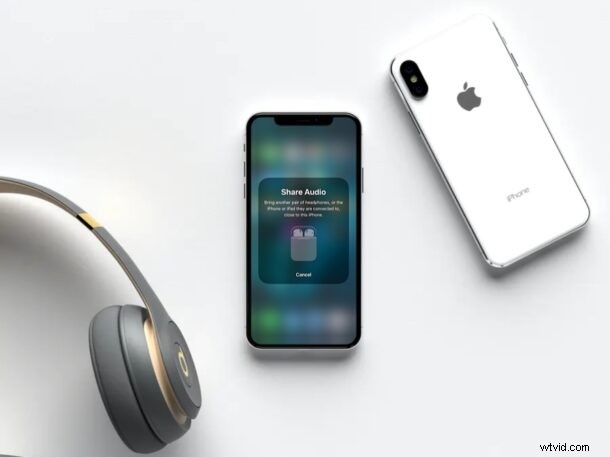
Do you want to share the music you’re listening to with a friend? Well, if they own AirPods, AirPods Pro, or compatible Beats wireless headphones, you can easily share audio right from your iPhone.
Normally, whenever you want to share one of your favorite songs with others, you would send the Spotify or Apple Music link to that particular song. The recipient could then use the streaming service to start listening to it right away. However, in this case, you’re sharing the audio from your own device which is played back on their headphones. This eliminates the need to be subscribed to a music streaming service, and it allows you to broadcast music to multiple people from a single device.
Interested in learning this cool feature so that you can share music or a podcast with AirPods? Let’s get to it.
How to Share Audio & Music with AirPods from iPhone
Before you go ahead with the following procedure, make sure your iPhone is running iOS 13.1 or later, since this feature isn’t available on older iOS versions. Also, your headphones need to be connected to the iPhone too, but that’s probably obvious.
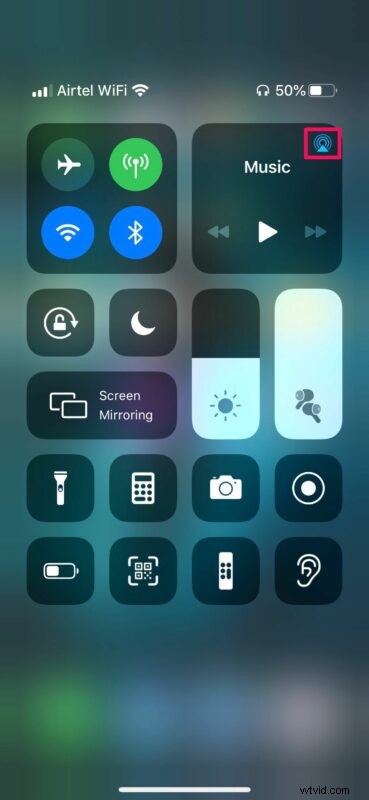
- Head over to the iOS Control Center on your iPhone. Now, tap on the AirPlay icon located at the top-right corner of the Music card, as shown in the screenshot below.
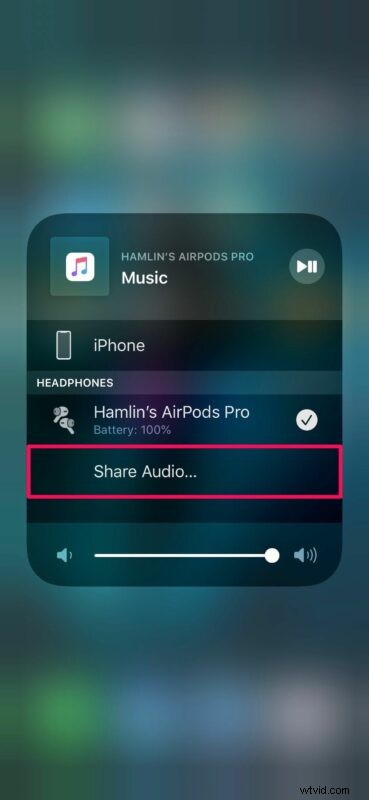
- Next, tap on the “Share Audio” option located right below your connected headphones.
- Now, bring another pair of headphones or the iOS device it’s connected to, close to your iPhone. When prompted, tap on “Share Audio”.
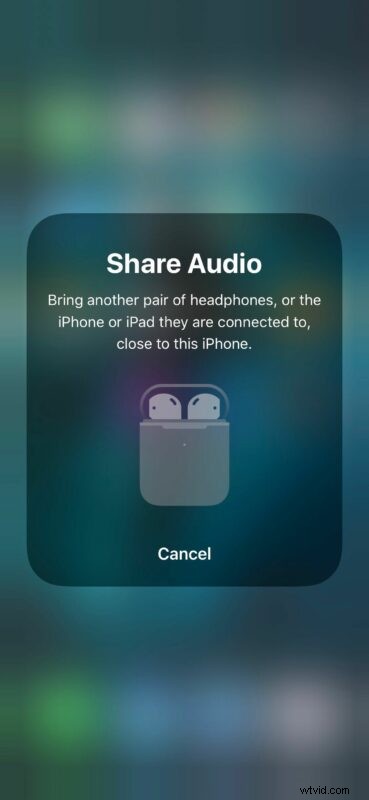
There you have it, you’re sharing the audio feed from your iPhone with multiple headphones. Pretty cool, right?
Once you start sharing audio from your iPhone, you will be able to adjust the volume for both the AirPods right on your device. Although we’ve been focusing primarily on AirPods and AirPods Pro, this feature works with select Beats wireless headphones including the Powerbeats 3, Powerbeats Pro, BeatsX, Beats Solo Pro, Beats Solo 3 Wireless and Beats Studio 3 Wireless, and all the newest Beats wireless headphones too.
In order to stop sharing audio at any time, you can simply tap on the checkmark right next to the AirPods or Beats headphones that you want to stop sharing with, as illustrated in the second step of this procedure.
This feature reminds us of the days we used to share one of our earbuds with a friend, just so they could hear the song you’re listening to.
If one of the AirPods isn’t connecting to your iPhone properly while trying to share audio, make sure you follow the various troubleshooting steps to fix connectivity issues that might be affecting your AirPods.
Were you able to seamlessly share the audio from your iPhone with another pair of AirPods or Beats headphones? Is this a feature that you’ll be using on a regular basis? Or, would you rather just send the song link? Do share your thoughts and opinions in the comments section down below.