
Apple Music allows you to create, manage and share your playlists with other users, similar to any other major music streaming platform that’s available today. If you are an avid music listener, then there’s a pretty good chance that you have already curated some playlists on your iPhone or iPad, and you might want to share those Apple Music playlists with other people too.
Mastering the art of playlist curation is no easy task as it requires a lot of patience and effort to keep your playlists constantly updated as your music preferences change with time. Regardless, it can be key when it comes to organizing all the songs in your music library and what you want to listen to.
If you’re an Apple Music user who’s pretty good at curating playlists, you might be interested in sharing one or more of your playlists with your friends to impress them. In this tutorial we’ll be discussing exactly how you can share playlists in Apple Music on your iPhone or iPad with friends, family, coworkers, or other people.
How to Share Playlists in Apple Music on iPhone & iPad
Although you don’t need to be an Apple Music subscriber to create and manage playlists on your iPhone or iPad, you will need to pay for the service if you ever want to share your playlists with your friends. So, if you’ve already subscribed to the service, simply follow the steps below to learn how to share a playlist.
- Open the default “Music” app from the home screen of your iPhone or iPad.

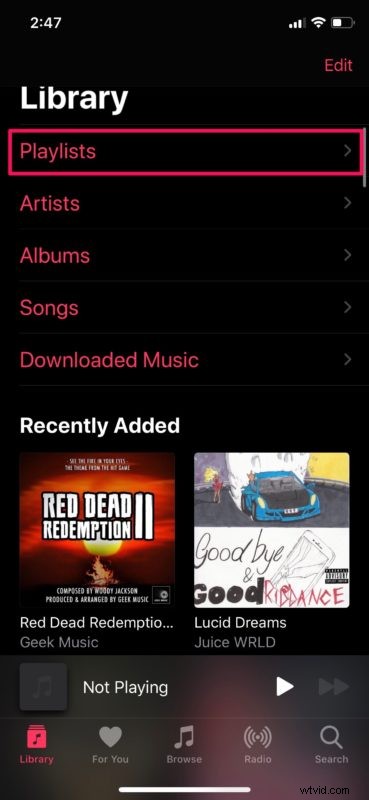
- Head over to the “Library” section within the Music app and tap on “Playlists”.
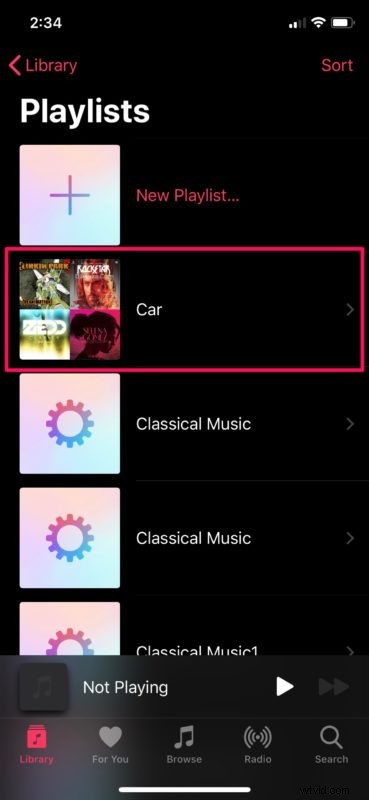
- In the “Playlists” menu, tap on any playlist that you want to share, similar to how we’ve indicated in the screenshot below.
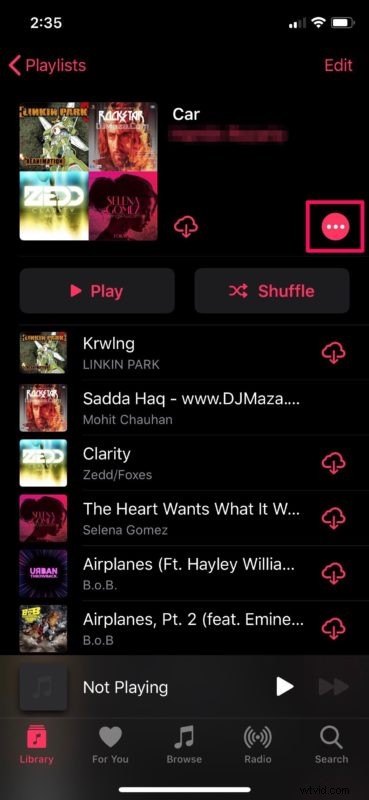
- Here, tap on the “triple-dot” icon which is located right above the toggle for shuffle.
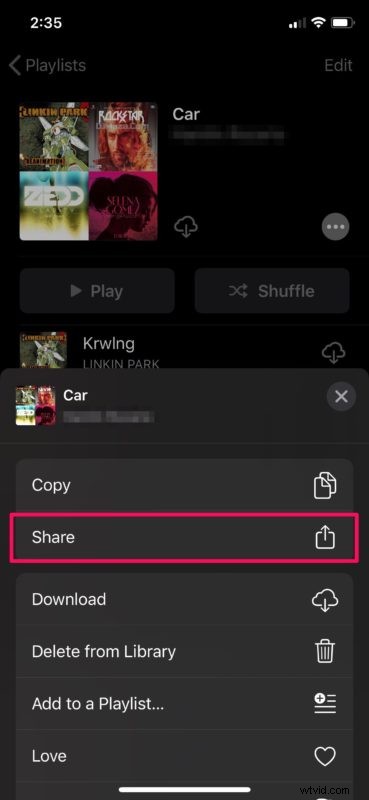
- The “More” menu will pop up from the bottom of your screen. Simply tap on “Share”.
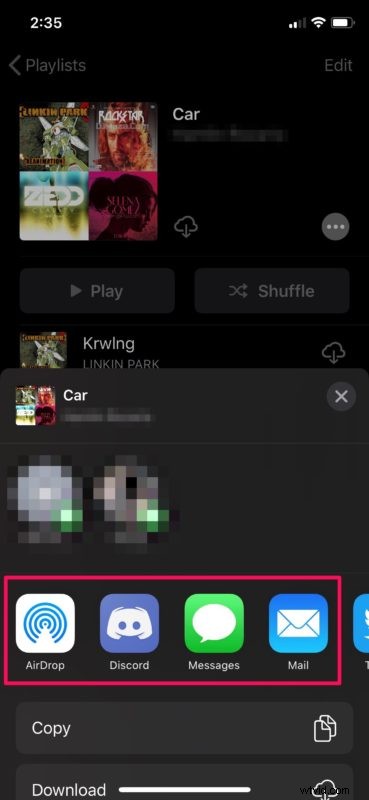
- Now, you’ll notice the option to share your playlist with other iOS users via AirDrop or send your playlist URL on other social networking and messaging platforms.
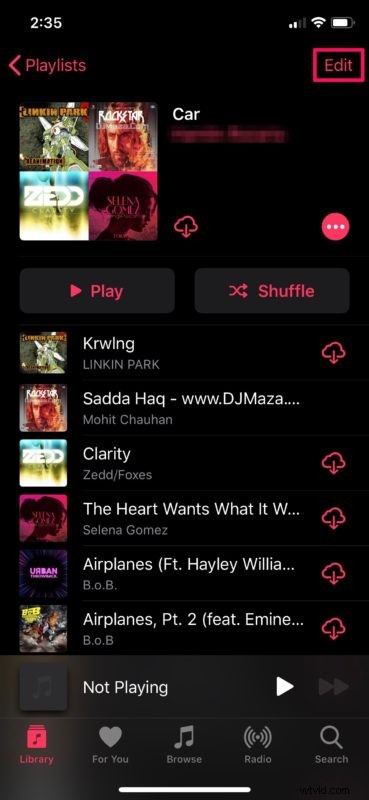
- Additionally, if you’re looking to show off the playlist on your Apple Music profile for your followers to see, simply tap “Edit” at the top-right corner of the screen.
- Tap once on the toggle right next to “Show on My Profile and in Search” for making your playlist visible on your profile. Now, just tap “Done” to confirm your action.
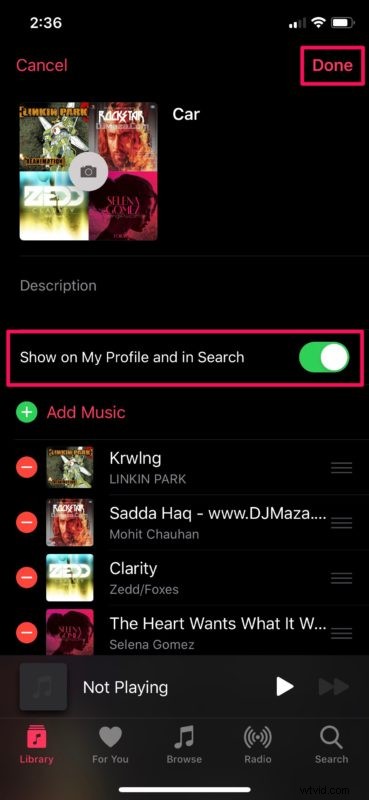
That’s pretty much all you need to do in order to share your Apple Music playlists with your friends and other users.
The recipient who receives your shared playlist must also be subscribed to the Apple Music streaming service in order to playback the full song. However, if they aren’t a subscriber, they can still listen to a 30-second preview of each and every song in the playlist, which in most cases should be good enough to get a rough idea of the song.
Considering how Apple is pursuing the idea of socializing music and “Music + Friends” perhaps to compete against the likes of Spotify, we might expect Apple to add more features to the Friends section in the music app down the line. As of now, you’re limited to being able to see what your friends are listening to, view their shared playlists, and following your contacts though.
So, create a playlist in Apple Music and share it away! Curate a great playlist of hits and pass it around, enjoy the music and share that enjoyment with others thanks to the Apple Music service.
Did you share some of your playlists with your friends to show off your impressive playlist curation skills? What do you think about the social features that Apple Music offer? Do let us know your thoughts and opinions in the comments section down below.