
We all love a bit of music and Apple Music subscribers are no different. But with so much music including explicit language, you might want to turn it off, ensuring you only hear the clean version of every song. That is especially the case if you have kids who use your device – or they have their own device – and listen to music.
Thankfully it’s very easy to prevent explicit lyrics from being heard on any device that is part of your Family Sharing setup. That includes your own as well as anyone else who is part of the same family. It’s important to note that these settings are a per-device basis, too. A child with access to an iPhone and an iPad will require settings be changed individually and on both devices.
The steps for preventing explicit lyrics are different depending on whether you’re using an iPhone and iPad, or a Mac. Don’t worry though, we’re going to run through both methods right now.
Disabling Explicit Lyrics on iPhone and iPad
As with so many things on iPhones and iPads, you need to head into the Settings app to sort this out.
- Scroll down and tap “Screen Time”.
- If you’re changing the setting on your own device, tap “Content & Privacy Restrictions”.
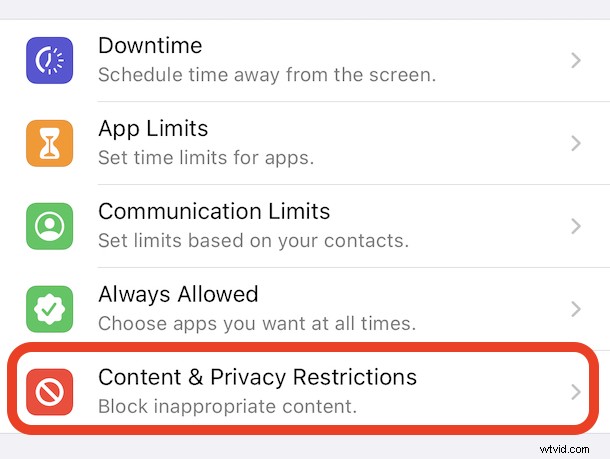
- If you’re changing the setting on a child’s device, tap their name. Tap “Content & Privacy Restrictions” on the next screen.
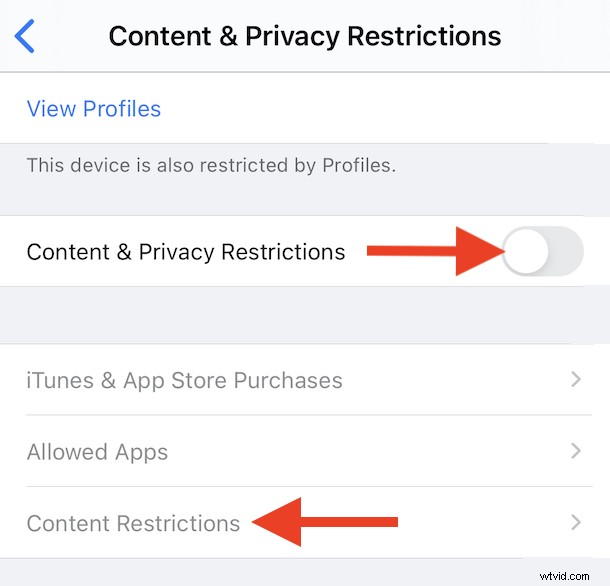
- Tap “Content Restrictions” and enter your PIN if prompted to do so.
- Toggle “Content & Privacy Restrictions” on and tap “Content Restrictions”.
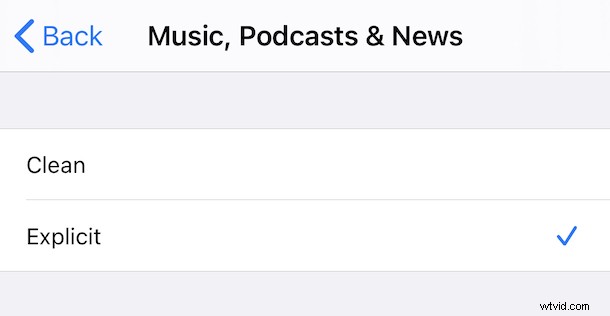
- Tap “Music, Podcasts & News”.
- Tap “Clean”.
From now on it’s clean lyrics all the way, perfect for those little ears.
Disabling Explicit Lyrics on Mac
Amazingly, the same process takes just a few clicks on a Mac running macOS Catalina or later and is all done from inside the Music app.
- Click “Music” in the menu bar at the top of the screen.
- Click “Preferences”.
- Click “Restrictions” in the new window that opened.
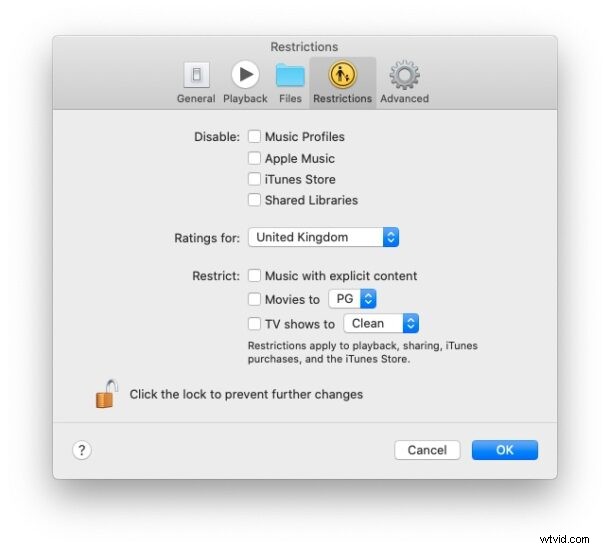
- Check “Music with explicit content” to restrict explicit lyrics. You’ll be prompted to confirm and you might also need to enter your Mac’s password, too.
And that’s it for the Mac.
Now you can scrub lyrics to be clean on any iPhone, iPad, or Mac using Apple Music, doesn’t that make you feel a bit better if you’re sharing your Apple Music subscription with younger kids in particular? Of course many people don’t like curse words anyway so they might enjoy this feature generally too.
There’s a lot more that you can do with Screen Time, too. From blocking websites to setting time limits for your little loves, there’s a lot going on in there.
Have any tips, advice, or experience with disabling explicit lyrics on Apple Music? Let us know in the comments, of course.