
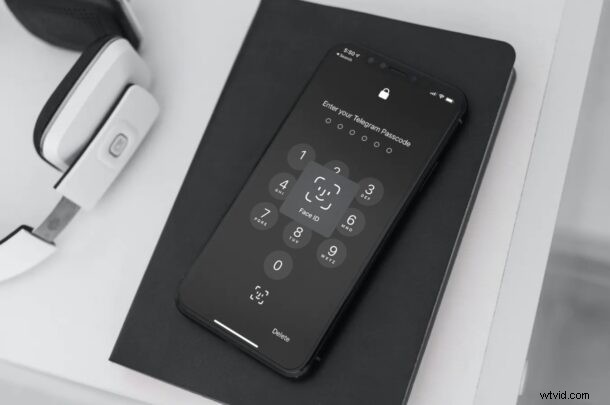
Do you want to keep your Telegram conversations safe and secure? Perhaps you don’t want anyone snooping around on your Telegram messages if you let someone briefly use or borrow your iPhone? If this is something that you’re worried about, you may be interested in locking the app with a passcode and in turn, use Face ID or Touch ID to unlock your chats depending on your device.
Telegram is one of the most-popular privacy-focused messaging apps on the App Store with over 500 million users across all platforms. Although your messages are end-to-end encrypted and cannot be intercepted by anyone by any means, nothing’s stopping your friend or relative from simply opening the app on your unlocked iPhone and quickly glancing through all your conversations if they picked up your device. This could happen when you lend someone your phone for making a phone call, watching a video, browsing the web, or anything else really.
The good news is that Telegram offers a passcode lock feature that locks the app after a set time as an added privacy measure. If you use Telegram on your iPhone, then you might be interested in this privacy feature.
How to Lock Telegram Chats with Face ID on iPhone
This feature has been around for a while, so you don’t have to be on the latest version of the app to take advantage of it. Let’s just take a look at what you need to do.
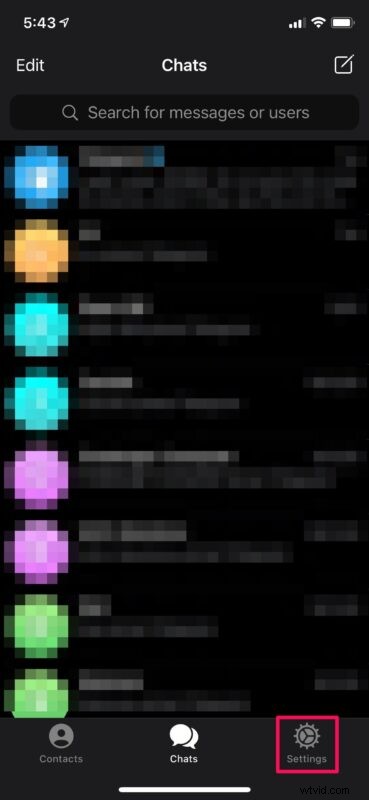
- Launching the Telegram app will take you to the Chats section by default. Here, tap on the “Settings” option from the bottom menu.
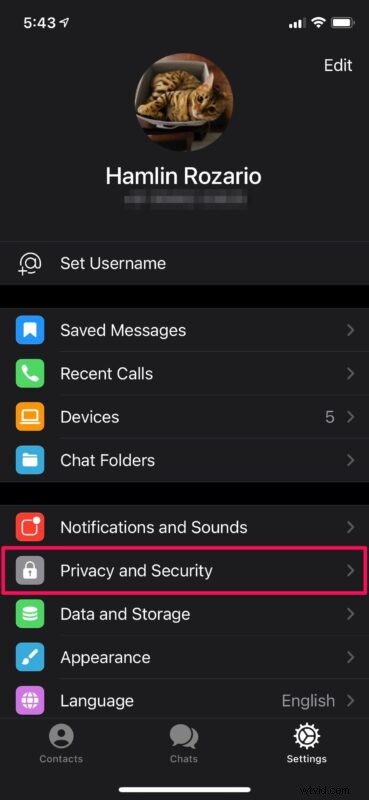
- In the settings menu, tap on “Privacy and Security” located just below the notification settings as shown in the screenshot below.
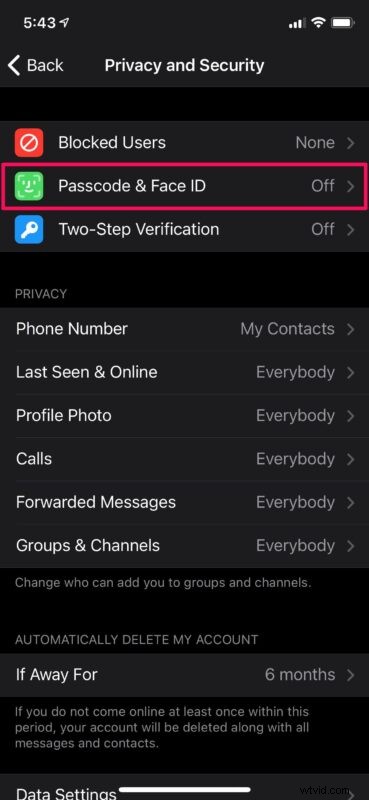
- Next, select the “Passcode & Face ID” setting under Blocked Users to proceed further.
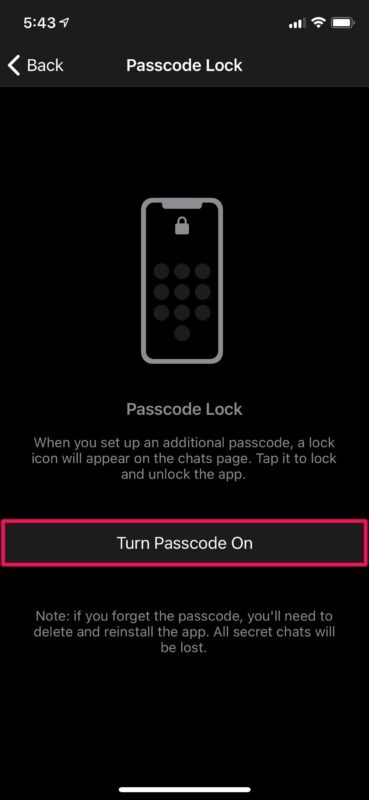
- Now, tap on “Turn Passcode On” to begin setting up a passcode.
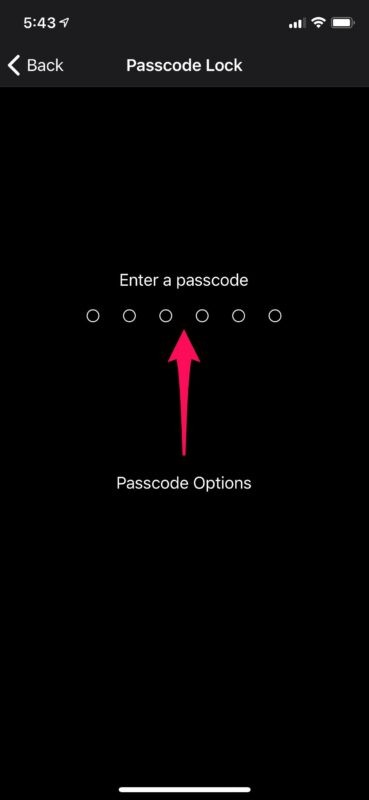
- Next, type in your desired passcode and verify it.
- Once you’re done, you’ll be taken to the Passcode Lock menu where you’ll be able to turn on Face ID. Simply tap once on the toggle next to “Unlock with Face ID”. Also, select the “Auto-Lock” setting and change it to any duration that you prefer.
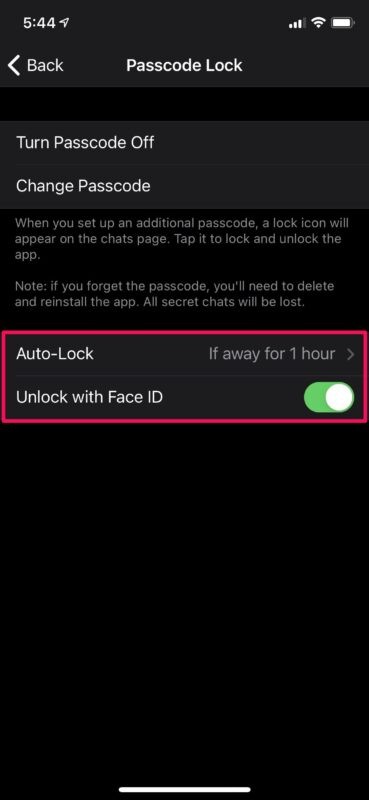
There you have it. You can now unlock Telegram with Face ID on your iPhone.
If you’re using an iPhone with Touch ID like the new iPhone SE 2020 model, you will be able to use Touch ID to unlock your Telegram chats.
These steps are applicable to iPad users as well although we were focusing on the iOS version of the app. After all, iPadOS is just basically iOS relabeled for the iPad.
One thing to note here is that you cannot use Face ID or Touch ID to unlock Telegram without using a passcode. This is mandatory since the passcode will be used as a backup authentication in case Face ID or Touch ID fails. Also, when passcode lock is enabled for Telegram, the preview of the app will be blurred out in the app switcher, so you don’t have to worry about your chats being read from there as well.
Note that passcode lock will not stop others from reading your messages from notifications. This includes notifications that show up on the screen when your iPhone is locked. Therefore, if you’re a privacy buff, you may want to disable these notifications by going to Settings -> Notifications -> Telegram -> Show Previews on your device.
Likewise, if you use a different messaging service like Signal, you may want to learn how to lock your Signal app with a passcode, Face ID, or Touch ID too. Screen Lock feature is available for WhatsApp as well and unlike Telegram, you can use Face ID or Touch ID without using a passcode.
Did you secure your conversations with Telegram’s integrated app lock functionality? What are your thoughts on all the privacy features that Telegram bring to the table? What other messaging services do you use? Share your related opinions and experiences, or sound off in the comments section down below.