
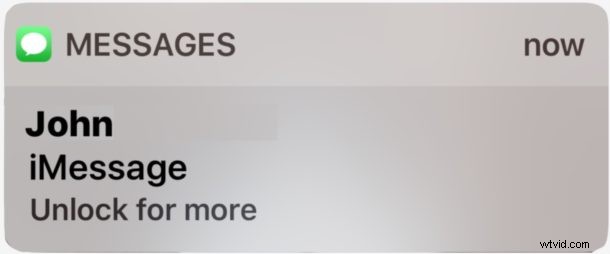
The iPhone defaults to showing message previews on the lock screen of iOS, revealing the sender name and message content text. Because of potential privacy ramifications, many users turn off message previews on the lock screen which hides the message content, but then to read the full message users have to go to the Message app, right? Not entirely. Devices equipped with Touch ID can reveal the hidden message preview directly from the lock screen simply by authenticating without unlocking the device, and without having to open the messages app at all.
This is an excellent though little-known privacy trick that lets you read hidden messages from the lock screen, it’s easy to use and implement into your work flow. Privacy conscious users should particularly enjoy this tip but it can also be helpful to anyone who just wants to keep private conversations private on the screen of an iPhone or iPad, whether it’s out in the open, on a desk, or otherwise.
How to Show Hidden Message Previews on iOS Lock Screen with Touch ID
In order to use this trick you will need two basic configurations: the iPhone (or iPad) must have Touch ID enabled and in use, and the iOS device must have lock screen message previews turned off in iOS Settings. Beyond that it is simply a usage habit adjustment as follows:
- Get an iMessage or text with a hidden preview as usual
- Rest your finger on the Touch ID but do not press to unlock, simply rest a registered fingerprint on Touch ID
- In a moment the hidden message preview will reveal the full message text, without unlocking the iPhone or iPad
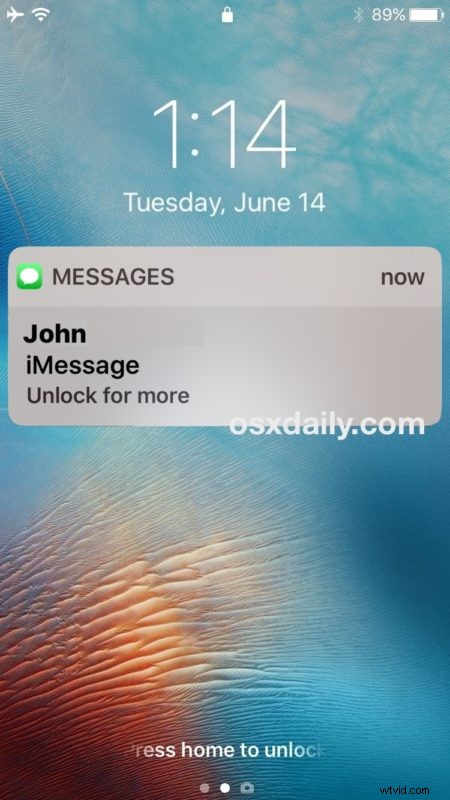
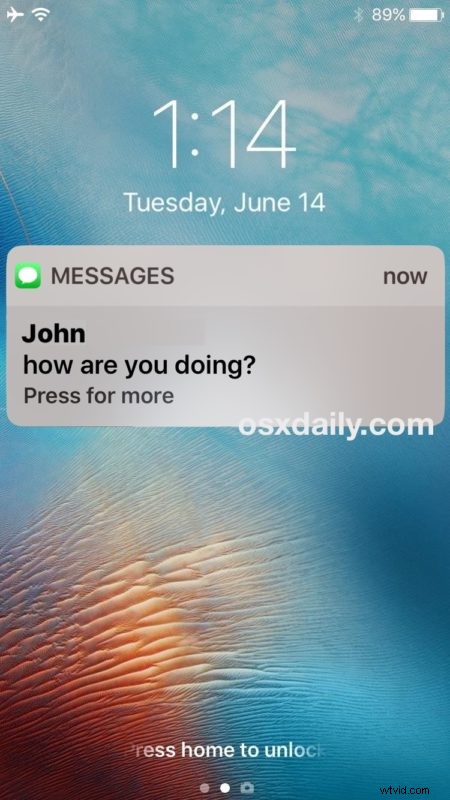
You can now read the entire message preview as usual, but it is protected behind an authenticated Touch ID layer. This brings a significant convenience layer to the added privacy benefit of hiding message previews, and eliminates a lot of the hassle of the feature related to requiring an app to be opened just to see what a private message may say.
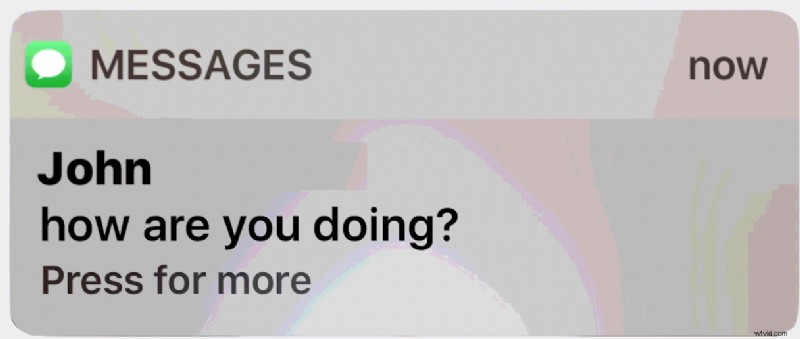
One troubleshooting tip: if you disabled Press Home to Unlock in iOS you will need to turn that back on again so that simply resting your finger does not unlock the iPhone or iPad.
This is one of my favorite messaging privacy tips, it’s easy to implement and use once you know it exists. Try it out yourself if you have a Touch ID device, it works great.
Have any thoughts on this? Do you have any privacy tips for iMessage and Messages for iPhone and iPad? Let us know in the comments.