
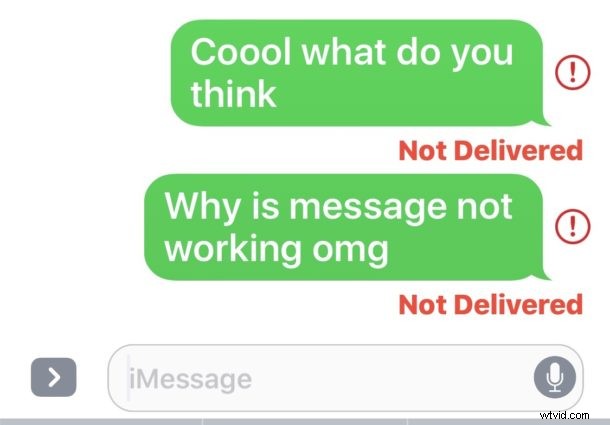
Messages sent from an iPhone or iPad may occasionally fail to send, instead displaying a “Not Delivered” error message along with a little red ! exclamation point next to the failed message. While this may be annoying, you can easily resend a message from iOS Messages app with minimal effort.
You can resend an iMessage or a text message that has the “Not Delivered” error message easily.
Before you attempt to resend the message be sure you have a cellular connection, as without a cell connection or data service the message will not be able to send. We’re demonstrating resending a message on an iPhone but this applies the same to iPad and iOS in general.
How to Resend a Message from iPhone or iPad
- Open the Message app and go to the message thread that failed to send if you have not done so already
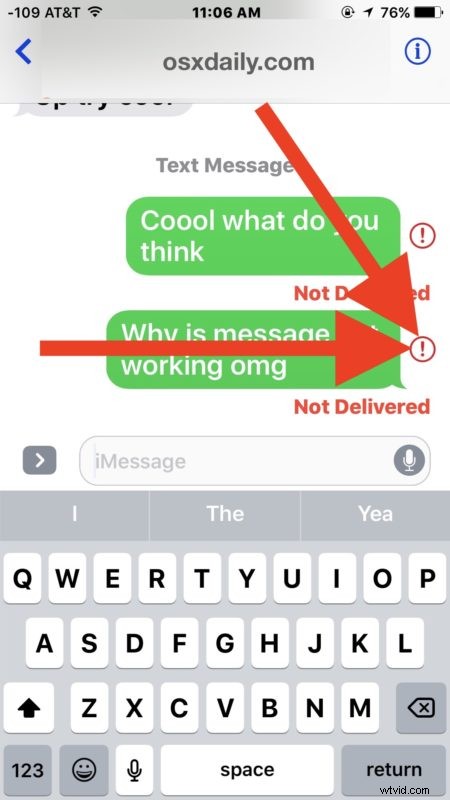
- When you see the red “Not Delivered” statement under a failed message, tap the on the red (!) button next to the message
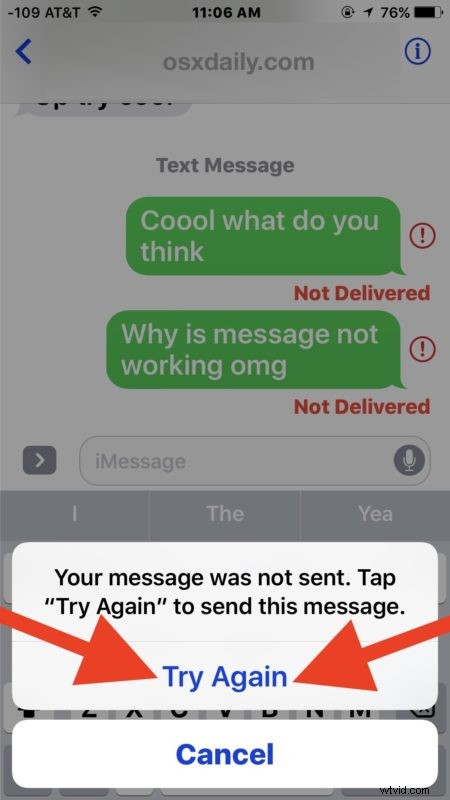
- Choose “Try Again” to resend the message
- Give the message a moment to resend, if successful you will no longer see the “Not Delivered” red error
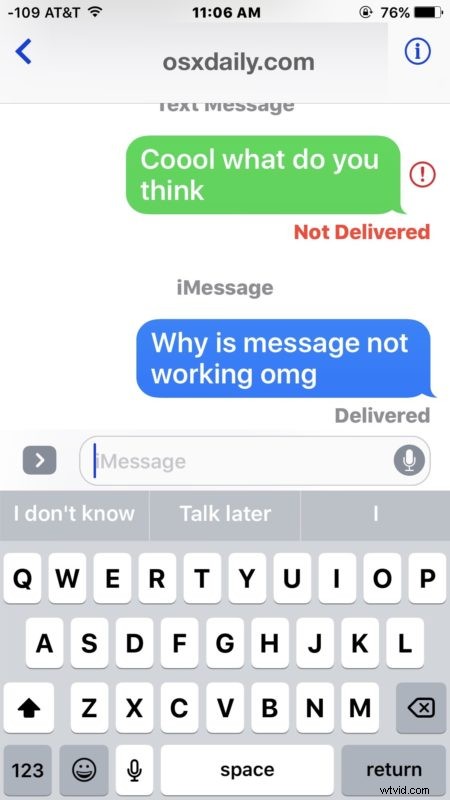
If the iMessage has been successfully re-sent you will see the typical blue bubble and a “Delivered” message, indicating that iMessage was able to resend the message.
Keep in mind that iMessages can fail to send for multiple reasons, and you may see the “Not Delivered” message due to an interruption in your internet service, and interruption in the recipients internet service, or even if iCloud and related Apple online services are down. Additionally, if you lost cell service, or switched on AirPlane mode immediately after sending a message it may also show the Not Delivered error, which is actually an intentional trick to cancel sending a message from the iPhone that works quite well.
Another option is to send again as a text message instead via SMS protocol, which can be helpful if the recipient is out of data range and therefore iMessage functionality but could otherwise receive a text message. If resending via iCloud fails and the traditional SMS also fails, you’ll likely want to troubleshoot why an iPhone is not sending text messages.
The “Not Delivered” error can appear on an iPhone, iPad, an iPod touch, and even Mac OS as well, which is also able to resend a message from the Mac too if need be.
Have any other tricks for resending messages from iOS? Let us know in the comments.