
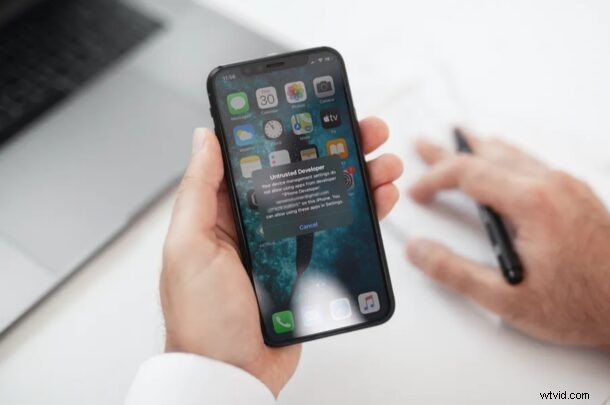
Did you install an iOS or ipadOS app to iPhone or iPad that’s not from the Apple App Store by sideloading? If so, you will not be able to open this app on your iPhone or iPad right away and instead, you’ll get an “Untrusted Developer” message.
Apple has some strict rules on what apps can be published to the App Store. However, third-party developers have found ways to deliver apps to iOS and iPadOS users without having to release it in the App Store. If you’re a developer, Apple allows you to sideload your apps on to your devices with Xcode. If you’re a regular user, there are apps like AltStore that claim to be home for apps that are not available on the App Store.
Regardless, to open any app that you sideloaded on to your device by any means, you’ll need to trust the developer first. Let’s review how to do that.
How to Trust an App on iPhone & iPad
Trusting an app is a pretty easy process compared to sideloading an app on to your iOS/iPadOS device. Simply follow the steps below to get started.
- Open “Settings” from the home screen of your iPhone or iPad.

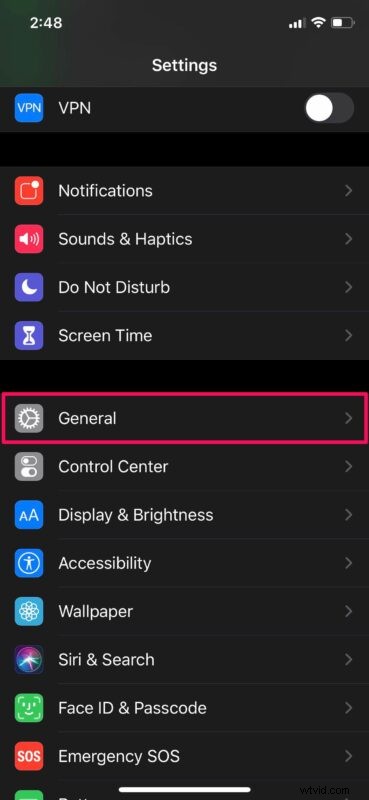
- In the settings menu, scroll down and tap on “General”.
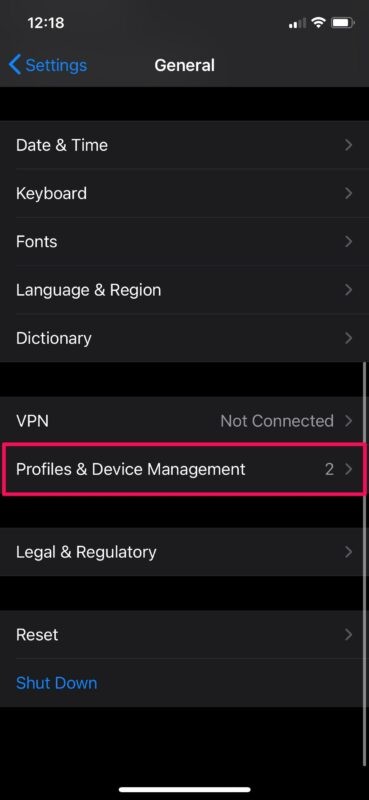
- Next, scroll down and head over to “Profiles & Device Management” as shown below.
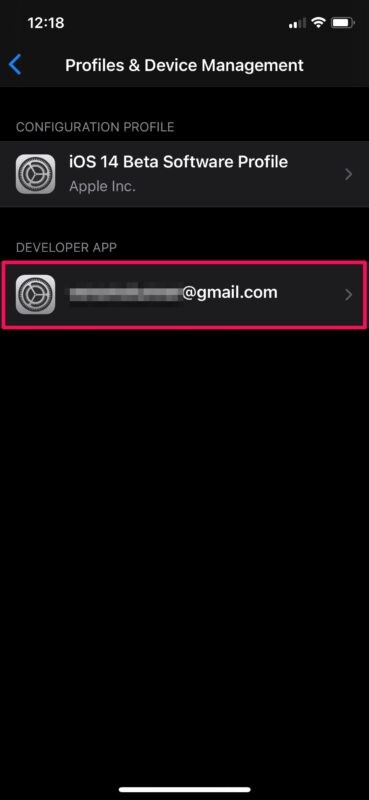
- Tap on the developer name that’s listed here to proceed further.
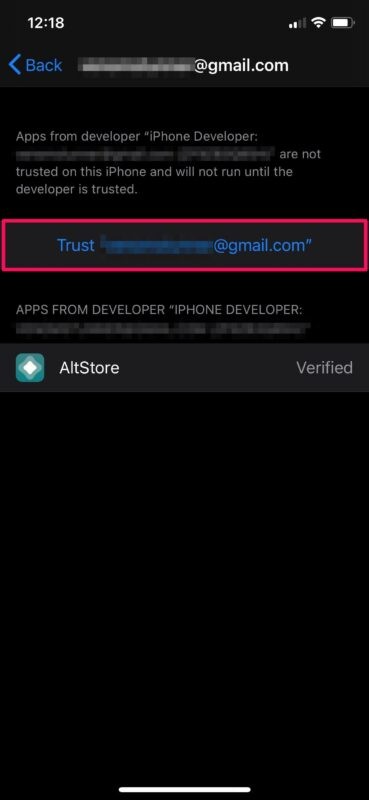
- Now, you’ll be able to see the app that’s tied to the developer. Tap on “Trust” as shown in the screenshot below.
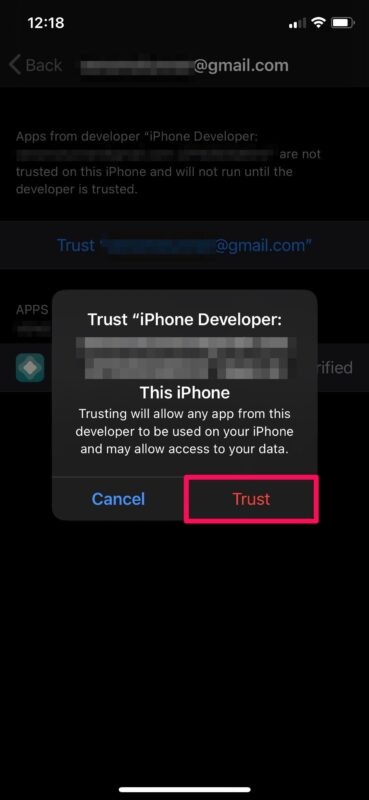
- When you’re prompted to confirm, tap on “Trust” again. Now you should be able to open the app you sideloaded without any issues. You’ll no longer get the “Untrusted Developer” error.
You can trust any developer’s app on your iPhone and iPad by using this method on sideloaded apps.
Sideloading apps on to iPhones and iPad have become increasingly popular among iOS and iPadOS users recently, since it doesn’t require a jailbreak anymore. One of the major reasons why people resorted to jailbreaking their iOS devices was to install unverified apps, but that’s no longer needed for many apps because of the sideloading capailities.
There’s a caveat, however. If you’re a developer who sideloaded your own app on to your iPhone or iPad, the profile will be valid for 7 days after which the app stops functioning. This is if you’re using a free developer account. The paid developer account that costs $99 annually will allow you to keep generating developer certificates and therefore, you don’t have to worry about the app’s expiry.
This 7-day validity is also applicable to most apps that you may sideload from the internet. For example, an installation of AltStore and the apps you sideloaded with AltStore are all valid for 7 days unless you’re using a paid developer account.
If you’re unfamiliar with the process of sideloading and would like to learn more, you can read about how to sideload apps to iPhone and iPad by using Xcode here. And yes, it requires a mac.
We hope you were able to verify the app developer and open the application you sideloaded on to your device. What are your overall thoughts on sideloading apps? Do you think it makes jailbreaking irrelevant? Do share your valuable opinions and experience in the comments section down below.