
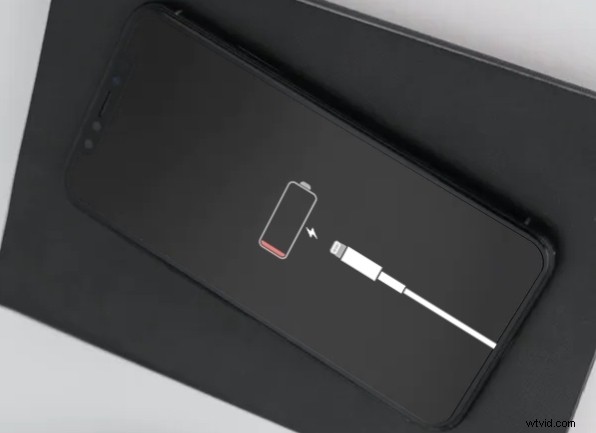
It appears that some users are having issues with iOS 14.5.1 and ipadOS 14.5.1, ranging from problems installing the update, to battery issues or a hot iPhone / iPad after install. These type of problems are usually rare, but they can happen to some users after virtually any system software update, and thus these circumstances are generally not specific to this release.
Like most iOS and iPadOS updates, these issues are usually easy to resolve if you experience them.
Problems Installing iOS 14.5.1 / iPadOS 14.5.1
Most issues with installing software updates are simple to fix, because they usually relate to the devices available storage, internet connection, or battery level.
You’ll need sufficient available storage space to install software updates, so make sure your iPhone or iPad has at least several GB free before attempting to install.
You’ll also need to make sure the iPhone or iPad is on a wi-fi network, with an active connection to the internet.
Finally, make sure the iPhone or iPad is either plugged in, or has 55% or greater battery life available (technically the limit is 50% but since downloading can drain battery it’s safer to assure a bit higher).
Battery Issues with iOS 14.5.1 / ipadOS 14.5.1
One of the most helpful tips for battery problems after installing software updates is to make sure your iPhone or iPad is plugged in and connected overnight. This is because installing software updates often triggers background tasks to index things like photos and data on the phone or tablet, so letting that process complete tends to resolve those issues. This also can make can an iPhone or iPad feel hot or warm to the touch, and thus the same solution tends to apply there.
The same general tips for improving battery life with iOS 14 and iPadOS 14 apply here.
Wi-Fi Problems with iPhone / iPad After iOS 14.5.1 / iPadOS 14.5.1
Rarely, some users may encounter wi-fi or Bluetooth problems after installing an iOS or iPadOS update.
Typically these issues can be resolved by joining a different network, forgetting the network and re-joining it, or resetting network settings in iOS / iPadOS (be aware that doing so will lose saved passwords, wi-fi preferences, etc)
iPhone or iPad Hot / Warm After iOS 14.5.1 Update
If an iPhone or iPad feels warm or hot to the touch after installing iOS or IpadOS updates, it’s usually because the device is indexing things in the background. Letting the device stay plugged in overnight tends to resolve this issue.
Leaving an iPhone or iPad on top of a heater, in direct sun, or in a sauna, can also make the device feel very hot, and even cause a temperature warning, so you’ll want to avoid that.
If an iPhone or iPad feels abnormally hot, you may want to contact official Apple Support for further assistance.
If you’re experiencing more general issues with iOS or iPadOS after the software update, you might find these troubleshooting tips for resolving iOS 14 problems to be helpful.
Did you have any issues with iOS 14.5.1 or iPadOS 14.5.1? What were they? What resolved the problem for you? Let us know your experiences in the comments.