
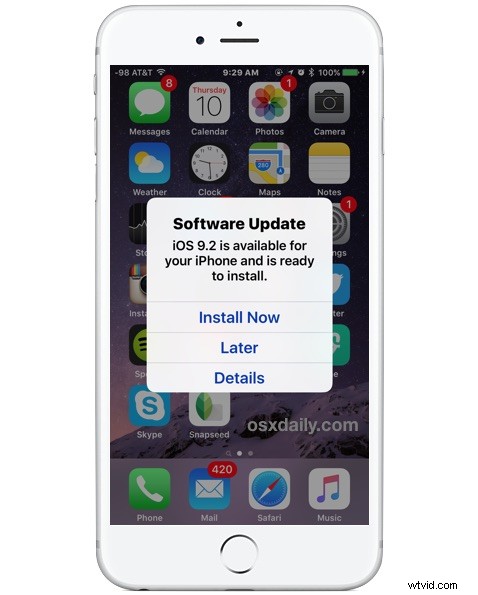
Your iPhone, iPad, or iPod touch will now notify you when a new iOS Software Update is made available, as you may have noticed by now. When you see the Software Update screen popup on your iOS device with the message “iOS (version) is available for your device and is ready to install” you’ll be presented with three options, to install now, to get details about the update, or the option we’ll focus on here, “Later”, which allows you to postpone the update to be reminded again later about it, or have it install itself automatically in the middle of the night.
This tutorial will show you how to enable the feature which allows iOS system software updates to automatically install themselves onto an iPhone or iPad. This requires an active internet connection on the iOS device, but beyond that it’s a very automated process.
Note this auto-update feature is only available on modern versions of iOS, so any device running a release prior to 9.0 won’t have this option available. Assuming you’re up to date with a modern iOS release on that iPhone or iPad, here’s how you can use this handy feature to install your system software updates automatically when you aren’t using the device.
How to Use Automatic iOS Software Update on iPhone and iPad
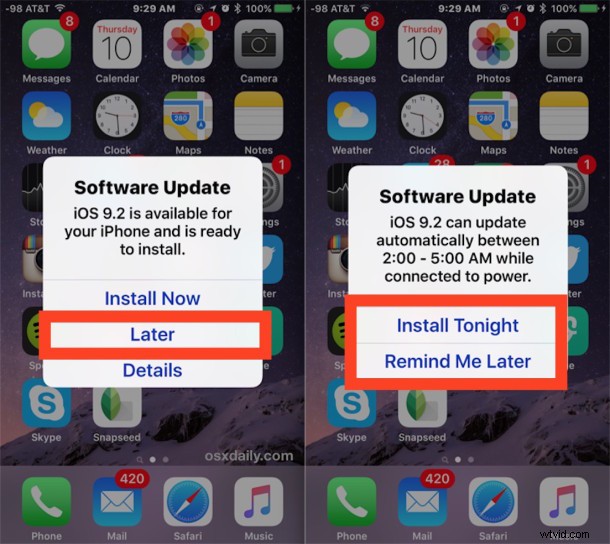
When you see the Software Update screen available, tap on the “Later” option, to which you’ll be presented with two options:
- Install Tonight – this will install the update automatically between 2AM and 5AM assuming the device is connected to wi-fi and a power source – note: only choose this option if you have iCloud automatically backup every night, or if you manually back it up yourself before the night begins
- Remind Me Later – just as it sounds, the same Software Update screen will appear again a day later where you can either take action on it and install then, choose to install at night, or postpone it again to a later date
The “Install Tonight” option is undeniably useful, it updates your iOS device while you sleep, and you’ll wake up to a device with the latest version on it. This works the same with iPhone, iPad, an iPod touch, but as mentioned before be sure you have iCloud automatic backups enabled before choosing this option. This option is available in the Settings > iCloud > Backup section, just be sure that iCloud Backup is turned ON to have the feature, and you’ve likely encountered it before if you have backed up the device before. The reason to have automatic backups on may be obvious to some, but basically it insures that if in the odd event something goes haywire with the iOS software update, you’ll be able to quickly restore and recover your stuff.
Absolutely do not use the automatic software update feature without having automatic iCloud backups enabled, it’s rare but if something does go wrong with an iOS update, you could lose your stuff without the backup, and that’s simply not worth it. The only exception to this is if you religiously start iCloud backups yourself manually or through iTunes manually, but just as with installing iOS updates on your own, always back up before updating software.
One other thing worth mentioning is that the aforementioned automatic iOS Software Update feature will download the iOS update to the iPhone, iPad, or iPod touch automatically as well. This can take up space, and if you don’t want to install the update this way, you can always head to the Settings app and Storage section to delete the software update from the device before it installs. In rare circumstances if you haven’t updated in a while, the wrong iOS software update version will be stored locally and thus offer an inappropriate release, which is easy to fix by removing it.
There are similar automatic update options available for auto-updating apps in iOS, and Mac users can choose to have the Mac automatically install app updates itself or automatically update OS X system updates as well, but for either case, be sure you use a regular backup routine to preserve your data.