
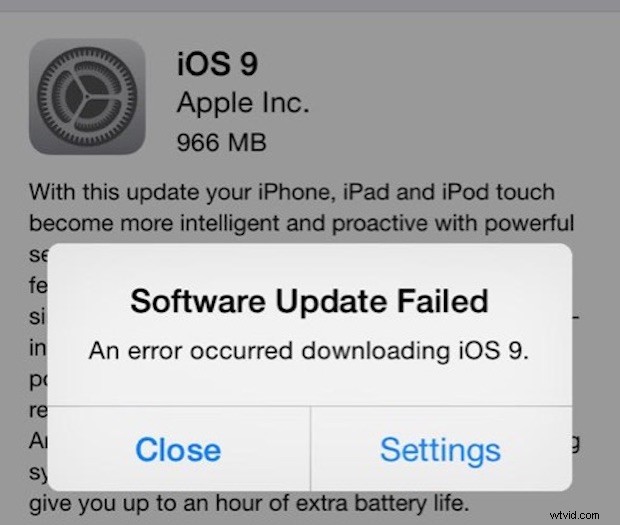
If you’re one of the many users updating to iOS 9 today, you may have come across a rather frustrating error message stating “Software Update Failed. An error occurred downloading iOS 9.” and, naturally you’re probably looking for a solution for that error message to get iOS 9 updated successfully on your iPhone, iPad, or iPod touch, right? Well there’s good news, this is a really easy error to resolve…
The solution to this “Software Update Failed” error message? Patience. Or, if you have no patience at all, you can use manual firmware updates… but that’s really only for advanced users.
Recommended: The Patient Solution
To elaborate, tap on the “Close” button to close the error message, then wait a few minutes before tapping on “Download and Install” again. Some users get lucky and are quickly able to download the update, others may need to wait again for another few minutes.
This error message occurs when you and millions of other users are pounding Apple download servers simultaneously, and the content delivery network is overloaded. Thus, the only real solution is to wait for the download, or if you’re super impatient, use the IPSW firmware to update instead.
Seriously, just wait a bit. If you’re looking for something to do while you wait, here’s an awesome website to explore!
For Advanced Users Only: The Immediate Solution
Advanced users who are comfortable with firmware files can ignore the software update failed error message by downloading the appropriate firmware for their iPhone, iPad, or iPod touch model, and updating iOS 9 manually with the IPSW file.
You can find the iOS 9 IPSW file download links for iPhone, iPad, and iPod touch here. Scroll down to find the file which matches your device, update to iTunes 12.3, then use the IPSW for the update.
The IPSW approach is really not applicable to the average user, however, and the vast majority of iPhone and iPad owners are better off just waiting for the update to work through iOS Settings. Don’t worry, Apple servers will catch up quickly, and you’ll be running iOS 9 in no time.